Task Azure - Start VM
The Azure - Start VM Task starts an existing virtual machine in Azure, using a Microsoft Azure Connection.
The Main settings, Flow, On error, Conditions and TimeOut tabs are the same for every Task; see Job - Tasks.
Azure - Start VM tab
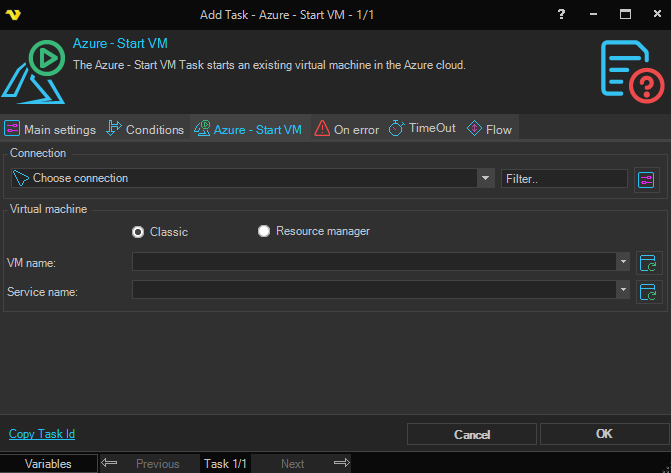
- Connection: the Microsoft Azure Connection to use; see Connection - Microsoft Azure. Click the Settings icon to open Manage Connections. With "Resource manager", the Connection must use the "Application" authentication type. When the Connection does not suit the selected option, the Task window shows a warning and the Task stops with an error
Type
Select the deployment model of the target virtual machine. Available options:
- Classic - the virtual machine was deployed using the classic deployment model
- Resource Manager - the virtual machine was deployed using Azure Resource Manager
- VM name: the name of the Azure virtual machine. Click Refresh to fill the list
Service name / Resource group
The Azure service name (when Type is set to Classic) or the resource group (when Type is set to Resource Manager). The label changes to match the selected Type. Click the Refresh icon to populate the drop-down list.
Output and errors
When Azure reports that the operation succeeded, the output is "Succeeded". When the Connection is missing, or Azure returns an error, the Task fails.
When Azure reports another status for the operation, the status is written to standard error, the output is empty, and the Task reports success.