Task Azure - Stop VM
The Azure - Stop VM Task stops an existing virtual machine in the Azure cloud. This Task is using the Microsoft Azure Connection.
Azure - Stop VM tab
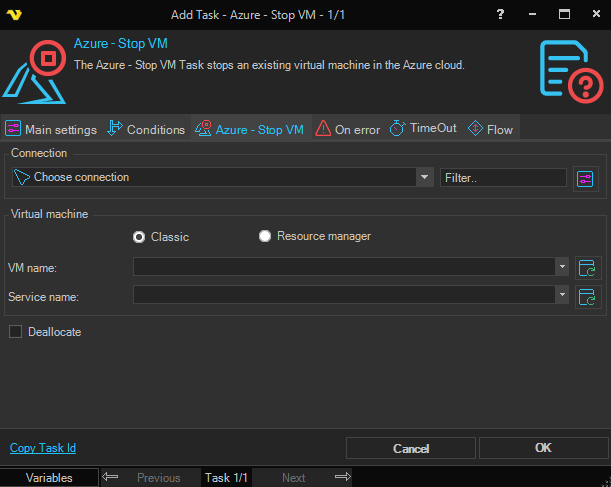
Connection
To use the Azure Tasks you need to create a Connection first. Click the Settings icon to open the Manage Connections dialog.
Type
Select the deployment model of the target virtual machine. Available options:
- Classic - the virtual machine was deployed using the classic deployment model
- Resource Manager - the virtual machine was deployed using Azure Resource Manager
VM name
The Azure virtual machine name. Click the Refresh icon to populate the drop-down VM name list.
Service name / Resource group
The Azure service name (when Type is set to Classic) or the resource group (when Type is set to Resource Manager). The label changes to match the selected Type. Click the Refresh icon to populate the drop-down list.
Deallocate
If checked, the virtual machine is stopped and deallocated, releasing the underlying compute resources so that they no longer accrue charges. When unchecked, the virtual machine is stopped but the compute resources remain reserved.