Connection - Crystal reports
The Crystal reports Connection stores connect and logon properties for database connections used by Crystal reports.
The Crystal reports Connection is used in Crystal reports Tasks. In the Task, one or more Connections can be selected depending on how many database connections your report uses.
Runtime binaries
In order to use the Crystal reports Task, you must download and install the Crystal Reports runtime on the machine where VisualCron is installed. Select the appropriate version for your machine (32-bit or 64-bit):
https://wiki.scn.sap.com/wiki/display/BOBJ/Crystal+Reports%2C+Developer+for+Visual+Studio+Downloads
For VisualCron 8.3.0 and later, runtime version 21 is required:
http://downloads.businessobjects.com/akdlm/crnetruntime/clickonce/CRRuntime_32bit_13_0_21.msi http://downloads.businessobjects.com/akdlm/crnetruntime/clickonce/CRRuntime_64bit_13_0_21.msi
For VisualCron 9.9.7 and later, runtime version 30 is required:
https://origin.softwaredownloads.sap.com/public/file/0020000000195592021 (x32) https://origin.softwaredownloads.sap.com/public/file/0020000000195602021 (x64)
Manage Connections > Add > Crystal reports > Common settings tab
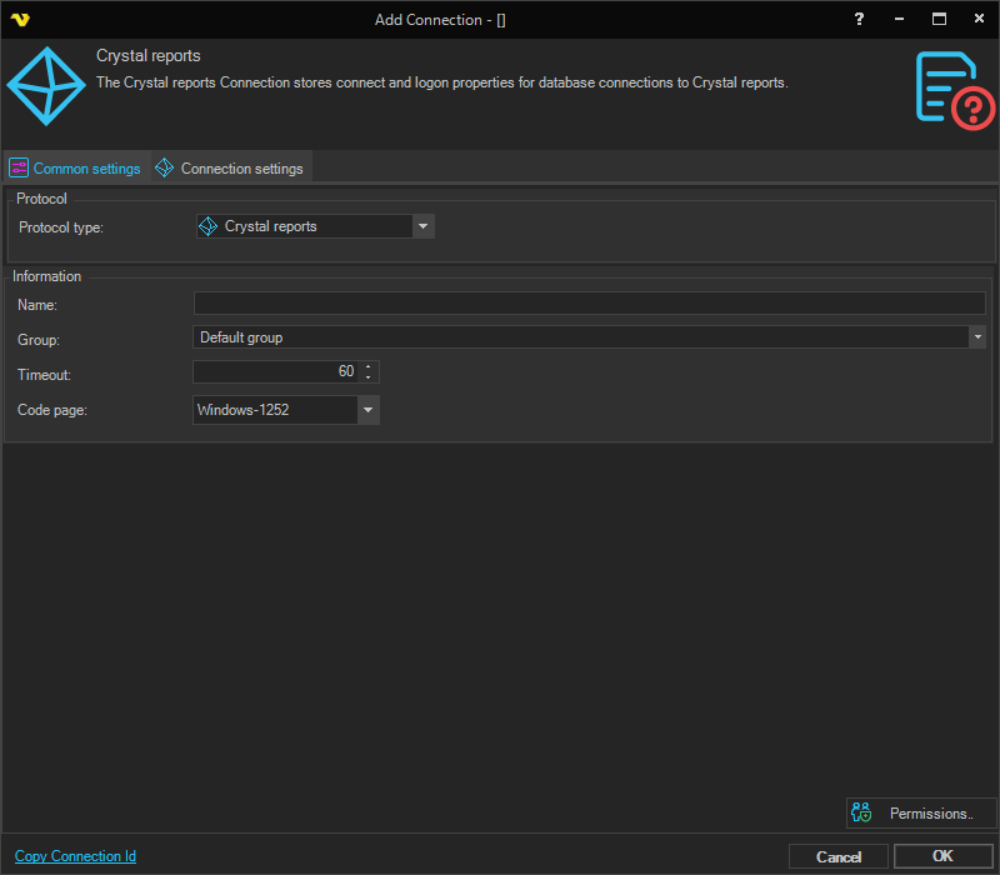
Name
The name of the Connection to uniquely identify it.
Group
The group that the connection is a part of.
Timeout
The connection timeout in seconds. Connection will fail after this time period.
Code page
Code page being used.
Manage Connections > Add > Crystal reports > Connection settings tab
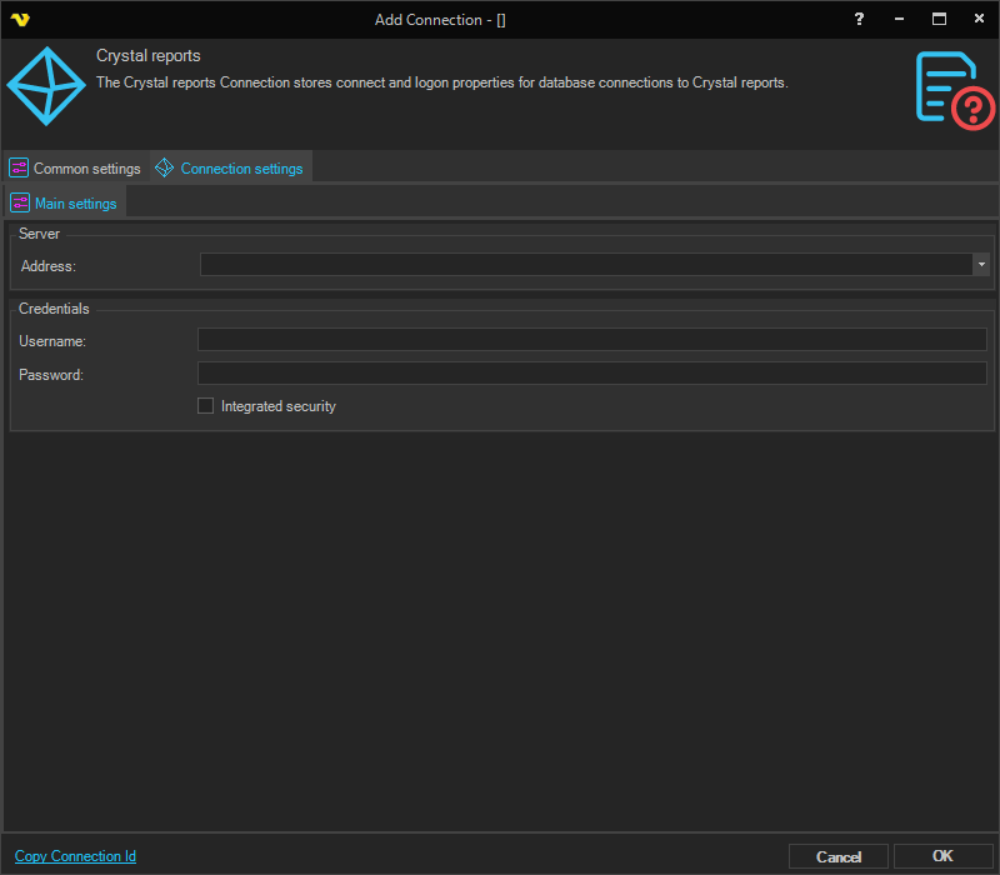
Address
The ODBC or OLEDB DSN (Data Source Name) used by the Crystal report. This must match exactly the name shown in the ODBC Data Source Administrator. The DSN must exist under System DSN — User DSN entries are not available across users and will not work. If the report uses a User DSN, copy it to System DSN first. The target database is specified within the DSN itself.
Username
The user name that matches the credentials configured in the ODBC/OLEDB data source.
Password
The password for the ODBC/OLEDB data source.
Integrated security
When checked, Windows authentication is used to connect to the database. Use the Windows user name and password in the Username and Password fields.
Debugging
If you encounter issues, enable Extended debugging under Server settings > Log. After execution, review the log for errors. Common problems include:
- The Address value does not match the DSN name in System DSN
- The DSN has only been created under User DSN and not System DSN
- The Crystal Reports document has not been updated to reference the System DSN
- The username or password do not match the database credentials
- One or more Connections are missing in VisualCron (if the report uses more than one database connection)
Troubleshooting
Could not load file or assembly 'CrystalDecisions.ReportAppServer.ClientDoc, Version=13.0.2000.0'
In IIS Manager on the server, set the application pool for the web application to not allow 32-bit assemblies, or run the following script:
C:\inetpub\AdminScripts\adsutil.vbs SET w3svc/AppPools/Enable32bitAppOnWin64 0