Connection - Exchange WebDAV
The Exchange WebDAV Connection stores the address, sign-in and security settings that the Email - Send Task, the Email - Get Messages, Email - Get Single Message, Email - Get Headers, Email - Delete Messages, Email - Delete Single Message and Email - Move Messages Tasks and the Email Trigger use to connect to Microsoft Exchange.
The email receiving Tasks and the Email Trigger read email through the WebDAV protocol of Exchange. The Email - Send Task sends email, and the Email Trigger forwards matching email, through this Connection. Select it only when the Exchange server offers WebDAV.
For MS Exchange interoperability, WebDAV can be used for reading/updating/deleting items in a mailbox or public folder. WebDAV for Exchange has been extended by Microsoft to accommodate working with messaging data. Exchange Server version 2000, 2003, and 2007 support WebDAV. However, WebDAV support has been discontinued in Exchange 2010 in favor of Exchange Web Services (EWS), a SOAP/XML based API.
Common settings
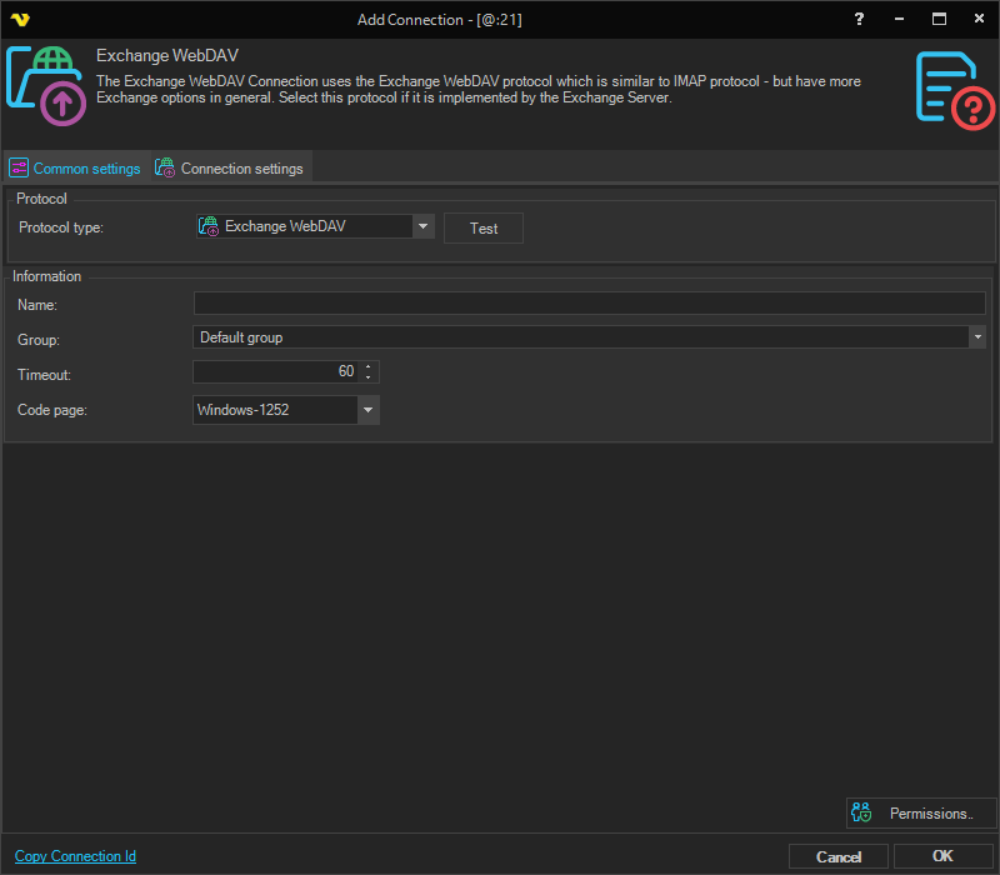
The Common settings and Proxy tabs are the same for every Connection type that has them; see Common settings and Proxy.
Test
Opens the Test SMTP Connection window. Enter an address in From email and in To email, then click Test. The Server sends a real message through this Connection, with the subject "Test subject (from VisualCron)", to the To email address. Test checks sending only; it does not read the mailbox.
Main settings
These fields are on Connection settings -> Main settings.
The Connection settings tab holds three tabs: Main settings, Encryption and Proxy.
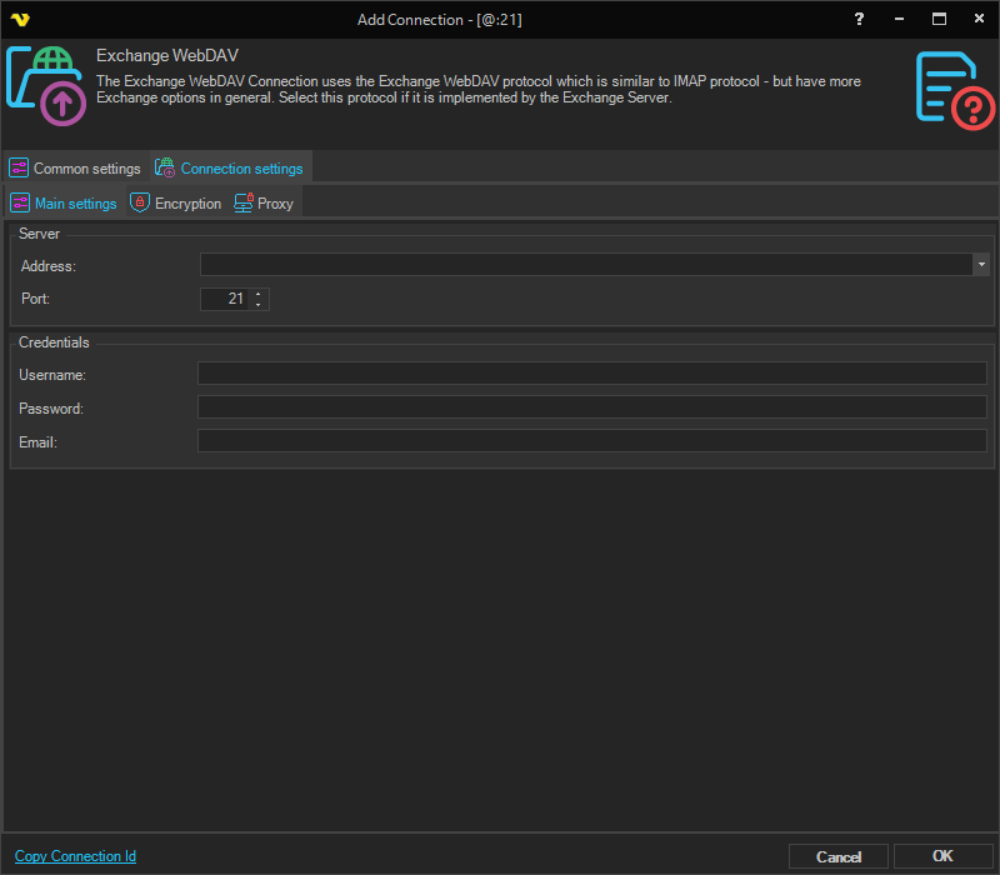
Address
The DNS name or IP address of the Exchange server. Required.
Port
The port of the Exchange server. A new Connection opens with "21" in Port. Change it to the port of the Exchange server. Port cannot be "0".
Username
The user name of the mailbox account. Required.
Password
The password of the mailbox account.
The email address of the mailbox to work with. The email receiving Tasks and the Email Trigger open this mailbox.
Encryption
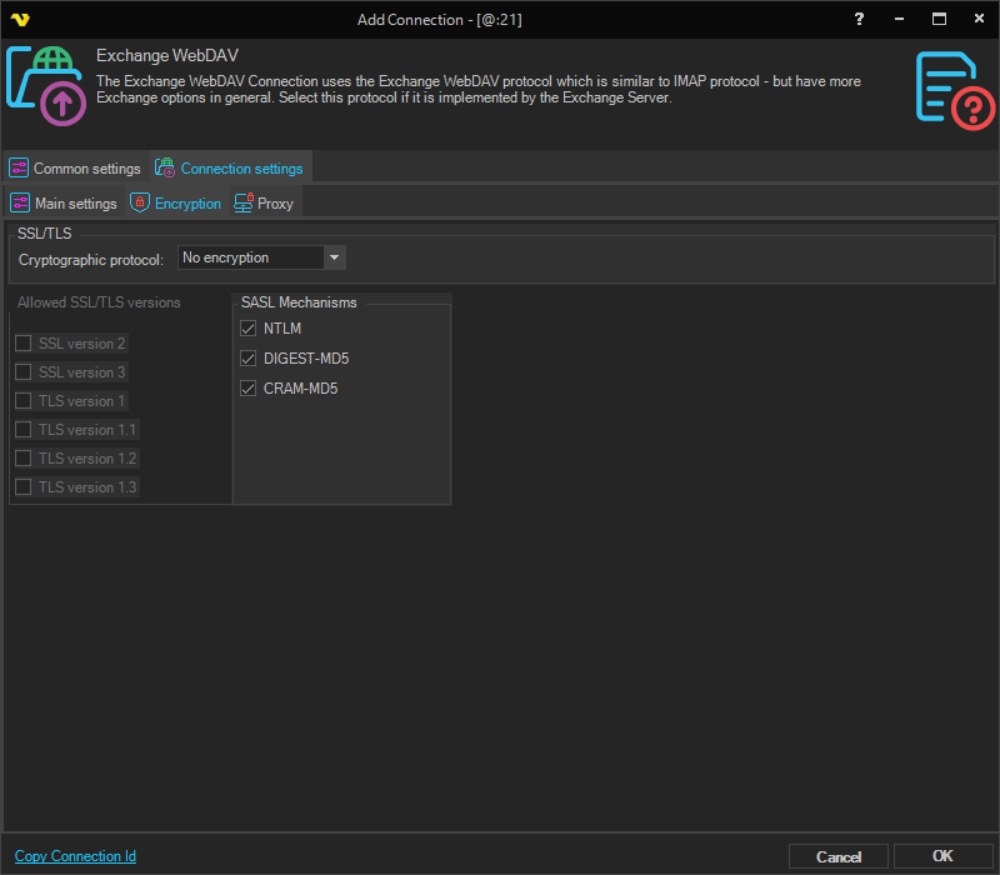
Cryptographic protocol
- "No encryption": the connection is not encrypted; the Allowed SSL/TLS versions group is unavailable
- "SSL": SSL encryption; selects SSL version 2 and SSL version 3 in Allowed SSL/TLS versions
- "TLS": TLS encryption; selects TLS version 1 to TLS version 1.3 in Allowed SSL/TLS versions
The email receiving Tasks and the Email Trigger use Cryptographic protocol when they read email. The Email - Send Task and Test do not use Cryptographic protocol or Allowed SSL/TLS versions when they send email.
Allowed SSL/TLS versions
The available versions are SSL version 2, SSL version 3, TLS version 1, TLS version 1.1, TLS version 1.2 and TLS version 1.3. The email receiving Tasks do not read these boxes. When the Email Trigger checks the mailbox, the Server first sets the SSL and TLS versions for the whole Server process from them:
- "TLS": the selected boxes among TLS version 1, TLS version 1.1 and TLS version 1.2, or all three when none of them is selected; never TLS version 1.3
- "SSL" with SSL version 3 selected: the system default versions
- "SSL" with SSL version 3 cleared: SSL version 3 only
With "SSL" and SSL version 3 cleared, the whole Server process is limited to SSL 3, and other Tasks that connect over HTTPS can then fail.
Each time you open an existing Exchange WebDAV Connection, the version boxes reset to the defaults of the selected protocol. Check them before you click OK.
SASL Mechanisms
Used by the Email - Send Task when it sends email. The Email - Send Task uses one mechanism: NTLM when it is selected, otherwise CRAM-MD5 when it is selected. When both are cleared, the Email - Send Task does not set a mechanism, and one is chosen automatically. All three boxes are selected on a new Connection, so a new Connection sends with NTLM. DIGEST-MD5 is not used on its own.
- NTLM: Windows NT LAN Manager authentication
- DIGEST-MD5: challenge-response authentication with an MD5 digest
- CRAM-MD5: challenge-response authentication with MD5 hashing
Proxy
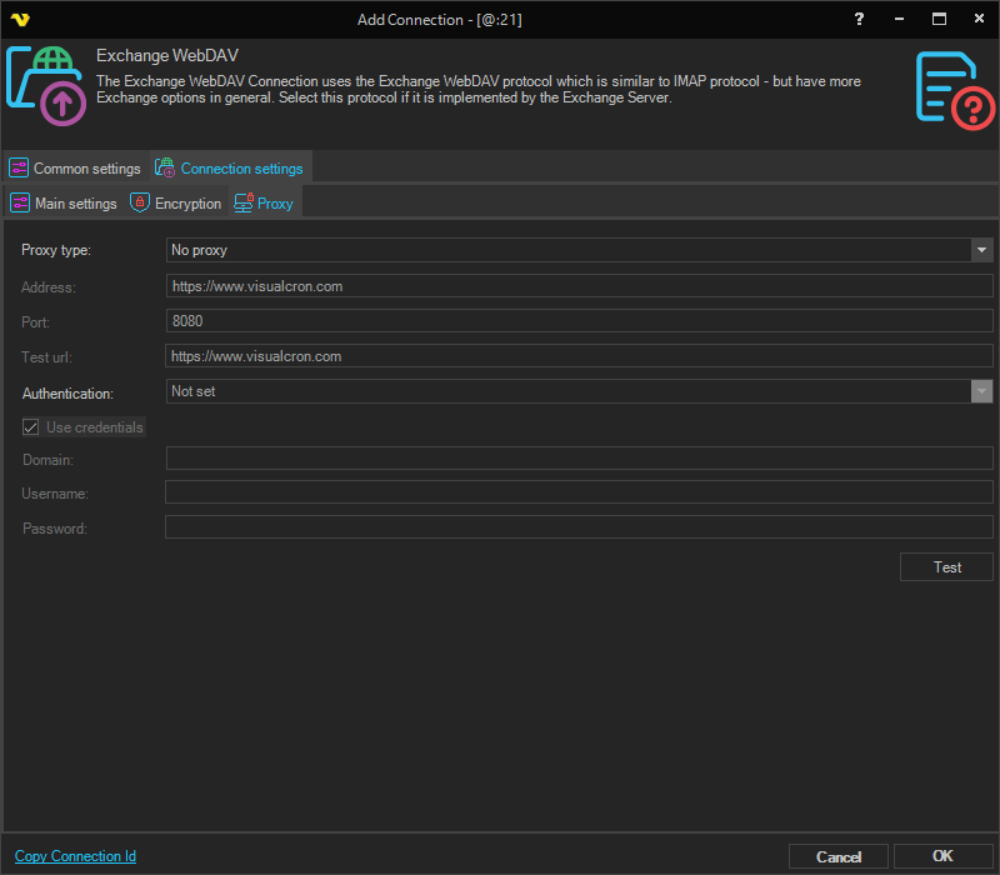
When the Server reads email, it uses Proxy type, Address and Port and, when Use credentials is selected, Username and Password. It does not use Authentication or Domain. When the Server sends email, from the Email - Send Task, the Email Trigger forward action or Test, it does not use the settings on this tab.