Connection - Dropbox
The Dropbox Connection stores the sign-in and security settings that these Tasks and Triggers use to connect to Dropbox:
- Cloud - Upload file(s)
- Cloud - Download file(s)
- Cloud - List item(s)
- Cloud - List folder(s)
- Cloud - Create folder
- Cloud - Delete item(s)
- Cloud - Copy/move item(s)
- Cloud - Sync file(s)
- The Cloud file Trigger
A Dropbox Connection needs a Dropbox app that you create.
Common settings
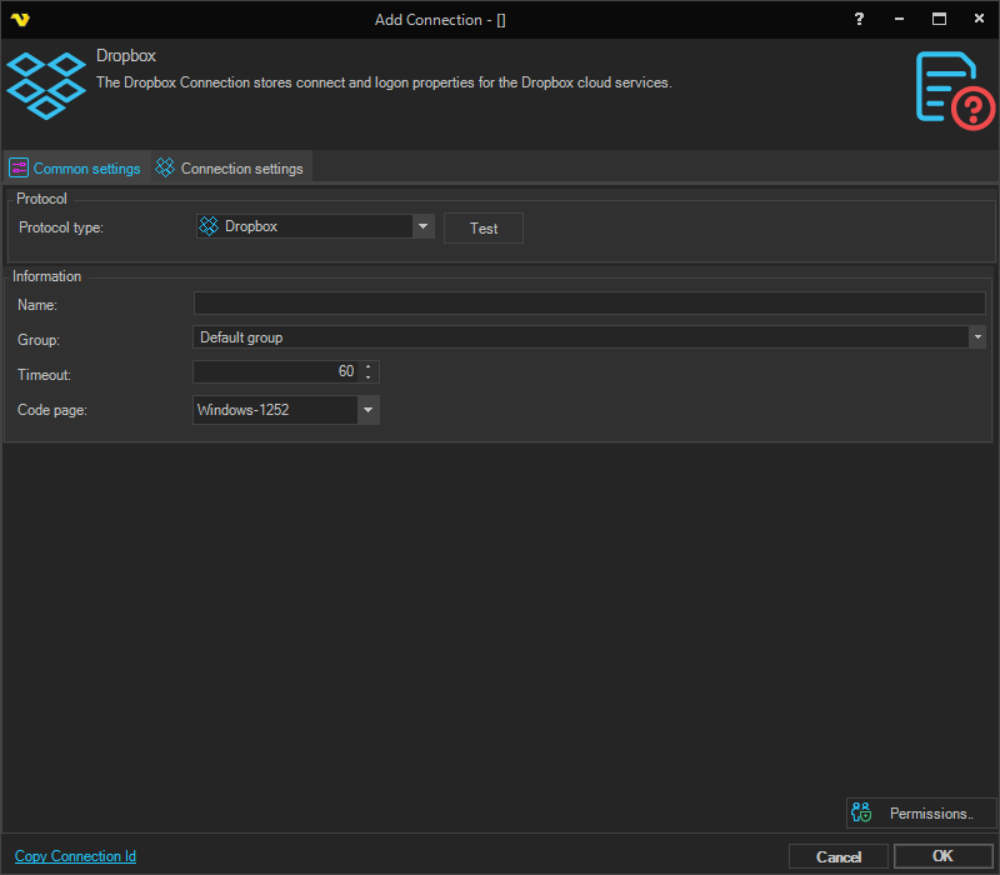
The Common settings and Proxy tabs are the same for every Connection type that has them; see Common settings and Proxy.
Test asks the Server to connect with the stored sign-in and list the root folder of the Dropbox.
Main settings
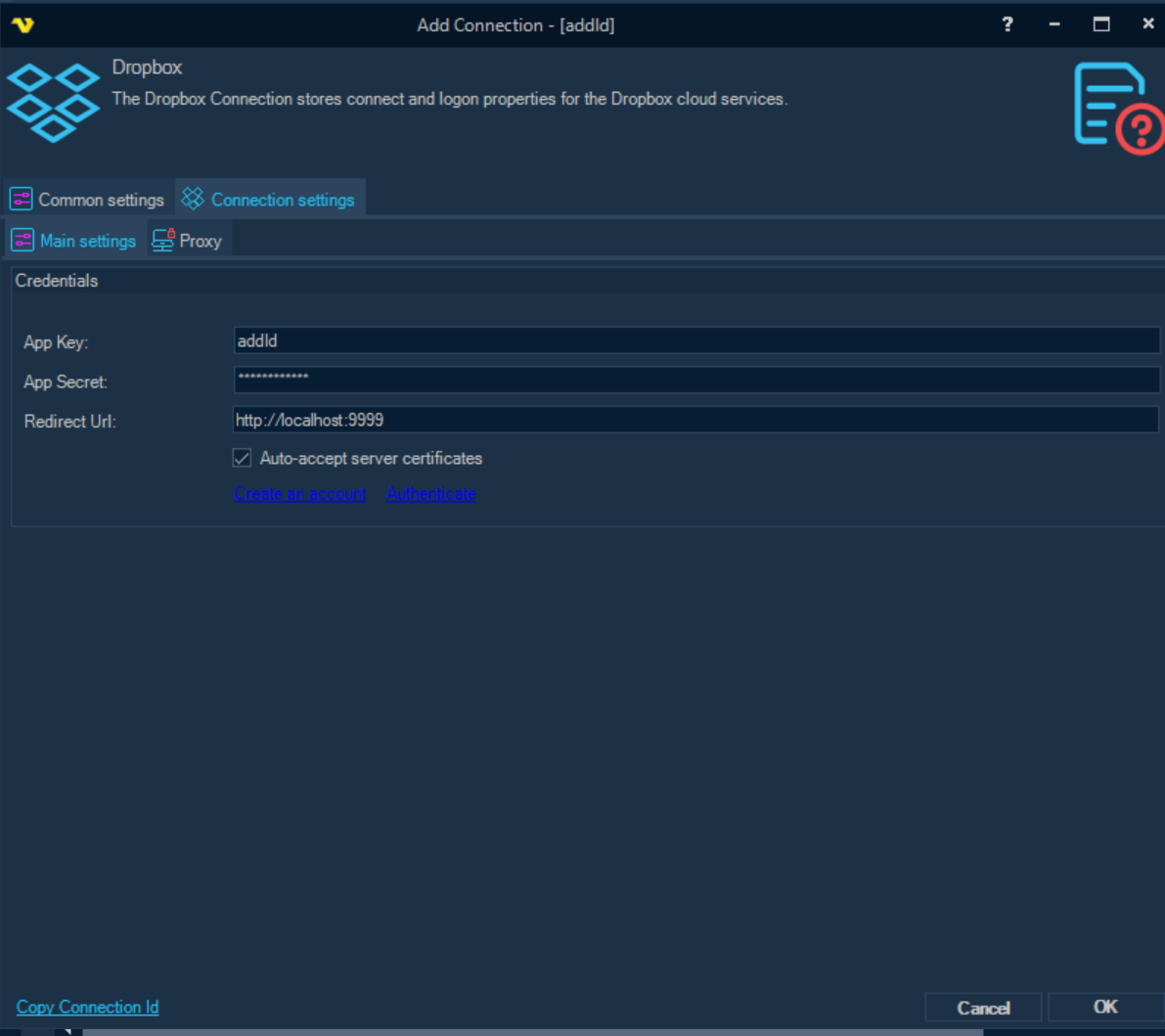
These fields are on Connection settings -> Main settings.
App Key
The app key of your Dropbox app. Required.
App Secret
The app secret of your Dropbox app.
Redirect Url
The address that Dropbox sends the sign-in result to. Default: "http://localhost:9999". Add the same address as a redirect URI of the Dropbox app.
Auto-accept server certificates
Selected by default.
Dropbox Connections accept any server certificate, whether or not Auto-accept server certificates is selected. The Server does not check the server certificate when it connects to Dropbox, so it cannot tell the real server from another server that answers at the same address. Connect to Dropbox only over a network path that you trust.
Each time the Server refreshes the Dropbox sign-in, for example when a Task runs, it also sets the whole Server process to accept any server certificate and to allow SSL 3.0. After that, other HTTPS connections from the Server, not only those to Dropbox, accept any server certificate.
Create an account
Opens the Dropbox App Console.
Authenticate
Starts the Dropbox sign-in. See Authentication and token expiry.
How to create a Dropbox Connection
To create a Dropbox Connection, complete the following steps:
-
Open the Dropbox App Console at https://www.dropbox.com/developers/apps, or click Create an account.
-
Create an app.
-
On the Permissions tab of the app, enable the permissions to read and write file content and file metadata.
-
Submit the permission change.
-
On the Settings tab of the app, add the value of Redirect Url, by default "http://localhost:9999", as a redirect URI.

-
Copy the app key into App Key.
-
Copy the app secret into App Secret.
-
Click Authenticate.
-
Sign in to Dropbox.

-
Allow the app to access the Dropbox account.
-
Click OK to save the Connection.
-
Click Test on the Common settings tab.
The test reports that it was successful.
Authentication and token expiry
- Authenticate runs on the computer where the Client runs. The browser opens there, and the Client listens for the sign-in result on the port of Redirect Url, so that port must be free on that computer
- After the sign-in, the Connection stores the refresh token encrypted. At run time, the Server uses it to get a short-lived access token
- When Dropbox no longer accepts the refresh token, the Server marks the Connection as expired, and the Client shows the message "Connection session expired". Open the Connection and click Authenticate again
Proxy
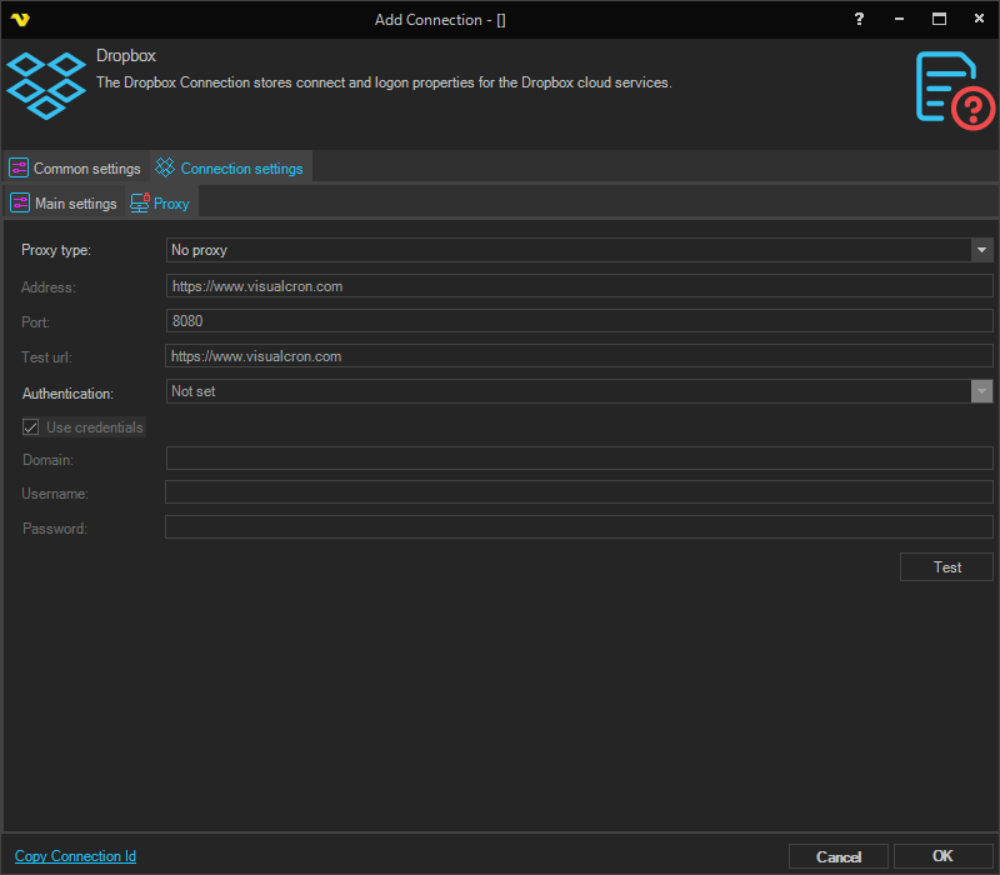
Cloud Tasks and the Cloud file Trigger do not use the Proxy tab of a Dropbox Connection. Only Authenticate in the Client uses it. On a network where the Server reaches the Internet only through a proxy, Jobs that use a Dropbox Connection fail.
Troubleshooting
400 Invalid Redirect URI
The redirect URI is not registered on the Dropbox app. Add the exact value of Redirect Url, by default "http://localhost:9999", as a redirect URI of the app.
Token is empty, please check your connection details. Wrong redirect url?
The sign-in did not return a token. Check App Key, App Secret and Redirect Url, and check that no other program uses the port of Redirect Url on the Client computer.