Task Process - PowerShell
The PowerShell Task lets you execute PowerShell code on the fly or an existing PowerShell file.
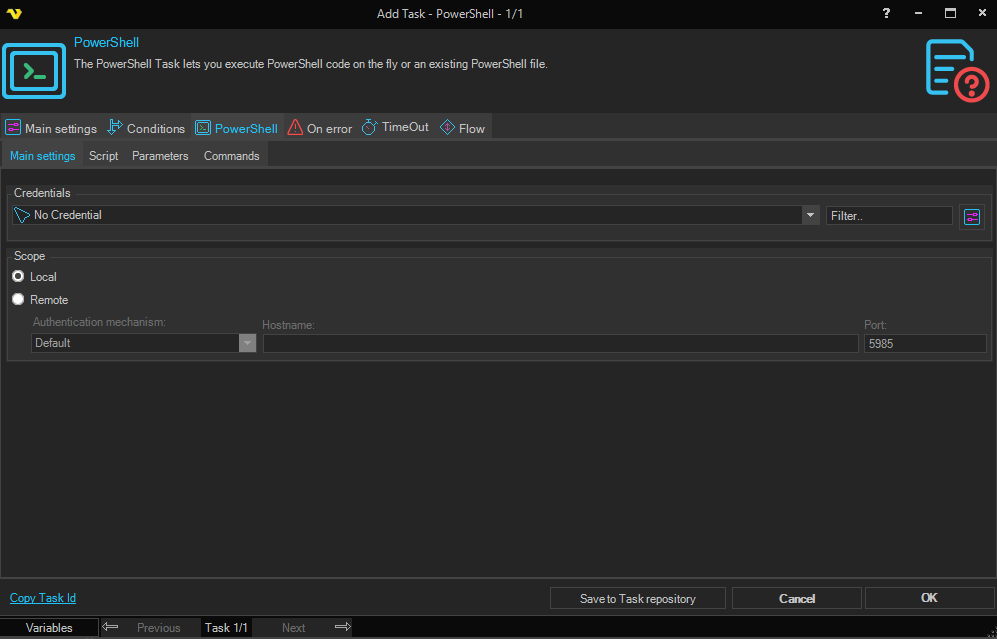
Main settings tab
Credentials
To control a remote computer you may need to use a Credential. The Credential must match the user name and password of the user that you want to login for. Select a Credential in the combo box or click the Settings icon to open Manage credentials in order to add or edit Credentials.
Scope
Select Local to execute the script on the same server that VisualCron is running on. Select Remote to execute on a different machine. When Remote is selected, the following fields become active:
- Hostname - the hostname or IP address of the remote machine.
- Port - the WinRM port on the remote machine. Default is 5985.
- Authentication mechanism - the authentication protocol to use when connecting. Options are:
- Basic - transmits credentials as Base64-encoded text. Simple but less secure.
- CredSSP - delegates credentials to the remote machine, enabling "second hop" scenarios where the remote machine needs to connect to additional resources.
- Default - uses the transport default (Negotiate or Kerberos for WSMan).
- Digest - transmits credentials as a hash value rather than clear text.
- Kerberos - uses Kerberos authentication.
- Negotiate - uses Kerberos for domain accounts or NTLM for local accounts. Specify the username as domain\username for domain users or servername\username for local users.
- NegotiateWithImplicitCredential - uses credentials cached on the PSSession computer.
Script tab
Execute in x86 mode
When checked, forces 32-bit execution of your PowerShell script.
PowerShell file
Select this option to execute an existing PowerShell script file. Enter the full path to the .ps1 file in the field below, or use the browse button to select it.
Working directory
The working directory for the PowerShell process when executing a file. Only active when PowerShell file is selected.
PowerShell script text
Select this option to enter PowerShell code directly. Type or paste your script into the editor below. The code will be compiled and run in real time.
Parameters tab
The Parameters tab lets you define named parameters that are passed into your PowerShell script. Each parameter has a Name, Type, and Value. Use the Add, Edit, and Delete buttons to manage the list.
You can also parse parameters inline in the PowerShell script using the param block:
param (
  [string]$parameterkeyname1 = "mydefaultvalue1",
  [string]$parameterkeyname2 = "mydefaultvalue2"
)
Write-Output $parameterkeyname1
Commands tab
The Commands tab lets you build a list of discrete PowerShell commands to execute in sequence, as an alternative to writing a full script. Each command entry has a Command name, Parameters, and Arguments. Use the Add, Edit, Delete, and Clear all buttons to manage the list.
Script examples
About Script blocks More information about script blocks here: https://www.sapien.com/blog/2019/05/13/advanced-powershell-functions-begin-to-process-to-end/
Starting script
In general you need to call the function after the script block. For example;
Function Test-ScriptBlock
{
  // function content
} #END Function Test-ScriptBlock

// the function call
Test-ScriptBlock -Number 1
Passing parameters
- No parameters
Function Test-ScriptBlock
{
    BEGIN
    {
        Write-Output "In Begin block"
    }
    PROCESS
    {
        Write-Output "In Process block"
    }
    END
    {
        Write-Output "In End block"
    }
} #END Function Test-ScriptBlock

Test-ScriptBlock
- parameters after function call
Function Test-ScriptBlock
{
    BEGIN
    {
        Write-Output "In Begin block"
    }
    PROCESS
    {
        Write-Output "In Begin block"
        Write-Output "Number value: "         $Number
    }
    END
    {
        Write-Output "In End block"
    }
} #END Function Test-ScriptBlock


Test-ScriptBlock -Number 1
- Value parameters from pipeline
Function Test-ScriptBlock
{
 Param
 (
     [Parameter(ValueFromPipeline)]
     [int]$Number
 )
    BEGIN
    {
        Write-Output "In Begin block"
    }
    PROCESS
    {
        Write-Output "In Begin block"
        Write-Output "Number value: "         $Number
    }
    END
    {
        Write-Output "In End block"
    }
} #END Function Test-ScriptBlock


1, 2, 3 | Test-ScriptBlock
- Using VisualCron parameters into script block
param (
  [int]$Number = 0
)
Function Test-ScriptBlock
{
    BEGIN
    {
        Write-Output "In Begin block"
    }
    PROCESS
    {
        Write-Output "In Begin block"
        Write-Output "Number value: "         $Number
    }
    END
    {
        Write-Output "In End block"
    }
} #END Function Test-ScriptBlock


Test-ScriptBlock -Number $Number
Passing back data from PowerShell
You can use these PowerShell commands to pass back output to VisualCron:
VisualCron standard output
write-output "my output"
VisualCron standard error
write-error "my error"
Raising/Throwing errors
Use the Powershell throw command to raise errors. By default we are considering the Task fail if it contains any text written to error output. When that happens the standard output is overwritten with debug information. To override this behavior go to On error tab of Task and uncheck Contains error output.
Troubleshooting
Access denied errors
Ensure PowerShell's ExecutionPolicy = Unrestricted Start Windows PowerShell and type in the command below at the prompt and hit enter. It should return unrestricted. get-executionpolicy
If it returns restricted then enter the command below at the prompt and hit enter. set-executionpolicy unrestricted
If you receive an Access Denied message, then open a ticket with your IT Team to update this for you. You may need to provide the steps below to them: Update the Registry Editor (HKEY_LOCAL_MACHINE\SOFTWARE\Microsoft\PowerShell\1\ShellIds\Microsoft.PowerShell) with a tag for ExecutionPolicy and set it to Unrestricted
System.TypeLoadException
If the ExecutionPolicy is setup correct and VisualCron returns the error below when running PowerShell, ask INFRA to upgrade PowerShell to the highest version available for the respective server. Recently we found that PowerShell v1 on a Windows 2008 SP2 servers will not execute PowerShell from VisualCron so we had to upgrade to PowerShell v2.
AuthorizationManager check failed
Please add/insert the share you are trying to access in the script to "trusted sites".
No output using Write-Host
Write-Host cannot be used in the VisualCron enviroment which is different from Powershell.exe. You need to use Write-Output or Write-Error instead.
Unhandled Exception: System.IO.FileNotFoundException: Could not load file or assembly 'System.Management.Automation, Version=3.0.0.0
You need to install PowerShell 3.0. You can download it here: https://www.microsoft.com/en-us/download/details.aspx?id=34595
How can I use PowerShell 7?
Currently you cannot use it in the PowerShell Task as PowerShell 7 is using .NET Core 3.1 and VisualCron is using .NET Standard 4.8. We might upgrade in the future to .NET Core and then it would be possible. A workaround is to use the Execute Task with the PowerShell 7 exe (pwsh.exe) full path in command field and the full path to PowerShell script in argument field.
CmdletBinding - no processing of PROCESS block
Wrap the script into a fucntion (see example 1).
PowerShell Task hangs
If you are using dbatools in the command:
These links tell about the problem:
https://dba.stackexchange.com/questions/184327/sql-agent-powershell-task-never-finishes http://glenn-pepper.co.uk/2018/11/22/2-issues-with-powershell-steps-in-sql-agent/
You can try one of the solutions;
- Use
[System.Environment]::Exit(1)as last line (you can choose in VC to not raise error on this specific error) - Use SQLCMD like https://docs.microsoft.com/en-us/powershell/module/sqlserver/invoke-sqlcmd?view=sqlserver-ps
- Use another method