Task Database - Execute SSIS Package
This Task lets you execute local SSIS packages. VisualCron must reside on the server machine to be able to execute this Task. To execute remote SSIS packages you can use the SQL Task and type Job.
Execute SSIS package tab
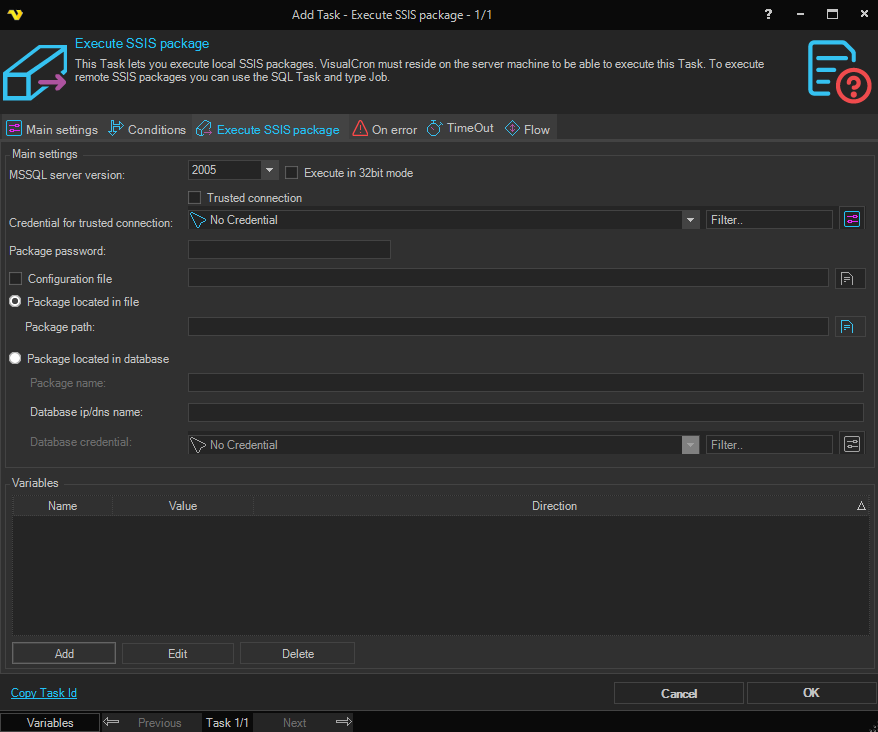
MSSQL server version
Select the SQL Server version of the MSSQL installation. Supported versions are 2005, 2008, 2012, 2014, 2016, 2017, and 2019.
Execute in 32 bit mode
Check this if your MSSQL version is running in 32 bit mode.
Credential
A set of Credentials that is used to impersonate the whole SSIS call. Click the Settings icon to open the Manage credentials dialog.
Load configuration file
When checked, an external XML configuration file is loaded for the package before execution.
Configuration file path
The full path to the configuration file to load.
Package located in file
Specify the full path to the package file.
Package password
The password for the SSIS package file, if it is password protected.
Package located in database
If the package is stored on a SQL Server, specify the server hostname and package name below.
Database ip/dns name
The hostname or IP address of the SQL Server where the package is stored.
Package name
The name of the SSIS package stored on the SQL Server.
Database credential
The credential used to authenticate against the SQL Server when loading the package from a database location.
Trusted connection
When checked, Windows integrated authentication is used instead of SQL Server credentials to access the database.
Variables
If the package needs variables you enter them here. Click Add to add a new variable, Edit to modify a selected variable, or Delete to remove one.
For this Task to work you need to have installed, at least, SQL Server Integration Services, on the machine that VisualCron is installed on. For more information, see SQL Server Integration Services.
Troubleshooting
Could not load file or assembly 'Microsoft.SqlServer.DTSRuntimeWrap'.
- Install SQL Server Integration Services.
- Make sure you set the Task to run in 32 or 64 bit depending on your SQL Server integration services install.