ssrs
Task Database - SSRS
The SSRS Task runs a report in SQL Server Reporting Services and saves the result as a file in the format you select, using an SSRS Connection.
The Main settings, Flow, On error, Conditions and TimeOut tabs are the same for every Task; see Job - Tasks.
The report file is written with the name that File mask gives. An existing file with that name is replaced without a warning. With the default File mask *, each run replaces the file of the previous run.
SSRS: Main settings tab
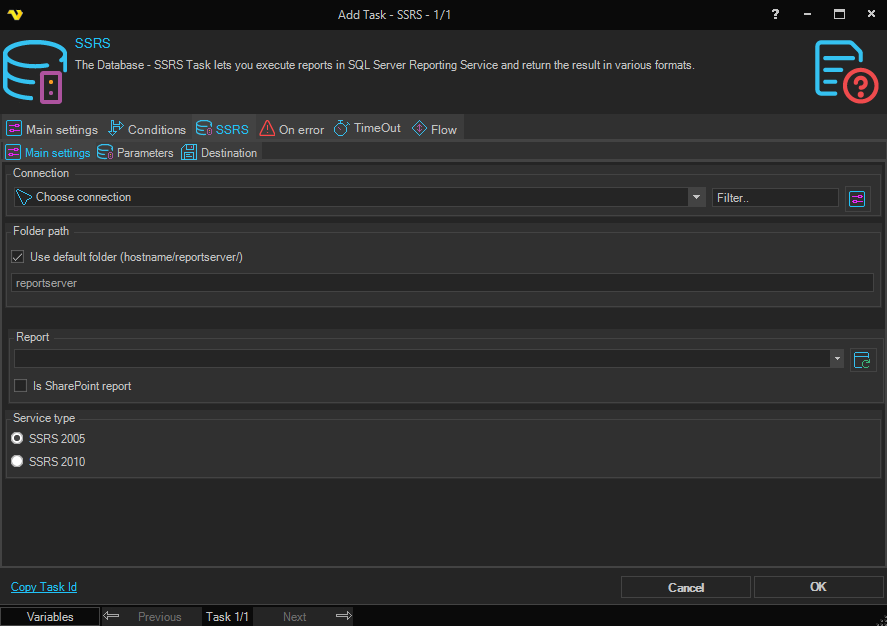
- Connection: The SSRS Connection, which holds the user name, password, host name and proxy of the report server; see Connection - SSRS and Global - Connections
- Use default folder (hostname/reportserver/): When selected, the default, the virtual directory "reportserver" of the report server is used. Clear it to enter another virtual directory name in the field below. The name is set in the Reporting Services Configuration Manager under Virtual Directory:

- Report: The path of the report on the report server. Click the icon next to the list to load the paths of all reports
- Is SharePoint report: Select it when the report is a SharePoint report
- Service type: "SSRS 2005" for SQL Server 2005 Reporting Services, or "SSRS 2010" for SQL Server 2008 R2 and later
SSRS: Parameters tab
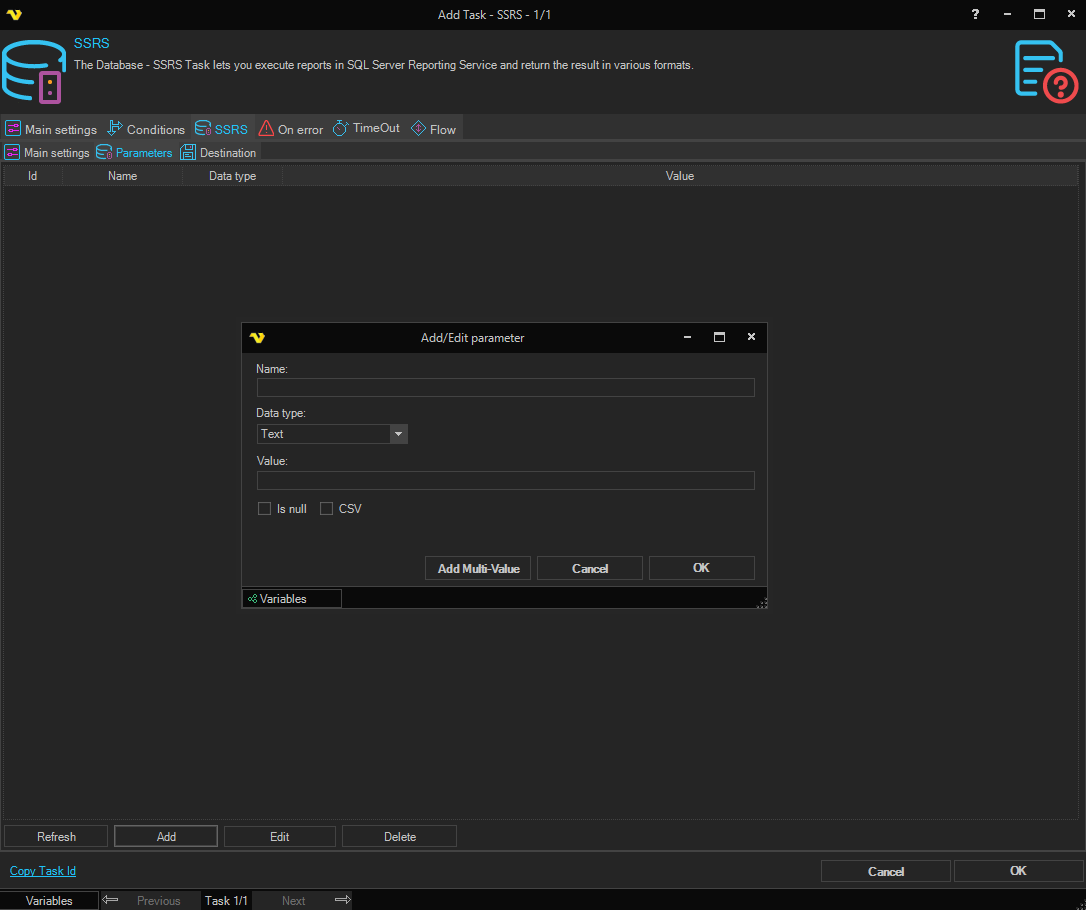
Click Refresh to load the parameters of the selected report. Use Add, Edit and Delete to change the list. In the Add/Edit parameter window:
- Name: The name of the parameter
- Data type: The data type of the parameter
- Value: The value of the parameter
- Is null: When selected, NULL is sent for the parameter
- CSV: When selected, Value is a comma-separated list that is split into several values
- Add Multi-Value: Click to enter several values for one parameter
SSRS: Destination tab
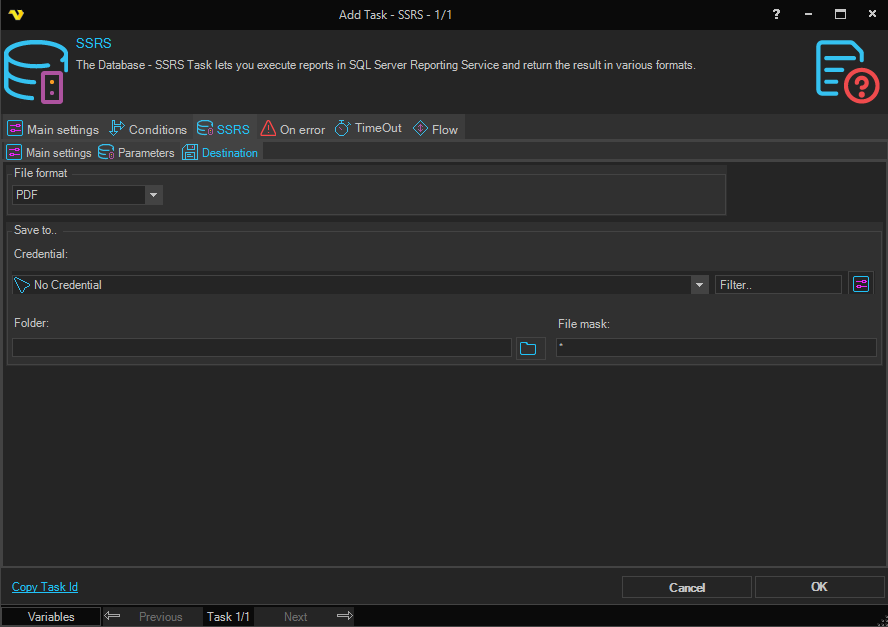
- File format: The format of the report file: "XML", "CSV", "Image", "PDF", "Excel", "ExcelOpenXML", "Word", "MHTML" or "HTML4"
- Credential: The Credential used to write the file, for example to a network share. See Global - Credentials
- Folder: The destination folder of the report file
- File mask: The name of the report file.
*, the default, gives the report name and the extension of the format
Output and errors
- The output of the Task is the path of the saved report file
- When the report cannot be run or saved, the Task fails
Troubleshooting
Exception in Task: System.Web.Services.Protocols.SoapException: You have attempted to use a rendering extension that is either not registered for this report server or it is not supported in this edition of Reporting Services
Check the file rsreportserver.config in c:\Program Files\Microsoft SQL Server\MSRS10_50.MSSQLSERVER_RS\Reporting Services\ReportServer
The Task requests the report in the selected format, and the configuration file of the Reporting Services instance does not include a rendering extension for that format. In MS SQL Server 2008-R2, the configuration file is located in a directory structure resembling the following:
 E:
   \Program Files
      \Microsoft SQL Server
         \MSRS10_50.MSSQLSERVER_RS
            \Reporting Services
               \ReportServer
In the configuration file, find the "Render" section:
< Configuration >
< Extensions >
< Render >
Within the Render section, find the matching "Extension" entry. If the file format is "HTML4" and the entry is named "HTML4.0", change the name to "HTML4".