Event Trigger - Microsoft Teams
The Microsoft Teams Trigger monitors the channels of a Microsoft Teams team and fires when a new channel message, or a new reply to a channel message, is posted. This Trigger is using the Office365 Connection.
The Trigger polls Microsoft Teams rather than subscribing to a push notification. The polling frequency is the Check every second(s) value on the Main settings tab of the Event Trigger window, which defaults to 60 seconds. On each poll, VisualCron lists the teams that the authenticated account has joined, then the channels of the teams that pass the filters, then the messages of those channels. Every message that has not been seen in an earlier poll and that matches all enabled filters fires the Trigger once.
Because VisualCron has no record of the channel history before the Trigger starts, the messages that are already present in the monitored channels on the first poll are treated as new and will fire the Trigger. Narrow the Team, Channel and date filters before activating the Trigger on a busy channel.
Microsoft Teams Trigger settings
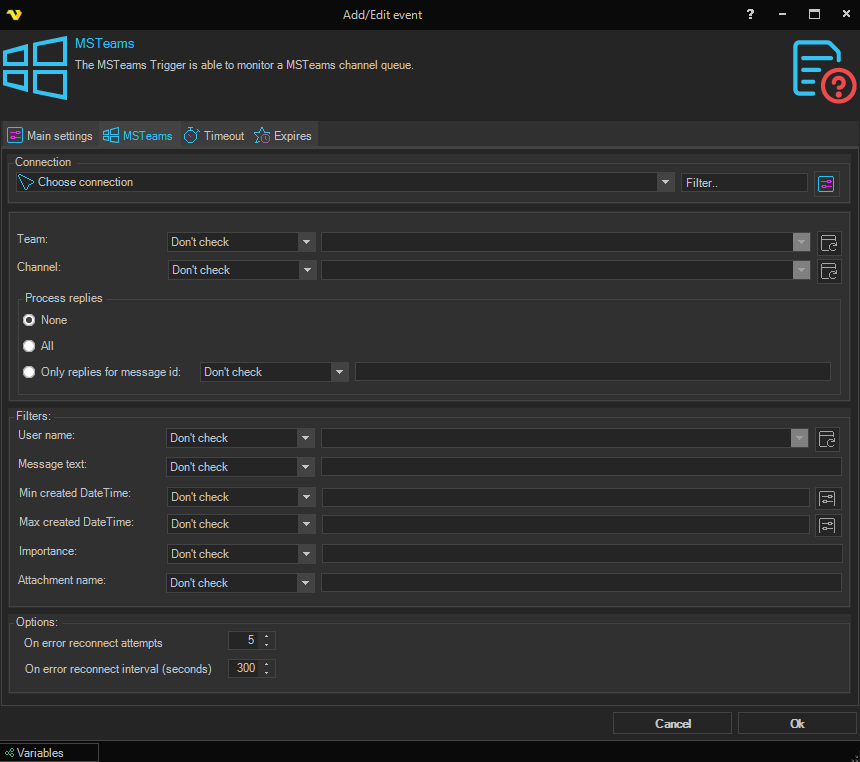
Connection
Select the Office365 Connection that the Trigger should use to authenticate against Microsoft Graph. Only Connections of the Office365 type are listed. Use the Filter field to narrow the list, or click the Settings icon to open Manage Connections in order to add or edit a Connection.
The Connection must be authenticated with the Group.ReadWrite.All and User.ReadWrite.All Microsoft Graph permissions. A Connection must be selected before the Trigger can be saved, and the fields below stay disabled until one is selected.
Team
A multi-select dropdown of the teams that the authenticated account has joined. Click the Refresh button next to it to fetch the teams from the selected Office365 Connection, then tick one or more teams. Selected teams are stored as a comma-separated list. Use the operator dropdown to the left of the field to control matching:
- Contains / Not contains — the team must (or must not) be one of the selected entries
- Equal / Not equal — the team name is compared against the selected entries
- Do not check — disables this filter and watches every team the account has joined
Channel
A multi-select dropdown of the channels of the selected team. Click the Refresh button next to it to fetch the channels, then tick one or more of them. Selected channels are stored as a comma-separated list. Changing the Team selection clears the channel selection, so refresh and pick the channels again after switching team. The available operators are the same as for Team above; Do not check watches every channel of every matched team.
Process replies
Controls whether replies to channel messages are considered in addition to the top level messages. Select one of the three radio buttons:
- None — only top level channel messages fire the Trigger. Replies are ignored. This is the default
- All — both top level channel messages and every reply to them fire the Trigger
- Only replies for message id — top level messages are ignored and only the replies of the matching messages fire the Trigger. Choose an operator (Contains, Not contains, Equal, Not equal, Do not check) and enter one or more message ids in the field next to it, as a comma-separated list. The operator and the value field are only enabled while this option is selected
Filters
Each filter below has its own operator dropdown next to the value field. Setting the operator to Do not check disables the filter. A message must match every enabled filter for the Trigger to fire; a filter that is enabled but left empty is ignored.
User name
Filter on the display name of the user who posted the message. Click the Refresh button next to the field to fetch the members of the selected team, then tick one or more names. Selections are stored as a comma-separated list. The button is enabled once a Connection and a Team have been set. Available operators: Contains, Not contains, Equal, Not equal, Do not check.
Message text
Filter on the body of the message. Available operators: Contains, Not contains, Equal, Not equal, Do not check. The comparison is not case sensitive.
Min created DateTime
Filter on the earliest creation date and time of the message. The operator dropdown supports date comparisons: Equal, Not equal, Larger, Larger or equal, Smaller, Smaller or equal, Do not check. Click the variables button next to the value field to insert a VisualCron date Variable. The creation time of the message is converted to the local time of the VisualCron Server before it is compared.
Max created DateTime
Filter on the latest creation date and time of the message. The operator set is the same as Min created DateTime above. Click the variables button next to the value field to insert a VisualCron date Variable.
Importance
Filter on the importance that the sender set on the message, for example normal, high or urgent. Available operators: Contains, Not contains, Equal, Not equal, Do not check.
Attachment name
Filter on the name of a file attached to the message. A message matches when at least one of its attachments matches. Available operators: Contains, Not contains, Equal, Not equal, Do not check.
Options
On error reconnect attempts
The number of times VisualCron tries to reach Microsoft Teams again when an error occurs. Value 1 to 500 is available. Default value is 5 times. When the attempts are exhausted, the Trigger is deactivated and the error is written to the log.
On error reconnect interval (seconds)
The number of seconds to wait between reconnect attempts. Value 1 to 500 is available. Default is 300 seconds.
Trigger result
When the Trigger fires, the message that caused it is stored in the Trigger result and can be read in later Tasks with Trigger Variables. Click the Variables button at the bottom of the window to browse the full list. The result holds:
- The message itself: id, reply to id, etag, message type, subject, summary, body content and content type, importance, locale, policy violation and the created, last modified and deleted date and time
- The sender, under From: application, device, conversation and the user id, display name and identity type
- The team and the channel the message was posted in, each with id, display name and description
- The attachments, mentions and reactions of the message, each as an indexed list with a matching count value
The default value, {TRIGGER(jobId|triggerId|MSTeams.Result)}, returns a one line summary of the message containing the creation time, the team and channel, the message id, the reply to id when the message is a reply, the sender and the message body.