Task Image - Filter
The Image filter Task applies a filter to enhance, modify or warp an image.
Image filter > File filter sub tab
In the File filter tab you define which image that should be filtered. Read more about file filter here.
Image filter > Destination sub tab
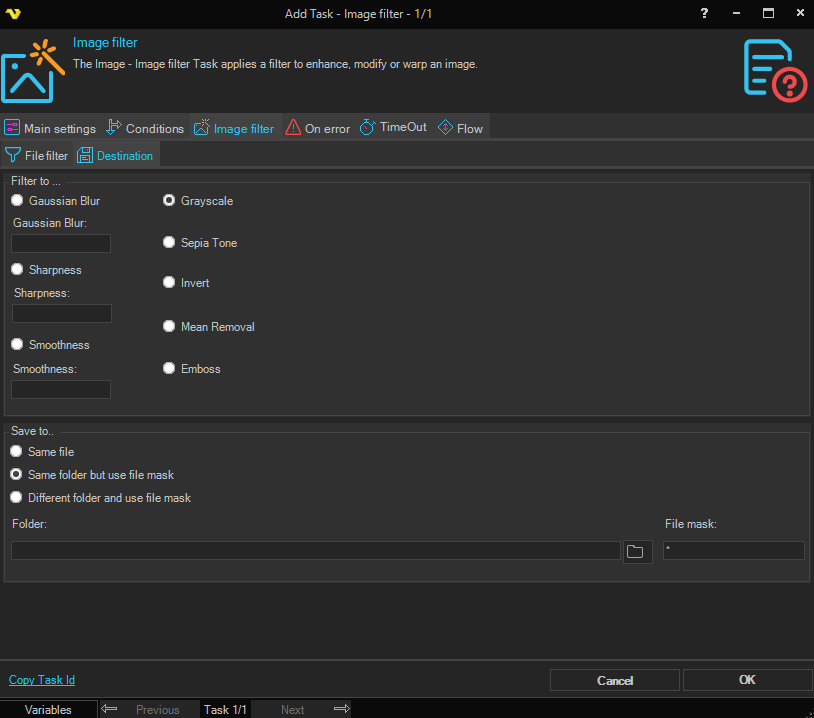
Filter to
Select the filter to apply to the image. Only one filter can be active at a time:
- Gaussian Blur — Blurs the image to reduce noise and detail. Enter a numeric blur amount.
- Grayscale — Converts the image to grayscale.
- Sharpness — Sharpens the image. Enter a numeric sharpness amount.
- Sepia Tone — Applies a sepia tone effect to the image.
- Smoothness — Smooths the image. Enter a numeric smoothness amount.
- Invert — Inverts the colors of the image.
- Mean Removal — Applies a mean removal effect to the image.
- Emboss — Applies an emboss effect to the image.
Save to
Select where to save the filtered image:
- Same file — Overwrites the original source file.
- Same folder but use file mask — Saves to the same folder with a new file name specified in File mask.
- Different folder and use file mask — Saves to a different folder with a new file name.
Folder
The destination folder path. Only available when Different folder and use file mask is selected.
File mask
The file name to use for the saved image. Available when Same folder but use file mask or Different folder and use file mask is selected.