Task Image - Overlay
The Image overlay Task lets you place an image or text over an already existing image.
Image overlay > Main settings sub tab
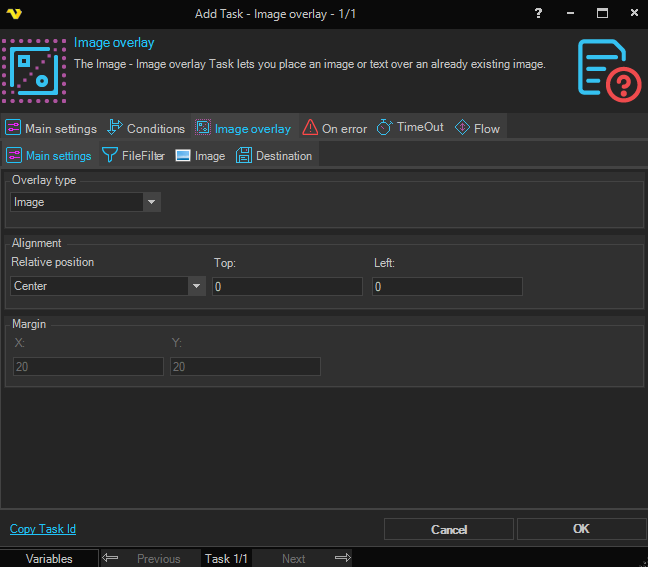
Overlay type
Select the type of content to overlay on the image. Options: Text, Image. Selecting a type shows the corresponding Image or Text tab.
Alignment
Relative position
Select the position of the overlay relative to the base image. Options: Top center, Top left, Top right, Center, Bottom center, Bottom left, Bottom right, Custom.
Top
The vertical offset in pixels from the top edge of the base image. Available when Custom is selected as the relative position.
Left
The horizontal offset in pixels from the left edge of the base image. Available when Custom is selected as the relative position.
Margin
X
The horizontal margin in pixels applied to the overlay position. Disabled when Relative position is set to Top center, Bottom center, or Center.
Y
The vertical margin in pixels applied to the overlay position. Disabled when Relative position is set to Center.
Image overlay > File filter sub tab
In the File filter tab you define which image file to overlay. Read more about file filter here.
Image overlay > Image sub tab
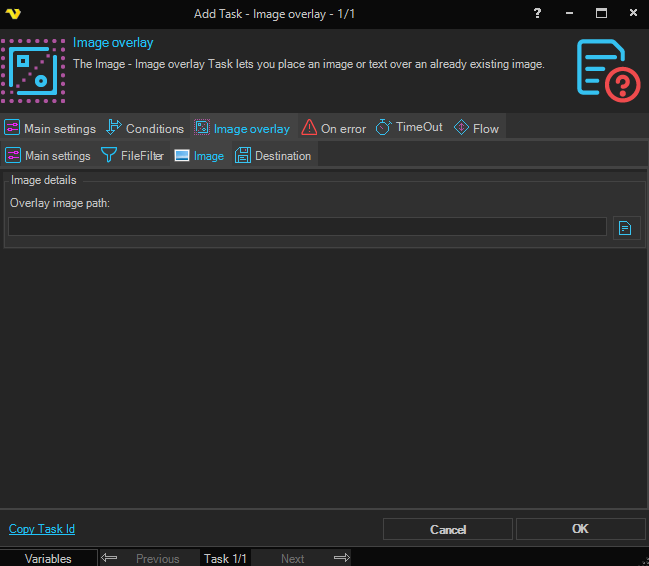
Overlay image path
The full path and file name of the image to overlay on the base image.
Image overlay > Text sub tab
This tab is only visible when Overlay type is set to Text.
Text details
Text string
The text to render on the base image.
Font
The font to use for the overlay text.
Font size
The size of the font for the overlay text.
Text color
The color of the overlay text.
Image overlay > Destination sub tab
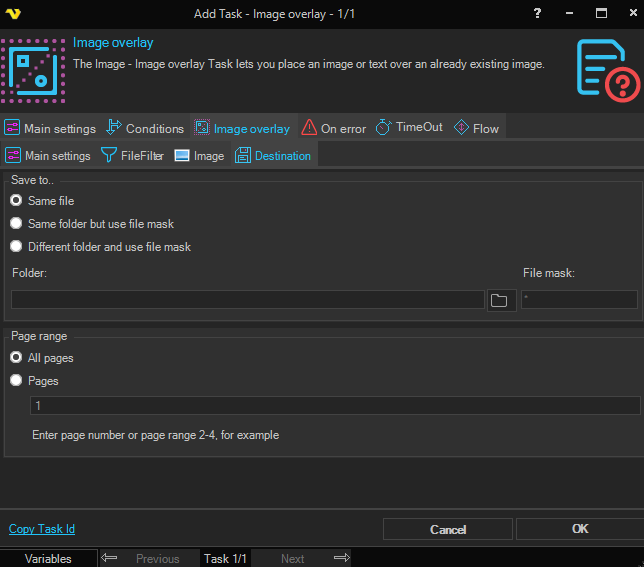
Save to
Select where to save the overlaid image:
- Same file — Overwrites the original source file.
- Same folder but use file mask — Saves to the same folder with a new file name specified in File mask.
- Different folder and use file mask — Saves to a different folder with a new file name.
Folder
The destination folder path. Only available when Different folder and use file mask is selected.
File mask
The file name to use for the saved image. Available when Same folder but use file mask or Different folder and use file mask is selected.
Page range
Select which pages of the image to apply the overlay to:
- All pages — Apply the overlay to all pages.
- Pages — Apply the overlay to specific pages. Enter a page number or page range (for example, 2-4) in the field below.