Task Image - Resize
The Image resize Task resize an image by a percentage of the original size, by height and width (in pixels) or to a specific size.
Image resize > File filter sub tab
In the File filter tab you define which image that should be resized. Read more about file filter here.
Image resize > Destination sub tab
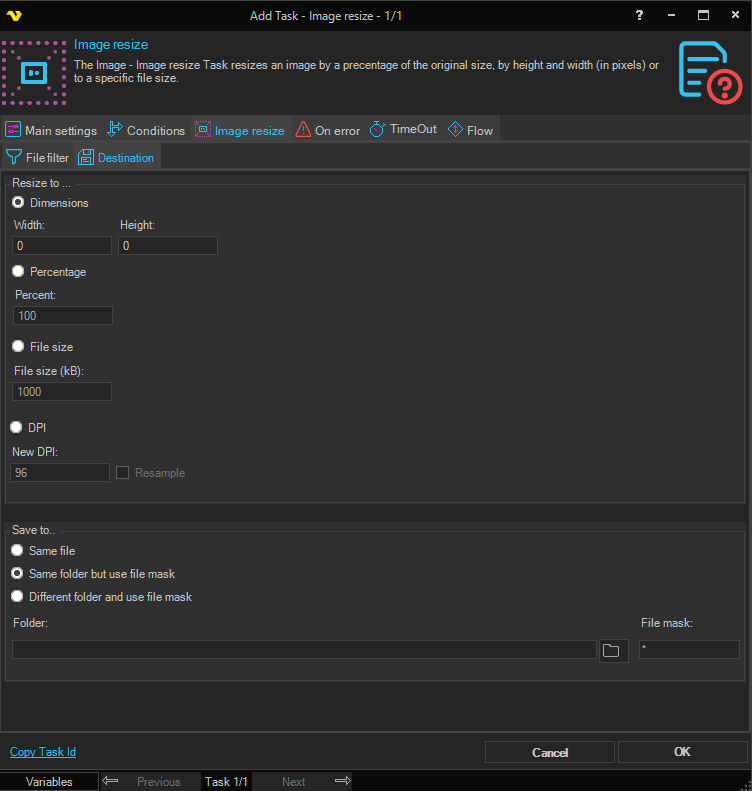
Resize to
Select the resize mode. Only one mode is active at a time:
- Dimensions — Resize to an explicit pixel size. Enter values in the Width and Height fields.
- Percentage — Resize to a percentage of the original size. Enter a value in the Percent field.
- File size — Resize to reach a target file size. Enter a value in kilobytes in the File size (kB) field.
- DPI — Change the image resolution. Enter a value in the New DPI field. Enables the Resample checkbox.
Width
The target width in pixels. Available when Dimensions is selected.
Height
The target height in pixels. Available when Dimensions is selected.
Percent
The percentage of the original image size to resize to. Available when Percentage is selected.
File size (kB)
The target file size in kilobytes. Available when File size is selected.
New DPI
The target image resolution in dots per inch. Available when DPI is selected.
Resample
When enabled, the image is resampled (the number of pixels is physically changed) rather than only adjusting resolution metadata. Only available when DPI is selected.
Save to
Select where to save the resized image:
- Same file — Overwrites the original source file.
- Same folder but use file mask — Saves to the same folder with a new file name specified in File mask.
- Different folder and use file mask — Saves to a different folder with a new file name.
Folder
The destination folder path. Only available when Different folder and use file mask is selected.
File mask
The file name to use for the saved image. Available when Same folder but use file mask or Different folder and use file mask is selected.