Task Image - Crop
The Image crop Task removes the outer parts of an image according to dimensions specified to an existing image.
Image crop > File filter sub tab
In the File filter tab you define the image file to be cropped. Read more about file filter here.
Image crop > Destination sub tab
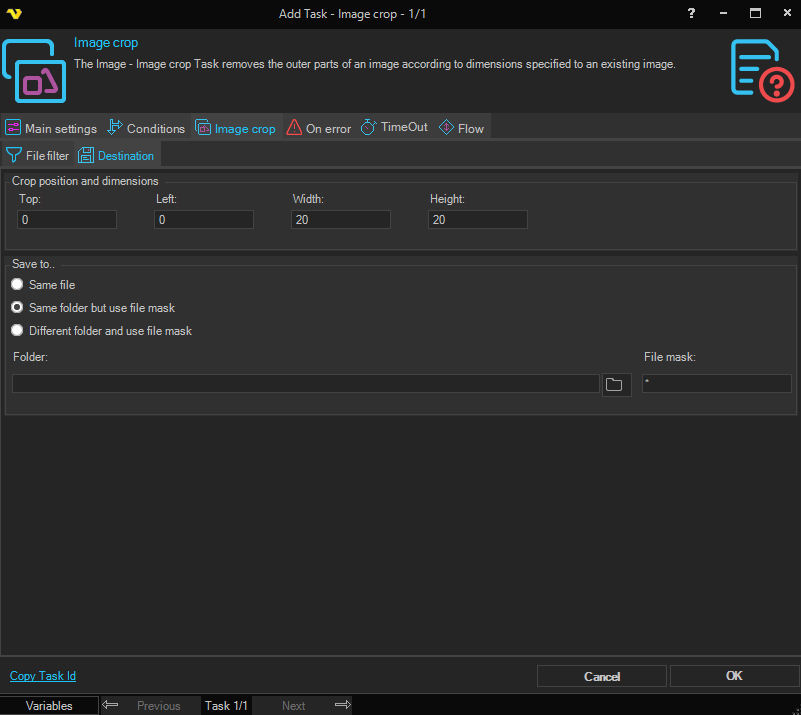
Crop position and dimensions
Top
The number of pixels from the top edge of the original image to where the crop starts.
Left
The number of pixels from the left edge of the original image to where the crop starts.
Width
The width of the cropped area in pixels.
Height
The height of the cropped area in pixels.
Save to
Select where to save the cropped image:
- Same file — Overwrites the original source file.
- Same folder but use file mask — Saves to the same folder with a new file name specified in File mask.
- Different folder and use file mask — Saves to a different folder with a new file name.
Folder
The destination folder path. Only available when Different folder and use file mask is selected.
File mask
The file name to use for the saved image. Available when Same folder but use file mask or Different folder and use file mask is selected.
Maximum values of Top and Left are related to the original image pixels. The Width and Height values are applied to the resulting image after Top and Left modification. If the Width or Height value is 0, the Width or Height value after Left or Top is used.