Task Office - Excel - Create
The Excel - Create Task can create an Excel file from a CSV file or Variable.
Excel - Create > Source sub tab
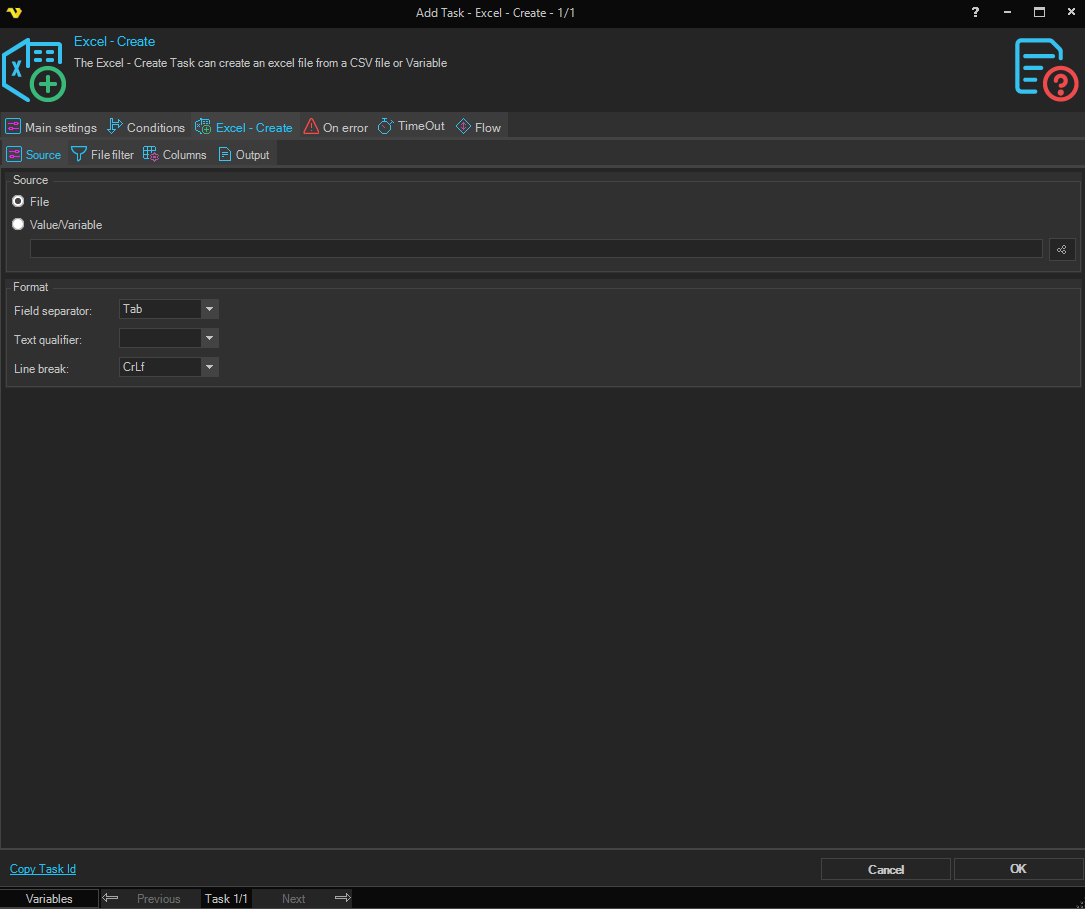
Source
File / Value/Variable
Select File if the source for conversion is one or more files. Select Value/Variable if the source comes from a Variable or a previous Task output.
Value/Variable
Enter the value or Variable to use as the source. Only available when Value/Variable is selected. Click the Variable selector button to insert a Variable.
Format
Adjust the format controls to match the format of the incoming file or value.
Field separator
Select the character used to separate fields in the input.
Text qualifier
Select the character used to surround field values in the input.
Line break
Select the character used to indicate a new row in the input.
Excel - Create > File filter sub tab
If you have selected File as source you are able to set the standard VisualCron File filter values.
Excel - Create > Columns sub tab
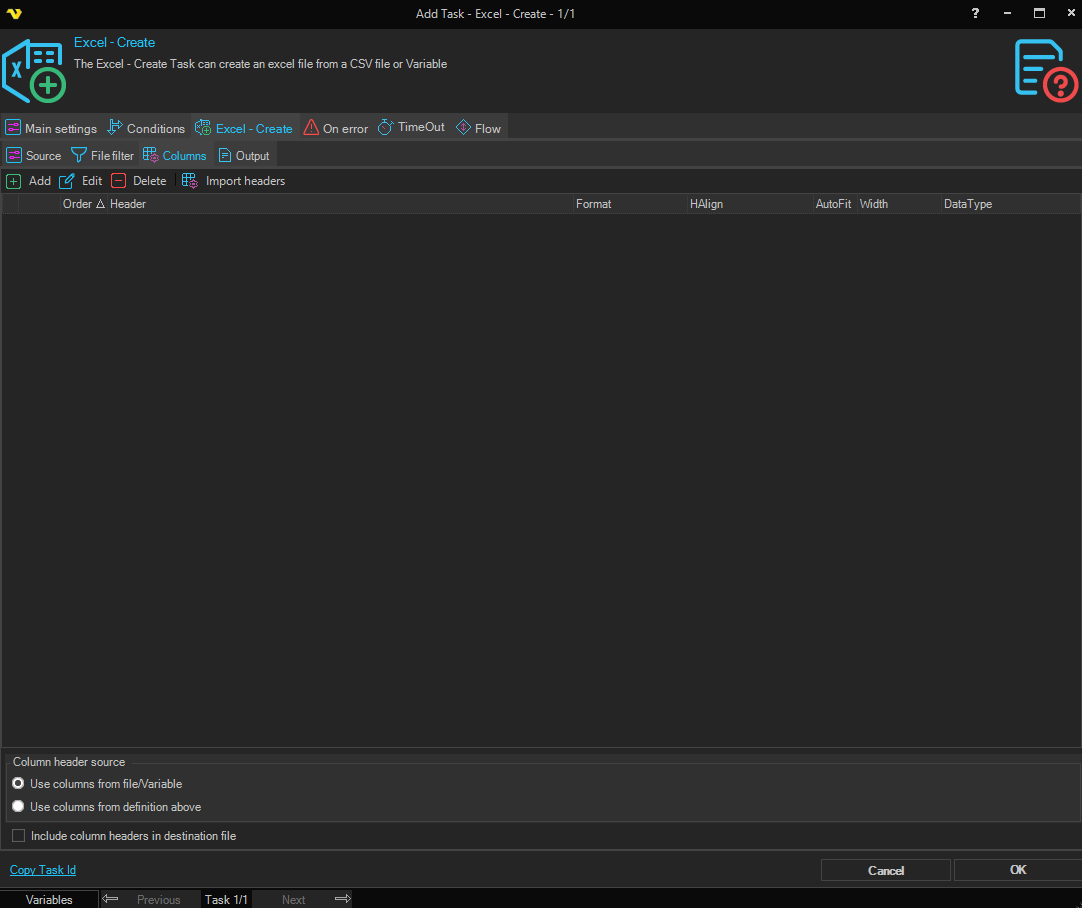
In the columns tab you can override existing columns or set columns if they do not exist. It is possible to override name and also format of column. Default format is @ which is a string. You can see different format options when editing or adding a column.
For faster addition of new columns we recommend using Import headers. This lets you import any existing first row of the document (in the same format you specified in the Source tab).
Column header source
You can choose to use the existing columns in the file but then it is not possible to apply formatting. If you add columns manually and select "Use columns from definition above" you are able to control name, width, format and order.
Include column headers in destination file
You can deselect this option if you do not want to include any existing headers in file.
Add->Format
http://www.ozgrid.com/Excel/CustomFormats.htm
Excel - Create > Output sub tab
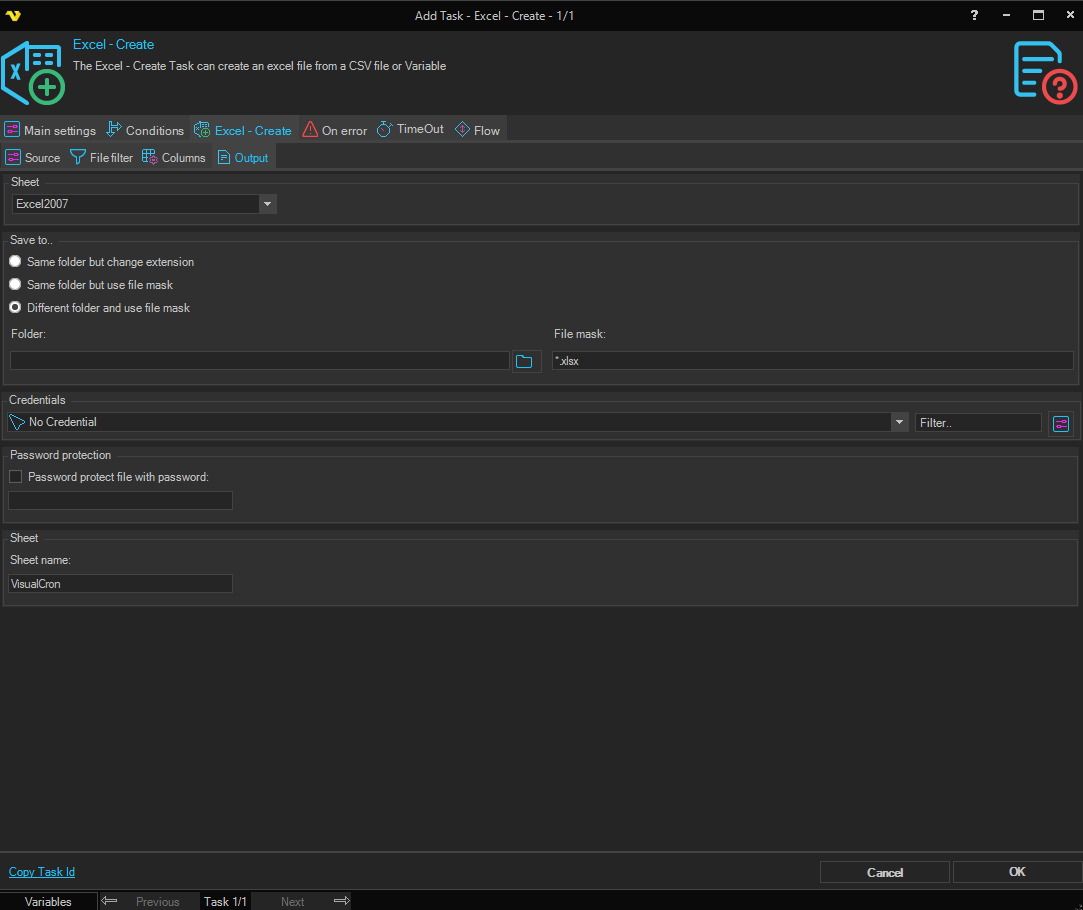
Sheet
Select the Excel file format for the output file.
Save to..
When the source is File, all three options are available. When the source is Value/Variable, only Different folder and use file mask is available.
- Same folder but change extension — Saves to the same folder with the same file name but changes the file extension to match the selected format.
- Same folder but use file mask — Saves to the same folder with a new file name specified in File mask.
- Different folder and use file mask — Saves to a different folder with a new file name. When using Value/Variable as source, the file mask must be the full name of the file.
Folder
The destination folder path. Only available when Different folder and use file mask is selected.
File mask
The file name to use for the saved file. Available when Same folder but use file mask or Different folder and use file mask is selected.
Credentials
To control a remote computer you may need to use a Credential. The Credential must match the user name and password of the user that you want to login for. Select a Credential in the combo box or click the Settings icon to open Manage credentials in order to add or edit Credentials.
Password protection
Password protect file with password
When checked, the output Excel file will be protected with a password. Enter the password in the field below.
Sheet
Sheet name
The name of the worksheet in the created Excel file.