Task Cloud Transfer - Upload File
he Cloud - Upload file(s) Task lets you upload files from the local file system to a cloud service such as Amazon S3, Box, Dropbox, Google Drive, Google Storage, Microsoft Azure or OneDrive.
Upload file(s) > Main settings sub tab
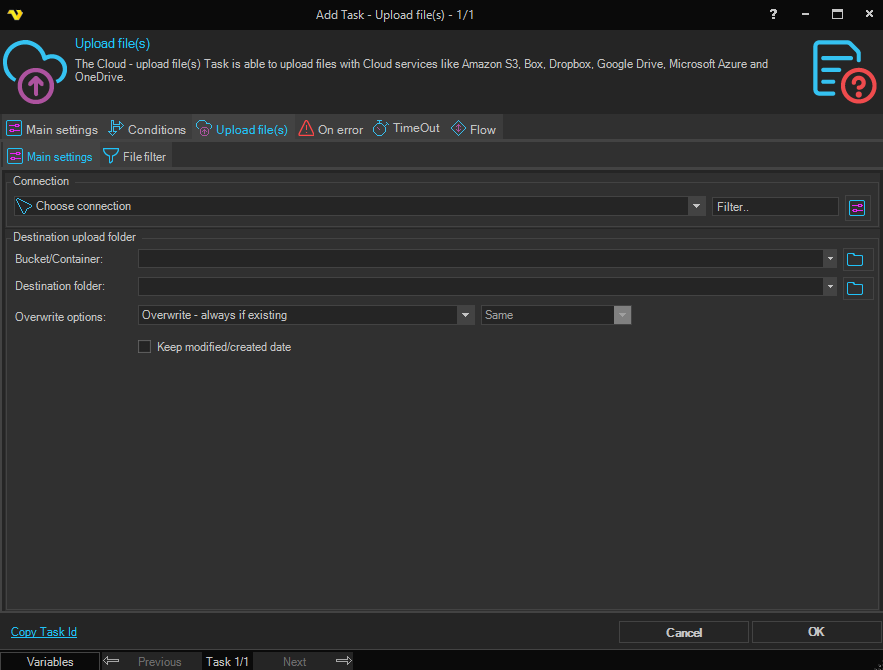
Connection
To use a specific cloud service you need to create a Connection first. Click the Settings icon to open the Manage Connections dialog.
Bucket/Container
The label and behavior of this field changes depending on the selected connection:
- Bucket - Amazon S3
- Container - Windows Azure (Block or Page blob access)
- Share - Windows Azure File Shares
- File system - Windows Azure Data Lake Gen V2
- Drive - Google Drive
- Bucket/Container - the field is disabled for connections that do not use a top-level container (for example OneDrive, Dropbox, Box, Google Storage and Azure Data Lake Gen V1)
Click the Folder icon to list all available Buckets/Containers for the selected Connection.
Destination folder
This is the destination folder in the cloud where the files will be uploaded to. Click the Folder icon to browse and list folders from the cloud. A bucket/container must be selected first when the connection requires one.
Keep modified/created date
If checked, the modified and created dates of the local source files are preserved on the uploaded files (where the cloud service supports it).
Overwrite options
Controls how to handle files that already exist at the destination. Available options:
- Overwrite - always if existing - replace the destination file
- Overwrite - if newer - replace the destination file only if the source is newer
- Overwrite - if destination size is - replace the destination file based on a size comparison (enables the size comparison field below)
- Do not overwrite if existing - skip files that already exist at the destination
Size comparison
Only enabled when Overwrite options is set to Overwrite - if destination size is. Selects the size comparison criterion used to decide whether to overwrite:
- Same
- Smaller
- Larger
- Smaller or larger
- Different
Upload file(s) > File filter sub tab
This Task uses the standard VisualCron File filter to define which local files are included in the upload, including source folder, include/exclude masks (with regex support), subfolder recursion and date-based filtering.