Task IIS - Add Website
The IIS - Add Website Task creates a new website in Internet Information Services (IIS) with configurable bindings, limits, logging, virtual directory, and failed request tracing settings.
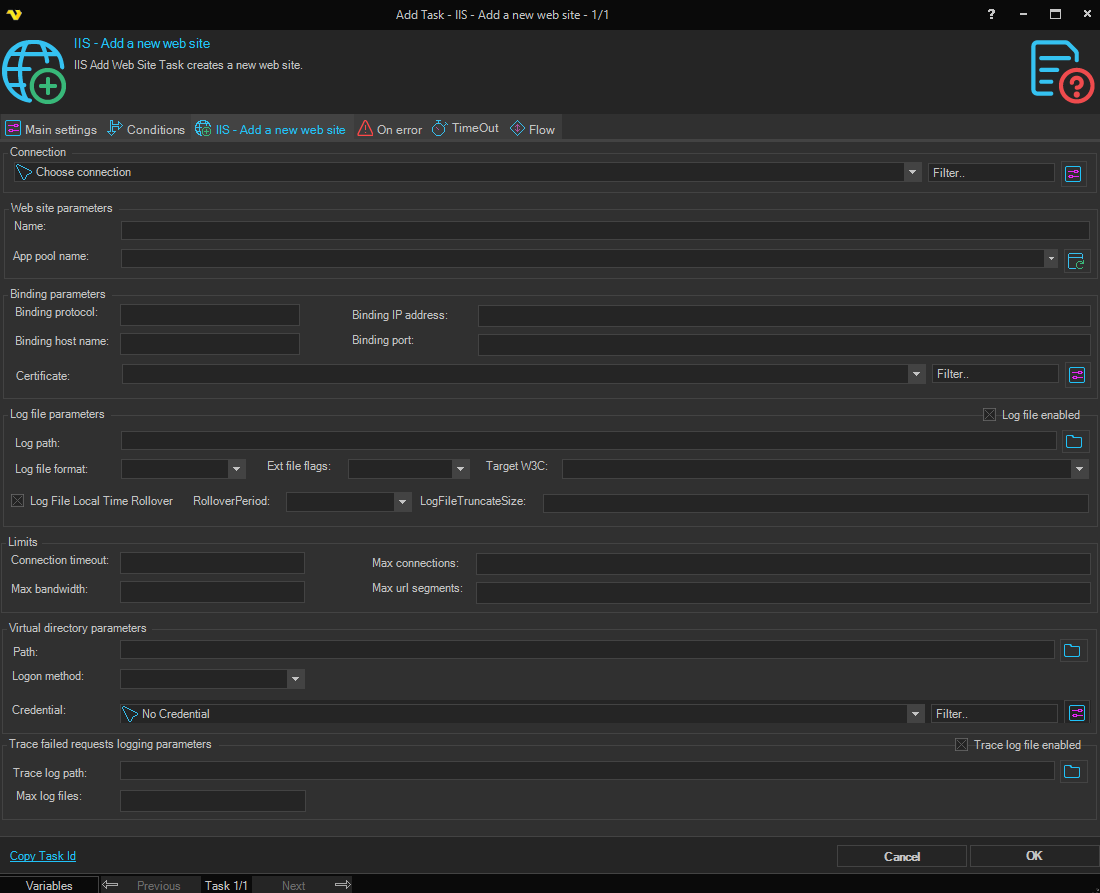
Connection
To use IIS Tasks you need to create an IIS Connection first. Click the Settings icon to open the Manage Connections dialog.
Web site parameters
Name
The name of the website to be created.
App pool name
The name of the application pool to associate with the website. Click the Refresh icon to populate the drop-down list with available application pools.
Binding parameters
Binding protocol
The protocol used for the site binding (e.g., http, https, net.tcp).
Binding IP address
The IP address that the binding listens on. Enter a specific IP address or leave blank to bind to all unassigned IP addresses.
Binding host name
The host name for the binding. Used to host multiple websites on the same IP address and port using host header routing.
Binding port
The port number the binding listens on (e.g., 80 for HTTP, 443 for HTTPS).
Certificate
The SSL certificate to use for HTTPS bindings. Click the Settings icon to select or manage certificates.
Limits
Connection timeout
The time in seconds before IIS disconnects an inactive connection.
Max bandwidth
The maximum network bandwidth in bytes per second allocated to the website.
Max connections
The maximum number of simultaneous connections allowed to the website.
Max URL segments
The maximum number of path segments allowed in a request URL.
Log file parameters
Log file enabled
When checked, request logging is enabled for the website.
Log file format
The format used for log files. Available options are:
- IIS – Microsoft IIS log format
- NCSA – NCSA Common Log format
- W3C – W3C Extended log format
- Custom – Custom log format
Rollover period
Determines how often a new log file is created. Available options are:
- MaxSize – Create a new log file when the current file reaches the truncate size
- Daily – Create a new log file each day
- Weekly – Create a new log file each week
- Monthly – Create a new log file each month
- Hourly – Create a new log file each hour
Log file truncate size
The maximum log file size in bytes before rolling over to a new file. Only used when the rollover period is set to MaxSize.
Ext file flags
The fields to include in W3C format log entries. Multiple fields can be selected, including Date, Time, Client IP, Username, Site Name, Server IP, Method, URI Stem, URI Query, HTTP Status, Win32 Status, Bytes Sent, Bytes Received, Time Taken, Server Port, User Agent, Cookie, Referrer, Protocol Version, Host, and HTTP Substatus.
Target W3C
The destination for W3C log output. Options are:
- File – Write log entries to a log file
- ETW – Write log entries to Event Tracing for Windows
Log file local time rollover
When checked, log file rollover is based on local server time rather than UTC time.
Log path
The directory where log files are stored. Click the Browse button to select a folder.
Virtual directory parameters
Path
The physical file system path of the website's root directory. Click the Browse button to select a folder.
Logon method
The authentication method IIS uses when accessing the physical path with the specified credential. Available options are:
- Interactive – Interactive logon session
- Batch – Batch logon session
- Network – Network logon (credentials passed over the network)
- ClearText – Clear text logon
Credential
The credential used to access the physical path. Select a Credential in the drop-down or click the Settings icon to open Manage credentials to add or edit Credentials.
Trace failed requests logging parameters
Trace log file enabled
When checked, failed request tracing is enabled for the website.
Trace log path
The directory where failed request trace log files are stored. Click the Browse button to select a folder.
Max log files
The maximum number of failed request trace log files to retain per site.