Task File - Base64 - Encode
The Encoding - Base 64 encode Task encodes a file or value to Base64 format and writes the result to standard output or to a file.
Base64 - encode > Main settings sub tab
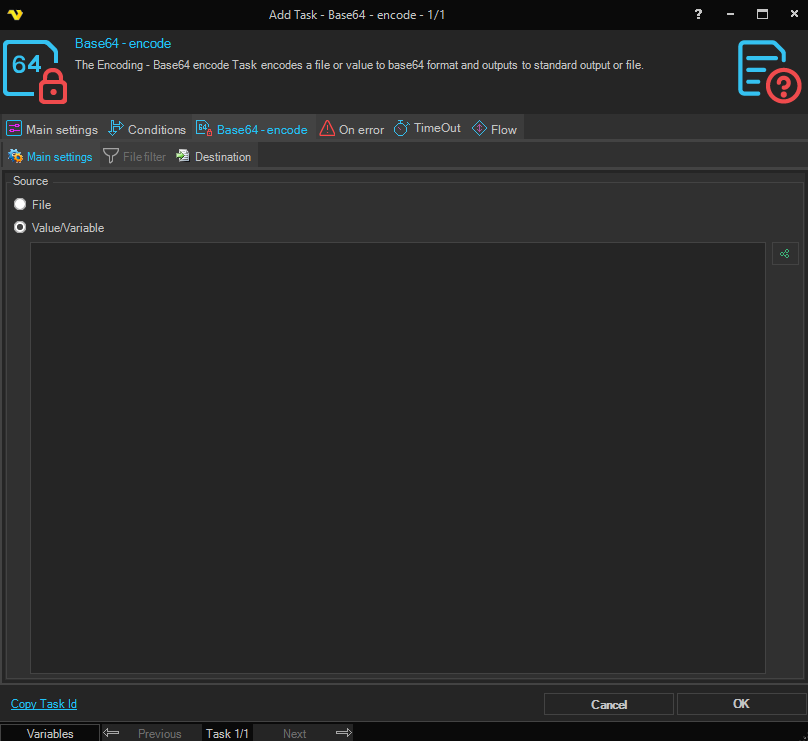
Source
Select File if you want to encode an existing file. When selecting File, the standard VisualCron File filter will be enabled. Select Value/Variable to use an existing value or Variable.
With Source set to File, the Task reads the file as text, using the Encoding setting on the Task's Main settings tab (UTF-8 by default), and encodes that text. Use it for text files. A binary file, such as an image, a PDF or a ZIP archive, is not encoded exactly, so decoding the result does not give back the original file.
Base64 - encode > File filter sub tab
This Task uses the standard VisualCron File filter to filter out files. This tab is only enabled when File is selected in Source.
Base64 - encode > Destination sub tab
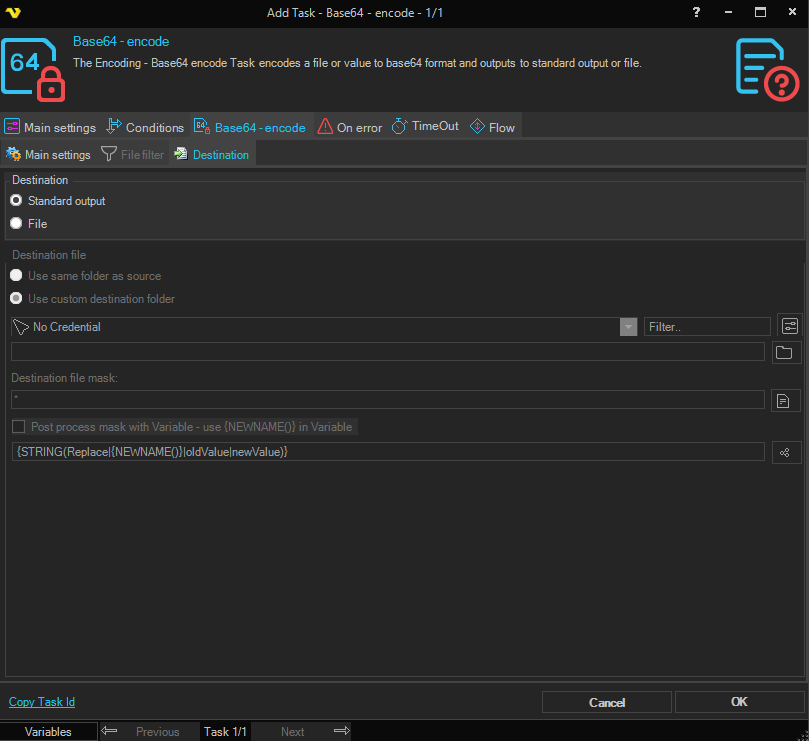
Destination
Select File if you want to save the encoded content to file or select Standard output to pass the value to the output of the Task.
Destination file
You can choose to save files to same folder as where the original file was found by selecting Use same folder as source. If you select Use custom destination folder you are able to select a different destination folder for the saved file than source folder.
Credential
Select a Credential if you need specific permissions to write the destination file.
Destination file mask
Destination file mask is a quick way to change the file name to something else. By default it is using * which means that the same file name will be used for destination folder. If you are going to use * you need to use another destination folder. For example, to give encoded files a ".b64" extension, set the mask to "*.b64".
The Task overwrites an existing destination file without asking. If Use same folder as source is
selected and Destination file mask is "*", the destination is the source file itself, and it is
replaced by the result.
Post process mask with Variable
This property gives you more advanced ways to change the file name. This option works best with Destination file mask set to "*". When checking this property the new name will be stored in a temporary Variable {NEWNAME()}. You will be able to use this Variable for processing with other Variable functions. The default value of this field is "{STRING(Replace|{NEWNAME()}|oldValue|newValue)}", which uses the String.Replace function from the Variables window. It uses the {NEWNAME()} as input Variable with options to set a value that you want to replace from original file name "oldValue" and the new value "newValue".