Task Sharepoint- Delete File
The SharePoint - Delete file(s) Task deletes files from the SharePoint library using a file filter to select which files to remove.
The SharePoint Tasks supports the following versions:
- SharePoint 2010
- SharePoint 2013
- SharePoint Online
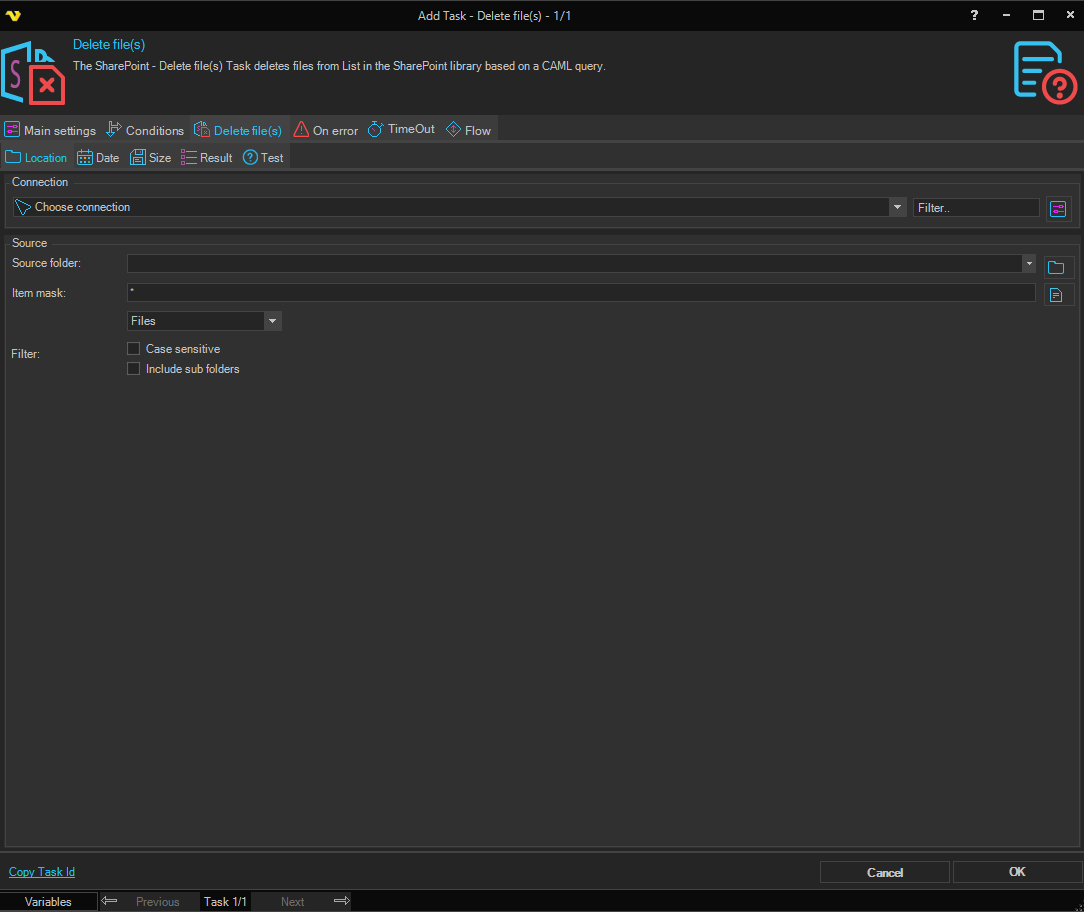
Delete file(s) > Location tab
Connection
To use SharePoint Tasks you need to create a Connection first. Click the Settings icon to open the Manage Connections dialog.
Source folder
The source folder path on the SharePoint site. Click the Folder icon to browse the SharePoint site and select a specific folder.
Item mask
A wildcard pattern used to match the files to delete (e.g. * for all files, *.txt for text files only).
Filter
Select the content filter type to apply when selecting files.
Case sensitive
When checked, the item mask matching is case sensitive.
Include sub folders
When checked, files in sub folders of the source folder are also included.
Delete file(s) > Date tab
Newer than
Select a check type and enter a date or variable. Only files newer than the specified date will be included.
Older than
Select a check type and enter a date or variable. Only files older than the specified date will be included.
Use the AND/OR operator between the two date conditions to control how they are combined.
Delete file(s) > Size tab
Check if file is smaller than x size
When checked, only files smaller than the specified size are included. Select the size unit (bytes, KB, MB, etc.).
Check if file is larger than x size
When checked, only files larger than the specified size are included. Select the size unit (bytes, KB, MB, etc.).
Use the AND/OR operator between the two size conditions to control how they are combined.
Delete file(s) > Result tab
Sort
When checked, the matched file list is sorted before processing. Select the sort column and sort direction.
Limit
When checked, the number of matched files processed is limited to the specified value.
Delete file(s) > Test tab
Click the Show filtered files button to preview which files match the current filter settings before running the task. The number of matched files and elapsed time are displayed.