Task SharePoint - Upload File
The SharePoint - Upload file(s) Task uploads local files that match a file filter to a folder on a SharePoint site, using a SharePoint Connection.
The SharePoint Tasks work with SharePoint 2010, 2013 and 2016 on premises, and with SharePoint Online.
This Task uses a SharePoint Connection; see Connection - SharePoint. When a certificate is selected in the Connection, the Task accepts any server certificate, and each run of a SharePoint Task changes TLS handling for the whole Server process.
The Main settings, Flow, On error, Conditions and TimeOut tabs are the same for every Task; see Job - Tasks.
Upload file(s): File filter tab
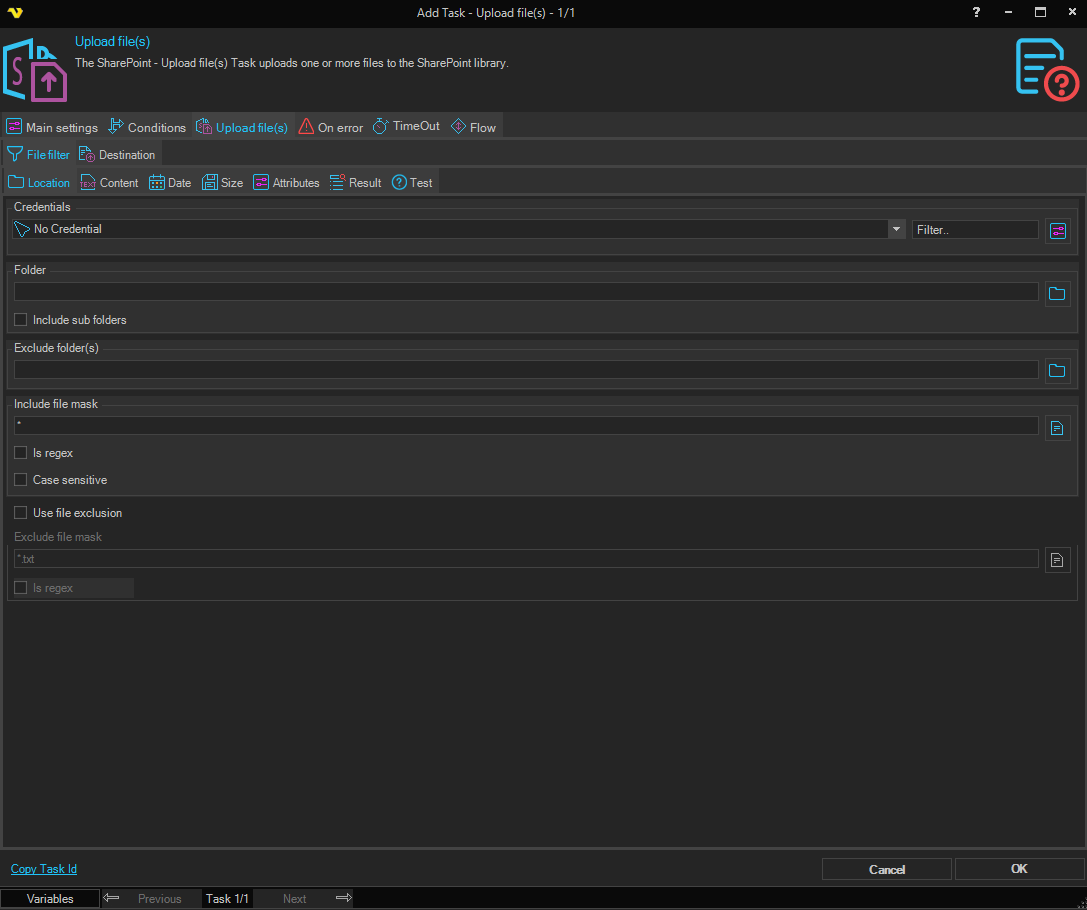
The Upload file(s) Task uses the standard VisualCron File filter to select the local files to upload. The Credential on the Location sub tab is used to read the files.
Upload file(s): Destination tab
- Connection: the SharePoint Connection to use. The button next to the list manages Connections
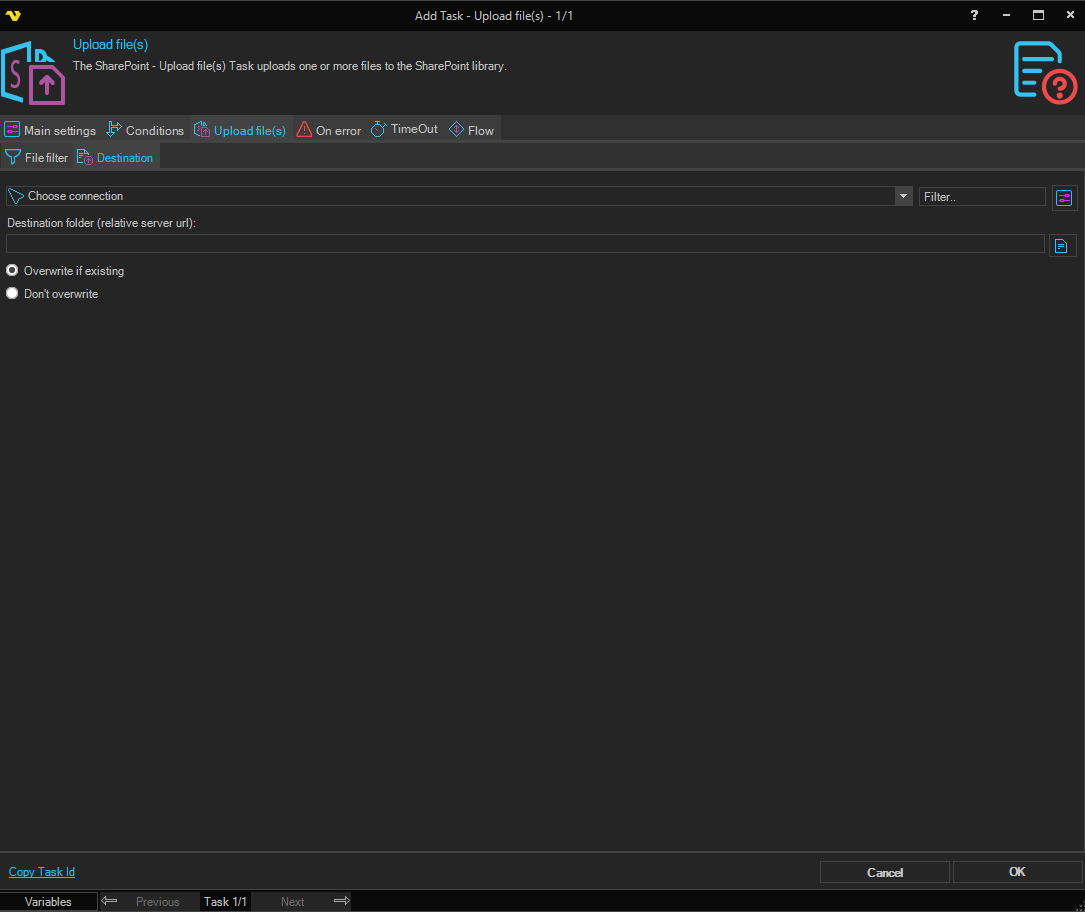
- Destination folder (relative server url): the folder on the SharePoint site to upload to, as a server-relative path. The button next to the box opens a browser of the site. With Include sub folders on the File filter, the local sub folders are created under it. Variables are resolved
- Overwrite if existing (default) or Don't overwrite: what to do when a file with the same name is in the destination folder. With an on-premises server, Don't overwrite makes the Task stop with an error at the first such file
With Overwrite if existing (default), a file with the same name on the site is replaced. With SharePoint Online, existing files are always replaced, whatever the overwrite option says.
Output and errors
The output of the Task is the address of each uploaded file, one per line. When a file cannot be uploaded, the Task stops with an error, and the files after it are not uploaded. The files uploaded before it stay on the site and are not listed in the output.
Troubleshooting
File Not Found
With an on-premises server, check that Destination folder (relative server url) does not end with a forward slash /.