Task SharePoint - Update List
The SharePoint - Update list Task changes the title, description and settings of a list on a SharePoint site, and can add columns to it, using a SharePoint Connection.
The SharePoint Tasks work with SharePoint 2010, 2013 and 2016 on premises, and with SharePoint Online.
This Task uses a SharePoint Connection; see Connection - SharePoint. When a certificate is selected in the Connection, the Task accepts any server certificate, and each run of a SharePoint Task changes TLS handling for the whole Server process.
The Main settings, Flow, On error, Conditions and TimeOut tabs are the same for every Task; see Job - Tasks.
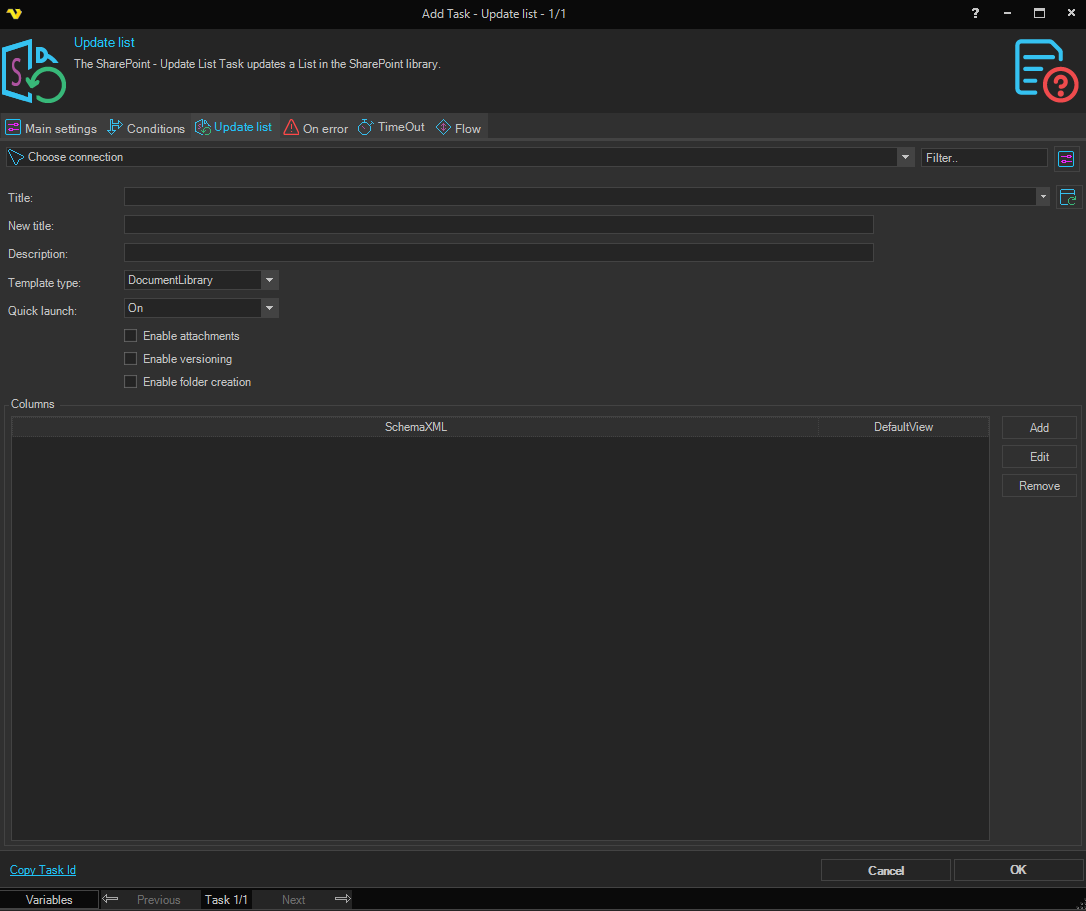
Update list tab
- Connection: the SharePoint Connection to use. The button next to the list manages Connections
- Title: the current title of the list. Click the button next to the box to show the lists of the site
- New title: the title to give the list. The Task always sets the title to this value, so enter the current title to keep it
- Description: the description to give the list. The Task always sets the description to this value; an empty box clears the description
- Template type: not used by this Task. The template of an existing list cannot be changed
- Quick launch: "On" shows the list in the Quick launch of the site; "Off" and "DefaultValue" remove it
- Enable attachments, Enable versioning and Enable folder creation: whether items can have attachments, whether versions are kept, and whether folders can be added. The Task always applies all three, so a cleared check box turns the setting off
- Columns: columns to add to the list, one row each with SchemaXML and DefaultView. Click Add, Edit or Remove to change the rows. Existing columns are not changed. Read more about the schema here: http://msdn.microsoft.com/en-us/library/office/ms457586.aspx
Variables are resolved in Title, New title, Description and the column schema.
Output and errors
The Task does not write output. When no list has the title in Title, the Task fails with the error from SharePoint.