Task Messaging - Email - Get Single Message
The Email - Get single message Task reads one message, found by its ID or its index, using a POP3, IMAP4, Exchange EWS, Exchange WebDAV or Microsoft Graph API Connection. It can save the message and its attachments to disk, mark it as read or delete it on the server.
The Main settings, Flow, On error, Conditions and TimeOut tabs are the same for every Task; see Job - Tasks.
Email - Get single message: Main settings tab
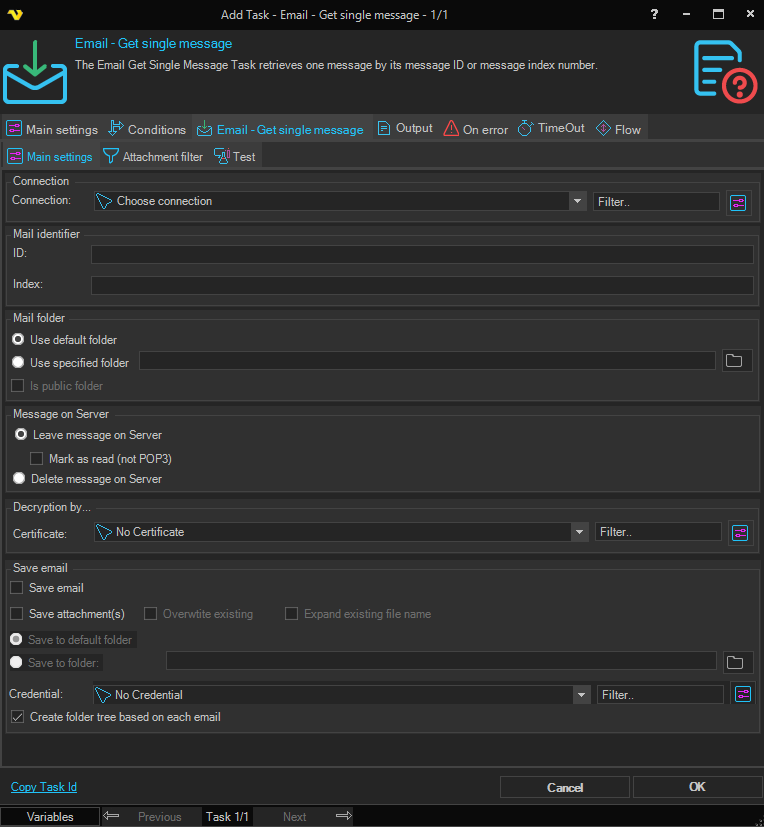
-
Connection: the Connection to the mailbox, of one of these types: Connection - POP3, Connection - IMAP4, Connection - Exchange EWS, Connection - Exchange WebDAV or Connection - Microsoft Graph API
-
Mail identifier: fill in ID or Index
- ID: the unique ID of the message, as written in the ID field by Task Messaging - Email - Get Headers. Variables are resolved
- Index: the position of the message in the folder. It changes as messages arrive or are deleted, so prefer ID
If both are filled in, the Task takes the first message in the folder whose ID or index matches, which can be a different message from the one that ID names. Fill in only ID, in particular with Delete message on Server.
-
Mail folder: the folder that holds the message
- Use default folder (default): the default folder of the mailbox, the Inbox
- Use specified folder: type the folder path, or click the folder button to choose it from the server. Choosing is not possible with POP3, and with POP3 the setting is ignored. If the folder does not exist, the Task fails with the error
Folder "<name>" not found - Is public folder: select it when the specified folder is an Exchange public folder. It is applied with Exchange EWS and Microsoft Graph API Connections only
-
Message on Server: what happens on the server to the message
- Leave message on Server (default): the message is not deleted. It is marked as read if Mark as read (not POP3) is selected
- Mark as read (not POP3): marks the message as read. It has no effect with POP3
- Delete message on Server: deletes the message
If Mark as read (not POP3) is selected, the message is only marked as read, even when Delete message on Server is selected. Clear Mark as read (not POP3) to delete.
With Delete message on Server, the message is deleted even when an attachment was not saved: for example, when a file with the same name exists and neither Overwtite existing nor Expand existing file name is selected, or when saving fails. To keep the message, select Expand existing file name or Overwtite existing, or leave the message on the server and delete it in a later Task.
- Decryption by...: Certificate is the certificate that decrypts an encrypted message; see Global - Certificates. If the message is encrypted and no certificate is selected, or the certificate cannot decrypt it, the message is not saved, marked or deleted
- Save email: what is saved to disk
- Save email: saves the whole message as an .eml file named after its ID. An existing file of that name is replaced
- Save attachment(s): saves the attachments that match the Email - Get single message: Attachment filter tab
- Overwtite existing: replaces an attachment file of the same name. Enabled with Save attachment(s). If neither this nor Expand existing file name is selected, an existing file is kept and the attachment is not saved
- Expand existing file name: when a file of the same name exists, adds a number to the new name, for example
report1.pdf. Enabled with Save attachment(s) - Save to default folder (default): saves under
<VisualCron installation folder>\data\email\ - Save to folder: saves under the folder you type. Credential is used to access this folder, and only this folder
- Create folder tree based on each email: selected by default. The message gets a folder named after its ID: it is saved as
<ID>\<ID>.eml, and its attachments in<ID>\attachments\. When cleared, all files are saved directly in the folder
In folder and file names, characters of the mail ID that are not allowed in file names are replaced with the Unicode replacement character, U+FFFD (�). To get the same name in another Task, apply the Variable function Encode FileName (replace invalid chars with: provided masking string / empty string / unicode equivalents) under File variables to the mail ID: {PATH(EncodeFileName|<mail ID>|MASK)}. MASK replaces each character that is not allowed with U+FFFD.
Email - Get single message: Attachment filter tab
The fields are the same as on the Attachment filter tab of Task Messaging - Email - Get Headers. Here the filter only chooses which attachments are saved; it does not decide whether the message is read.
Email - Get single message: Test tab
Test get message runs the current settings on the Server and shows the result. The test does not save, mark or delete the message.
Output tab
The fields are the same as on the Output tab of Task Messaging - Email - Get Headers, and Body can also be chosen. When Save email or Save attachment(s) is selected, the output line lists the saved paths instead: the .eml file path, then Field separator when attachments are saved too, then the paths of the attachment files that were written, separated by ;. With Include field names, the line starts with "EMail file path" and "Attachment file path(s)", with no line break before the paths. Otherwise the line holds the fields chosen in Show mail headers.
Output and errors
- If the message cannot be downloaded from the server, the Task fails
- If the Connection is missing, the Task fails with "Connection not found". If the specified folder does not exist, it fails with the error
Folder "<name>" not found
When no message matches, "Message not found" is written to standard error, and the Task reports success.
If the message is encrypted and cannot be decrypted, or its .eml file cannot be saved, nothing is written to the output, the message is not marked or deleted, and the Task reports success.
If an attachment cannot be saved, the error is written to the Server log, the message is still marked or deleted as selected, and the Task reports success.
If an attachment is not saved because a file of the same name exists and neither Overwtite existing nor Expand existing file name is selected, no error is raised, the message is still marked or deleted as selected, and the Task reports success.
If the message cannot be deleted on the server, the error is written to the Server log, nothing is written to the output, and the Task reports success. If it cannot be marked as read, the error is written to the Server log, and the Task reports success.