Task Net - HTTP
The Task type HTTP enables execution a remote script/load webpage with standard HTTP POST or HTTP GET. You can combine this function with logging the output of the script/page on a file or send the output by mail.
HTTP > Main settings tab
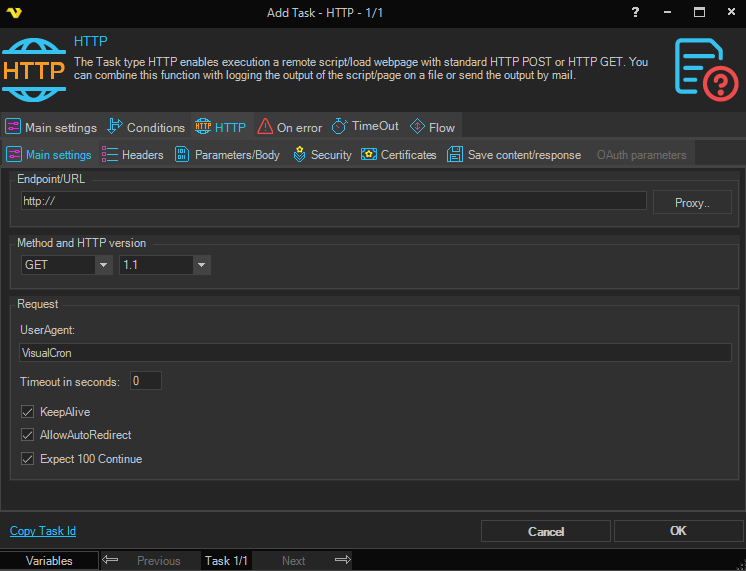
Endpoint/URL
This is the remote script or page to be called. Use the following format: http://www.yourwebpage.com/yourscript.php. If you use a GET you can either add parameters like ?mykey1=myvalue1&mykey2=myvalue2 or use the Parameters/Body tab to input parameters. If you use POST you should only use the Parameters/Body tab.
Proxy..
Select if you want to use a proxy.
Method
Select the HTTP method to use when calling a remote script or page. Available options are POST, PUT, GET, DELETE, and PATCH. Some web frameworks (such as PHP) provide separate mechanisms for accessing POST and GET data. POST is generally recommended because URLs don't appear in web logs.
Version
Select which HTTP version to use. Default 1.1.
UserAgent
Optional. If your script requires a certain UserAgent you can use this field to let VisualCron pretend to be a certain UserAgent.
Timeout in seconds
This is the timeout of the web request. Default is 100 seconds.
KeepAlive
Set this property to true to send a Connection HTTP header with the value Keep-alive. An application uses KeepAlive to indicate a preference for persistent connections. When the KeepAlive property is true, the application makes persistent connections to the servers that support them.
When using HTTP/1.1, Keep-Alive is on by default. Setting KeepAlive to false may result in sending a Connection: Close header to the server.
AllowAutoRedirect
Set AllowAutoRedirect to true if you want the request to automatically follow HTTP redirection headers to the new location of the resource.
Expect 100 Continue Enable this if you get HTTP error 417.
HTTP > Headers tab
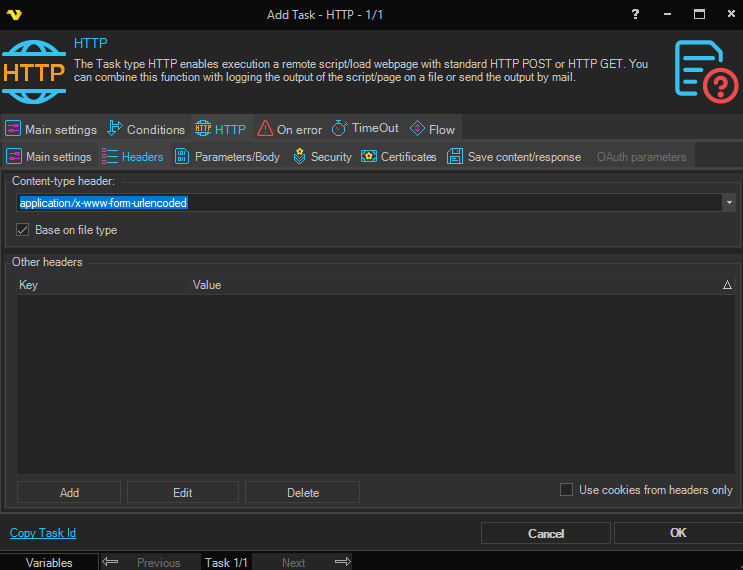
Content-type header
This header controls the content type of the HTTP request. In the drop down most common headers can be found. This setting is also related to the Parameters/Body tab as it affects the way the body is posted.
Base on file type
When checked (default), VisualCron automatically sets the content-type header based on the type of file being sent. Uncheck to use the content-type header value set manually above.
Other headers
Custom headers can also be added by pressing Add button.
Use cookies from headers only
When checked, cookies are parsed exclusively from response headers rather than from the response body.
HTTP > Parameters/Body tab
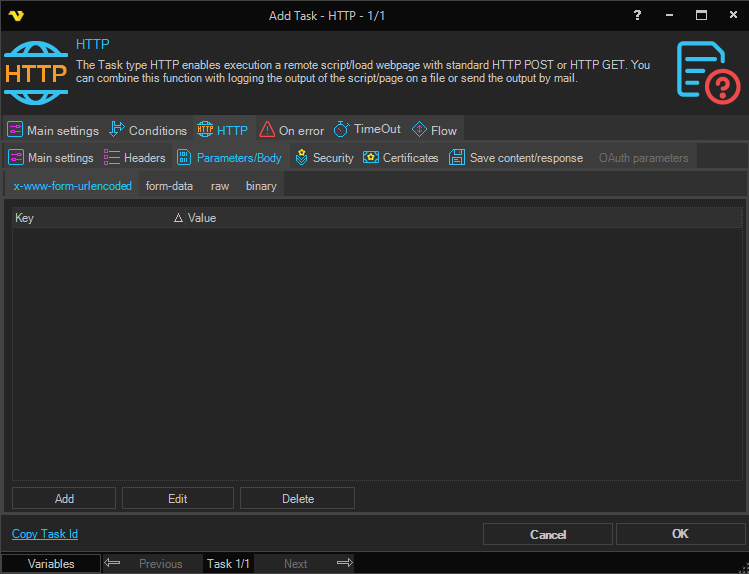
Parameters/body
Depending on content-type header you can POST various content in the body. By selecting a tab you choose how the body is sent - please note that you need to set a matching content-header as well. Different body options:
x-www-form-urlencoded - use this for simple key/value pairs
form-data - use this if form-data content-type header required and if you want to POST multi-part data like files (and maybe text).
raw - use this for sending body text raw - for example when sending a Json request
binary - use this for sending a stream of binary data like one file
HTTP > Security tab
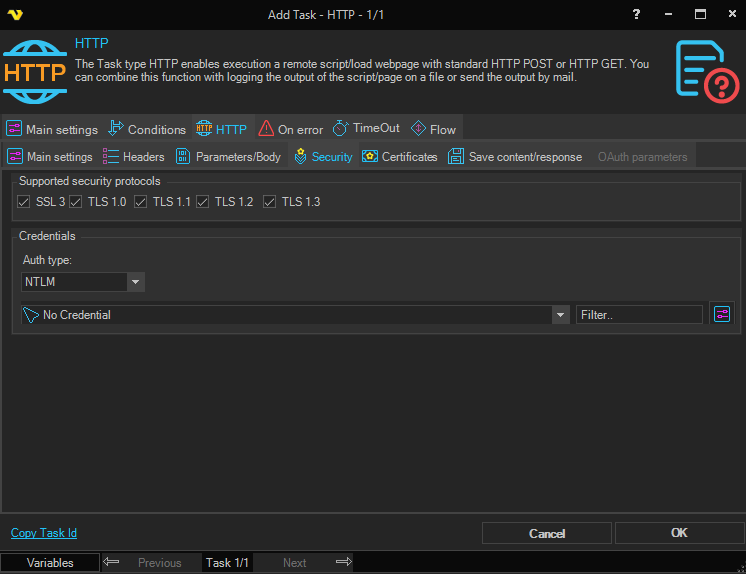
Supported security protocols
Set the supported security protocols (by your web server) to use the maximum security. Available options (all enabled by default): SSL 3, TLS 1.0, TLS 1.1, TLS 1.2, TLS 1.3.
Credentials
Optional. If your script requires authentication you can select a credential from the combo box. By clicking on Manage credentials you can add or edit current credentials.
Auth type
What kind of authentication method that is used. No authentication method is used if no Credential is selected. Available options:
- Basic — sends credentials as a Base64-encoded username/password pair.
- NTLM — Windows NT LAN Manager challenge-response authentication (default).
- Digest — MD5-based challenge-response authentication.
- Negotiate — automatically selects between Kerberos and NTLM.
- Kerberos — ticket-based authentication for domain environments.
- OAuth — OAuth 2.0 token-based authentication. When selected, the OAuth parameters tab becomes active.
HTTP > Certificates tab
Client certificates can be managed here. Add a client certificate to present to the remote server when requested. By default, all remote server certificates are accepted.
HTTP > OAuth parameters tab
This tab is only active when Auth type is set to OAuth. It contains the settings required to obtain and use an OAuth 2.0 access token.
Token endpoint/URL
The URL of the OAuth authorization server's token endpoint used to exchange credentials for an access token.
Client ID
The client identifier issued to the application when it was registered with the OAuth provider.
Client secret
The client secret issued alongside the Client ID. Stored in an encrypted format.
Refresh token
An existing refresh token that VisualCron can use to obtain a new access token without repeating the full authorization flow. Stored in an encrypted format.
Authenticate
Click this button to initiate the OAuth authorization flow and obtain a refresh token.
Additional parameters
A grid where you can add, edit, or delete custom key/value pairs sent with the OAuth token request.
HTTP > Save content/response tab
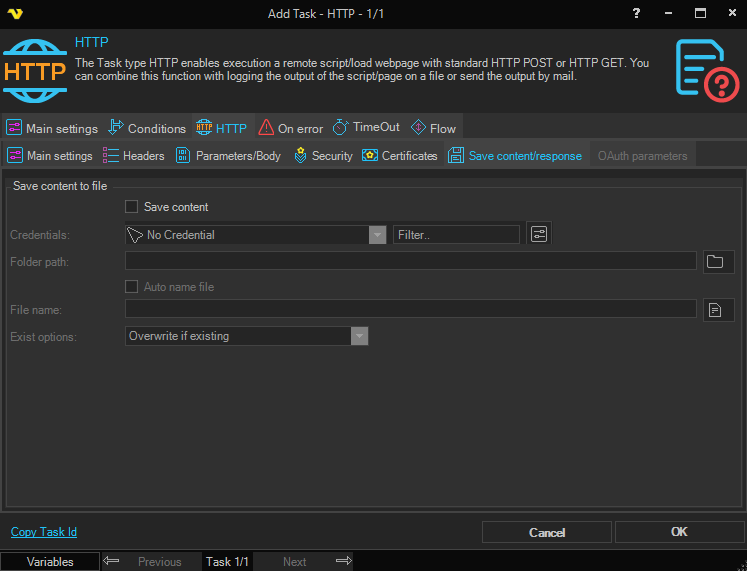
Save content
Normally, the content from the request is stored in the HTTP output. For example, if you script returns a text it can be found the Result of the HTTP Task. It is stored in text mode. If you want to use the binary output, for example if you want to download a file, you should check Save content.
Credentials
Optional. If you want to save the content in a folder which requires network credentials then select a valid credential for that folder. By clicking on Manage credentials you can add or edit current credentials.
Folder path
Specify a path where you want to save the content/file.
Auto name file
Optional. If this box is checked your file will be named after the the last part of the url.
File name
The name of the file to be saved.
Exist options
Select how VisualCron should handle existing files. Append, overwrite, overwrite if newer or skip the saving.
Troubleshooting:
Error "The requested security protocol is not supported."
Try unchecking protocols in Supported security protocols. Start with disabling TLS 1.2 and TLS 1.3, then TLS 1.1 if needed.