Task Net - SSH
The SSH Task runs commands on a remote SSH server, for example a Linux or Unix server, and returns their output as the output of the Task. SSH servers are standard on Linux and are available for most other operating systems, so the Task lets you run work on computers that do not run VisualCron.
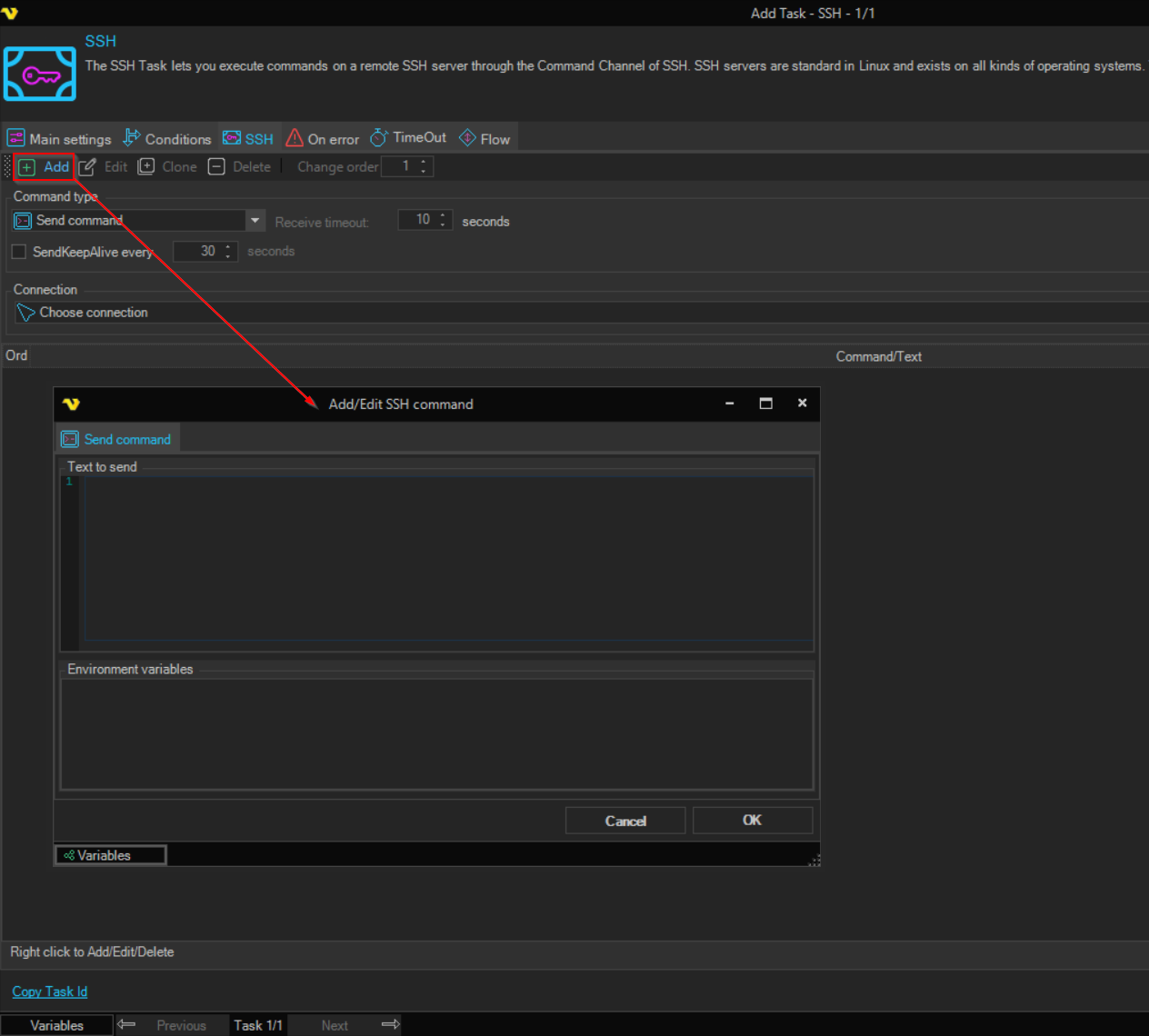
This Task uses an SSH Connection; see Connection - SSH. The server host key is never checked; there is no setting for it.
A new Connection has the proxy Authentication "Not set" with Use credentials selected. With Proxy type "HTTP Proxy", the Server then sends the user name and password of the SSH server to the proxy. To prevent this, set Authentication to "Basic", "Digest" or "NTLM", or clear Use credentials.
The Main settings, Flow, On error, Conditions and TimeOut tabs are the same for every Task; see Job - Tasks.
Connection
Select the SSH Connection with the server's address and sign-in in the Connection group. To add or change one, see Global - Connections and Connection - SSH.
Command type
-
Command type: how the commands are sent:
- "Send command" (default): runs each command on its own, waits for it to finish and collects all its output. Use it for commands that need no interaction
- "Send Text": opens one interactive shell session and types each command into it, as a user would at a terminal. Use it for commands that depend on each other or need a terminal
-
Receive timeout: "Send Text" only. How long, in seconds, the Task collects output after each text it sends
Each text waits this long unless the session closes first. The default is "10".
-
SendKeepAlive every: when selected, the Server sends keep-alive packets at the interval you set, in seconds, so that the server does not drop the connection
Cleared by default. The interval is "30" by default, with a minimum of "5".
Commands
The commands run in the order of the Order column. The Command/Text column shows each command. The toolbar above the grid has Add, Edit, Clone, Delete and Change order.
To add a command, complete the following steps:
- Click Add on the toolbar.
- In the Add/Edit SSH command window, enter the command in Text to send.
- (Optional, "Send command" only) In Environment variables, enter the variables that the command needs, one per line.
- Click OK.
The command is added to the grid. To edit a command, double-click it, or select it and click Edit. To move a command, select it and set its position in Change order. You can also right-click the grid to Add, Edit, Clone or Delete a command.
With "Send command", the server's environment variables are not loaded automatically, so enter the ones the commands need in Environment variables.
Output and errors
The output of each command is added to the output of the Task. To keep the outputs of different commands apart, use one Task for each command.
With "Send command", every command runs, even after one fails. When a command ends with a non-zero exit status, its message is written to the standard error output, the Task gets a non-zero exit code error (see Task - On Error), and the exit code of the Task is the last non-zero exit code.
With "Send Text", the Task does not get the exit status of each command, so a command that fails does not make the Task fail. To detect a failure, check the output, for example with the output conditions on the On error tab.