Screenshot Step
The Screenshot step takes a screenshot of the current web browser and saves it to a file.
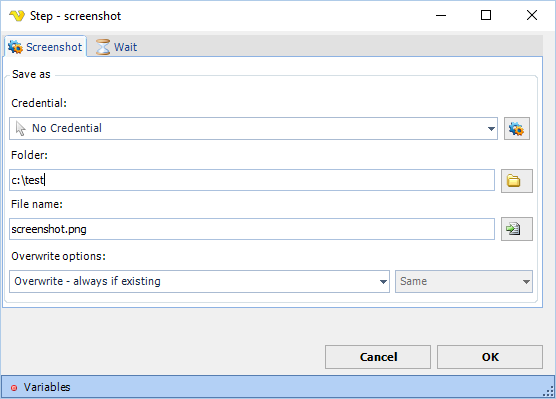
Screenshot tab
Credential
If the destination folder is on a network resource, select a credential to provide the necessary access rights. Use an existing or add one.
Folder
The local destination folder where the screenshot file will be saved. Click the browse button to select a folder.
File name
The destination file name. Click the browse button to select an existing file name.
Overwrite options
Controls what happens when a file with the same name already exists at the destination. Options:
- Overwrite - always if existing (default) — always replace the destination file
- Overwrite - if destination size is — replace based on size comparison (activates the size dropdown)
- Do not overwrite if existing — skip the file if it already exists
Overwrite size
Active only when Overwrite options is set to "Overwrite - if destination size is". Options: Same, Smaller, Larger, Smaller or larger, Different.
Screenshot type
Controls what area of the browser is captured. Options: Window (default), Page.
Screenshot size
Controls the capture area. Options:
- Full (default) — captures the full screenshot type area
- Part — captures a rectangular region defined by the fields below
Relative position and size of rectangle
Active only when Screenshot size is set to Part. Specify the X and Y coordinates of the top-left corner of the rectangle, and its Width and Height in pixels.
Wait tab
Controls how long the step waits before and after performing the action.