Task PDF - Set Field
The PDF - Set field(s) Task set field value(s) in one or more PDF documents.
Set field(s) > Main settings sub tab
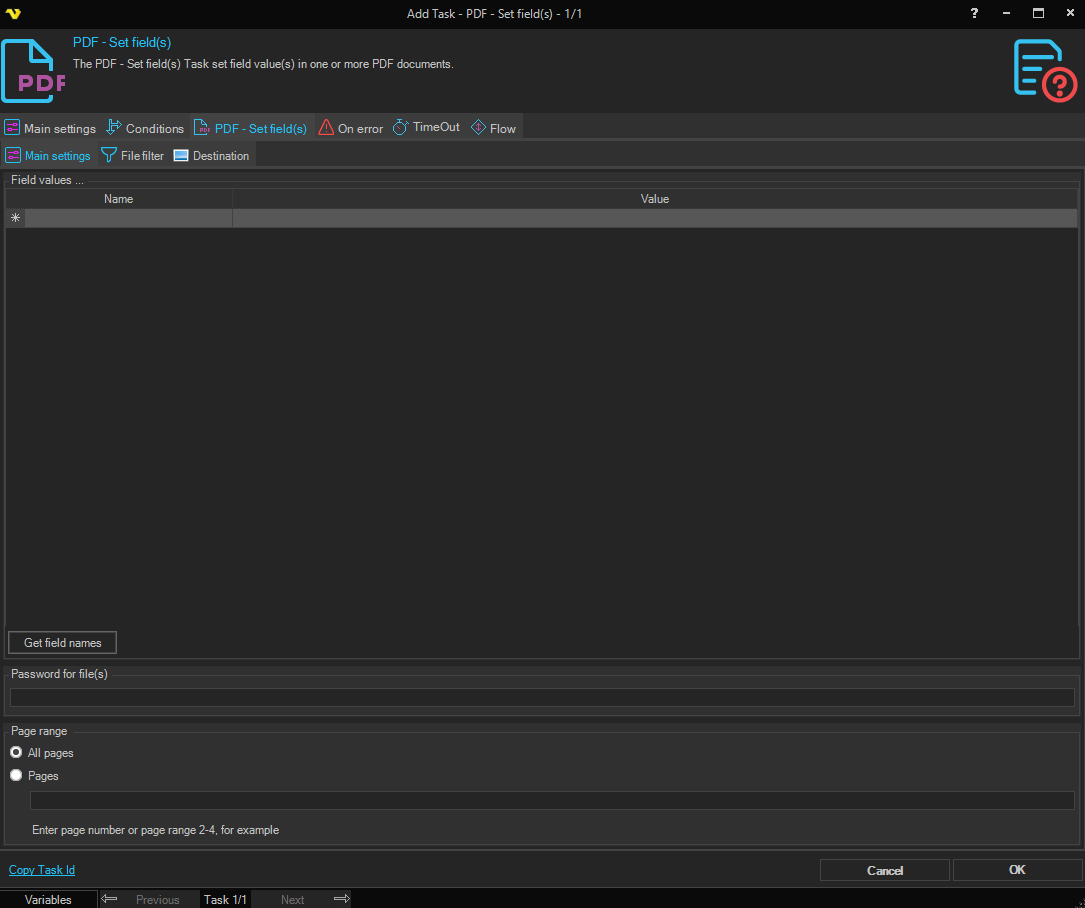
Fields grid
Enter the name of the fields and their values you want to set here. You can retrieve all existing fields by pressing Get field names. To delete a field select a row and press the Delete button. Enter values for combobox/list box (both text and number) and/or checkbox (both "true" and 1 and 0).
Password for file(s)
If any of the specified PDF files contains a password it should be entered here
Page range
The pages that should be processed. Specify a range like 2-4 or specific pages 1,3,5-6.
Set field(s) > File filter > Location sub tab
This tab uses the common file filter to filter out the files that should be processed in this Task.
Set field(s) > Destination sub tab
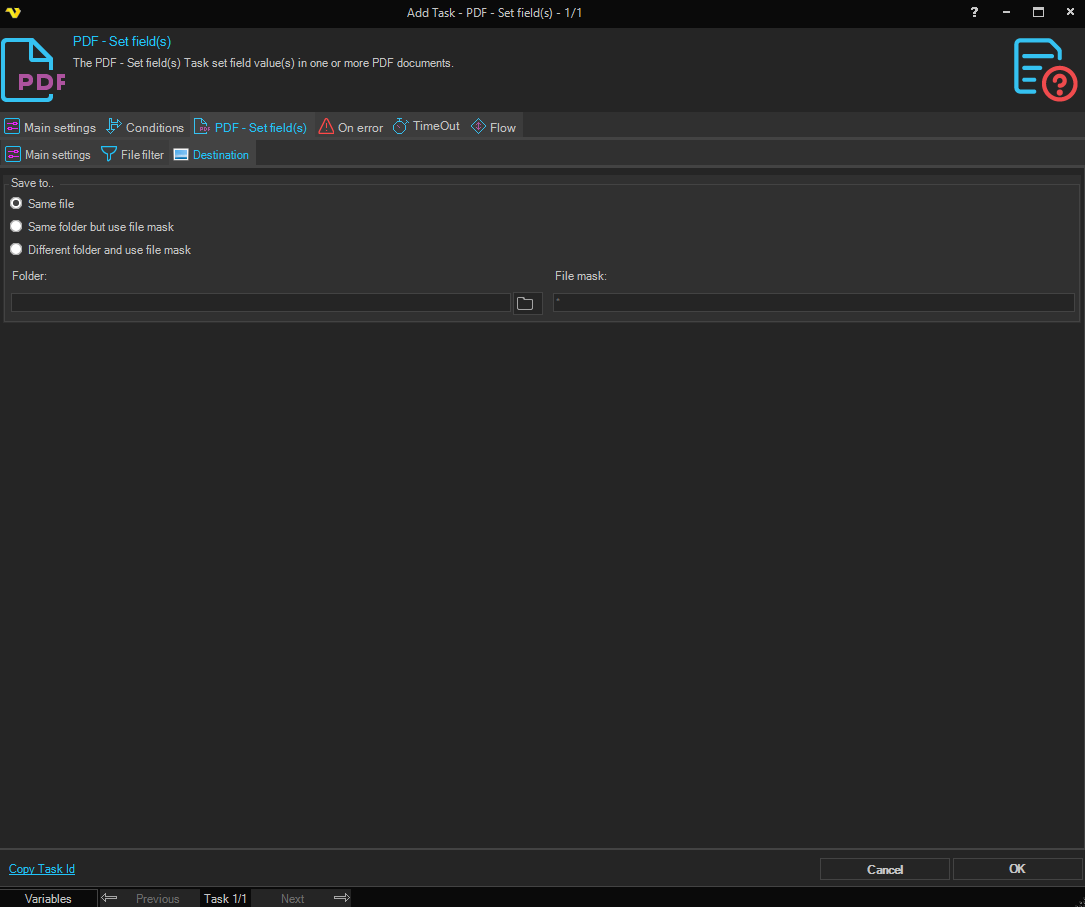
Save to
Selects where the modified PDF is written. Available options:
- Save to same file - overwrite the source PDF in place
- Same folder with file mask - keep the original folder, but save under a different name (set the File mask below)
- Different folder with file mask - save under a different name in a different folder (set both Folder and File mask below)
Folder
The destination folder. Enabled when Save to is set to Different folder with file mask. Click the Folder icon to browse for the folder.
File mask
The file mask used to name the output file. Enabled when Save to is set to Same folder with file mask or Different folder with file mask.