Task PDF - Add Footer/Header
The PDF - Add footer/header Task adds a text or an image to the header, the footer or the center of the pages of existing PDF files, or of a new PDF file that it creates.
The Main settings, Flow, On error, Conditions and TimeOut tabs are the same for every Task; see Job - Tasks.
Add footer/header: Main settings tab
-
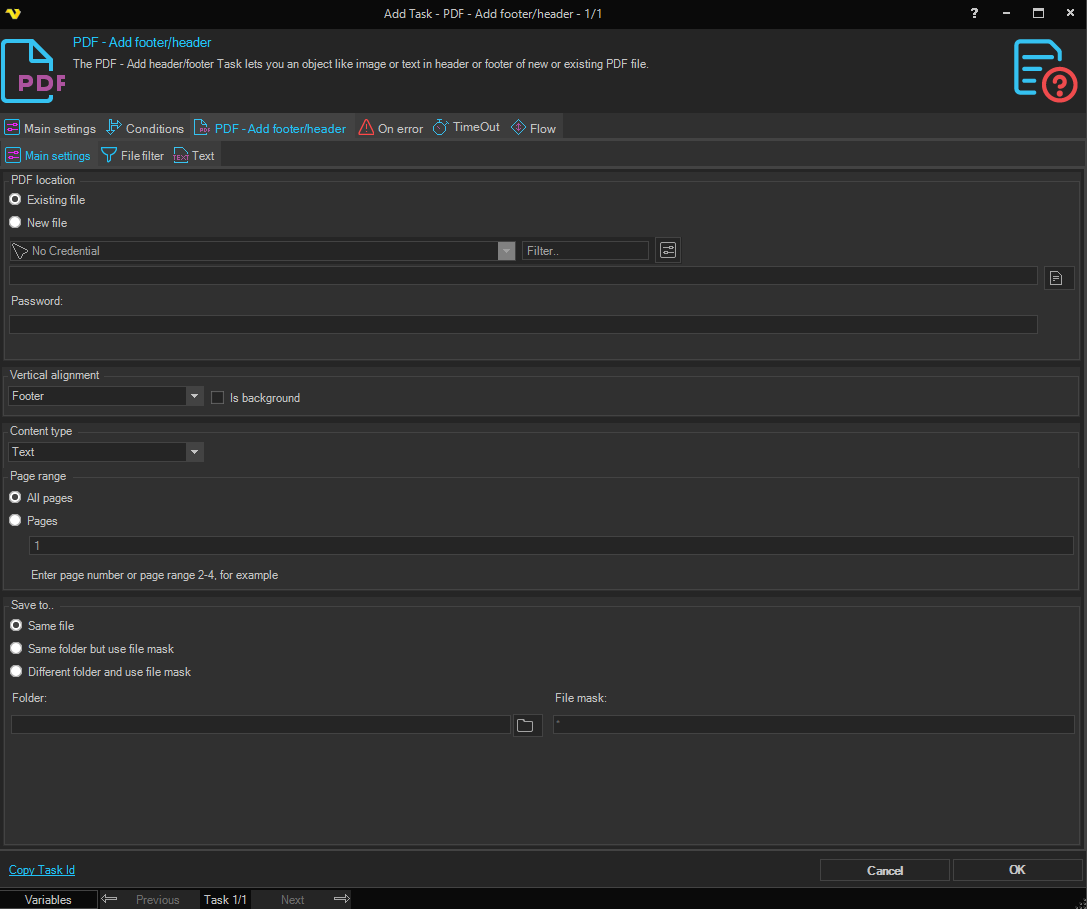
Existing file (PDF location group): adds the content to every file that the File filter tab selects
-
New file: creates a new PDF file at the path in the box below the Credential; click the file button to browse
With New file, the File filter tab is hidden, the Save to.. group is not used, and the Credential in this group is used to write the new file.
-
Password: the password that opens an existing PDF file
The password is not applied to a new file: a new file is saved without a password.
-
Vertical alignment: "Header", "Footer" or "Center"; the default is "Footer"
-
Is background: places the content behind the page content
-
Content type: "Text", the default, or "Image"; shows the Text or the Image tab
-
Page range: All pages, or Pages with page numbers and ranges separated by commas, for example
2-4or1,3,5-6. An entry that is not a page number or a valid range is ignoredFor a new file, the Task creates as many pages as the highest number in the Pages box, at least one, even when All pages is selected. The default is "1".
-
Same file (Save to.. group): saves the result over the source file
-
Same folder but use file mask: saves the result in the folder set on the File filter tab, named by File mask
-
Different folder and use file mask: saves the result in Folder, named by File mask
-
Folder: the destination folder for Different folder and use file mask; click the folder button to browse
-
File mask: builds the new file name from the source file name, by the renaming standard set in Main - Settings
The default
*keeps the source file name.
Same file replaces the source file. With the default File mask *, Same folder but use file mask also replaces a source file that is in the File filter folder. A file that already has the new name is replaced without a prompt.
File filter tab
The File filter tab selects the existing PDF files to change; see File Filter. If the filter has a Credential, the Task uses it while it reads and writes the files. When the logon with the Credential fails, the Task continues as the account that runs the Server and writes the error to the Server log.
Image tab
The Image tab appears when Content type is "Image".
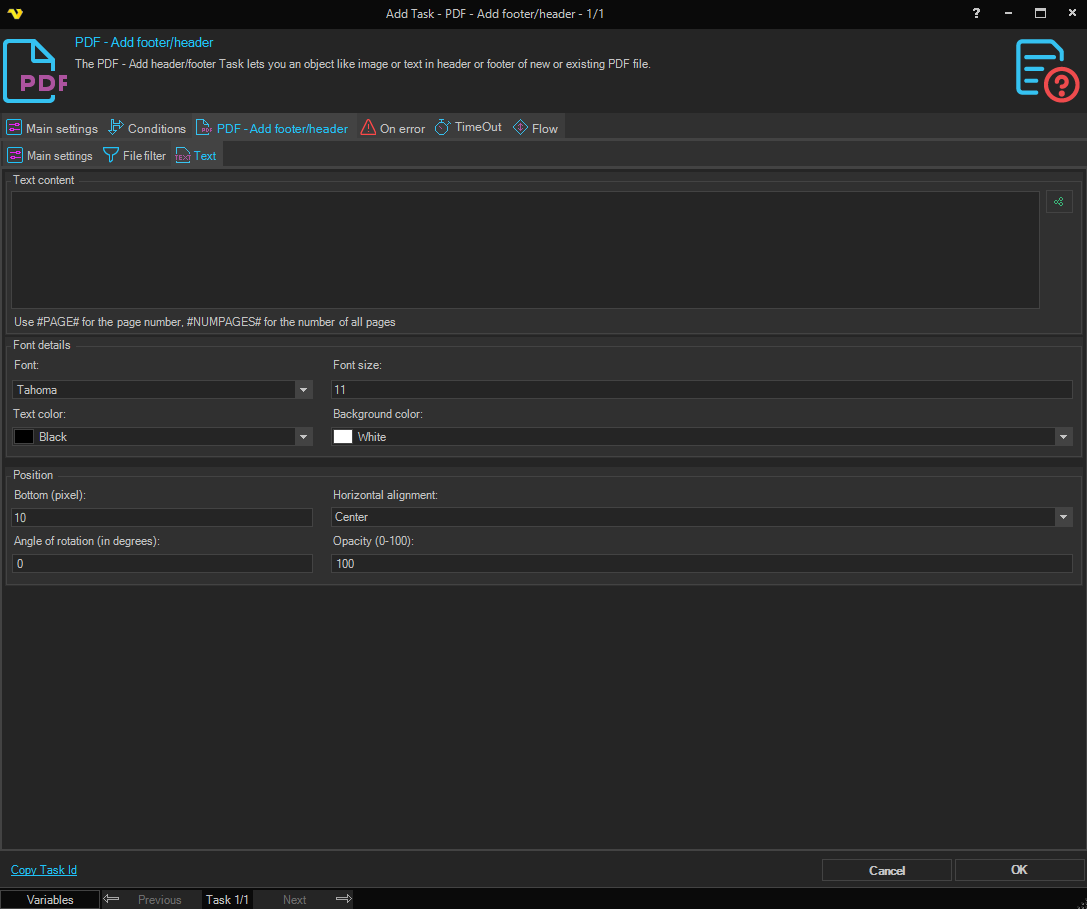
The screenshot shows the Text tab; the Image tab has the fields below.
-
Image location: the full path of the image file
-
Width and Height (Image dimension group): the size of the image on the page; the defaults are "200" and "200"
-
Top (pixel) or Bottom (pixel) (Position group): the distance from the top of the page when Vertical alignment is "Header", or from the bottom when it is "Footer"
The label follows Vertical alignment. The value is not used with "Center". The default is "10".
-
Horizontal alignment: "Left", "Center" or "Right"; the default is "Center"
-
Angle of rotation (in degrees): rotates the image; the default is "0"
-
Opacity (0-100): "100", the default, is fully opaque
Text tab
The Text tab appears when Content type is "Text".

-
Text content: the text to add
#PAGE#is replaced by the page number and#NUMPAGES#by the number of pages. Variables are supported. -
Font and Font size (Font details group): the font of the text; the defaults are "Tahoma" and "11"
-
Text color and Background color: the defaults are "Black" and "White"
-
Top (pixel) or Bottom (pixel) (Position group): the distance from the top of the page when Vertical alignment is "Header", or from the bottom when it is "Footer"
The label follows Vertical alignment. The value is not used with "Center". The default is "10".
-
Horizontal alignment: "Left", "Center" or "Right"; the default is "Center"
-
Angle of rotation (in degrees): rotates the text; the default is "0"
-
Opacity (0-100): "100", the default, is fully opaque
Output and errors
The Task output lists the path of each file it saves. With Existing file, the Task raises the File not found error when the File filter matches no file.