Task PDF - Split
The PDF - Split Task is able to split a PDF document in half, at a specific page or per specific pages or into even/odd pages.
Split > Main settings sub tab
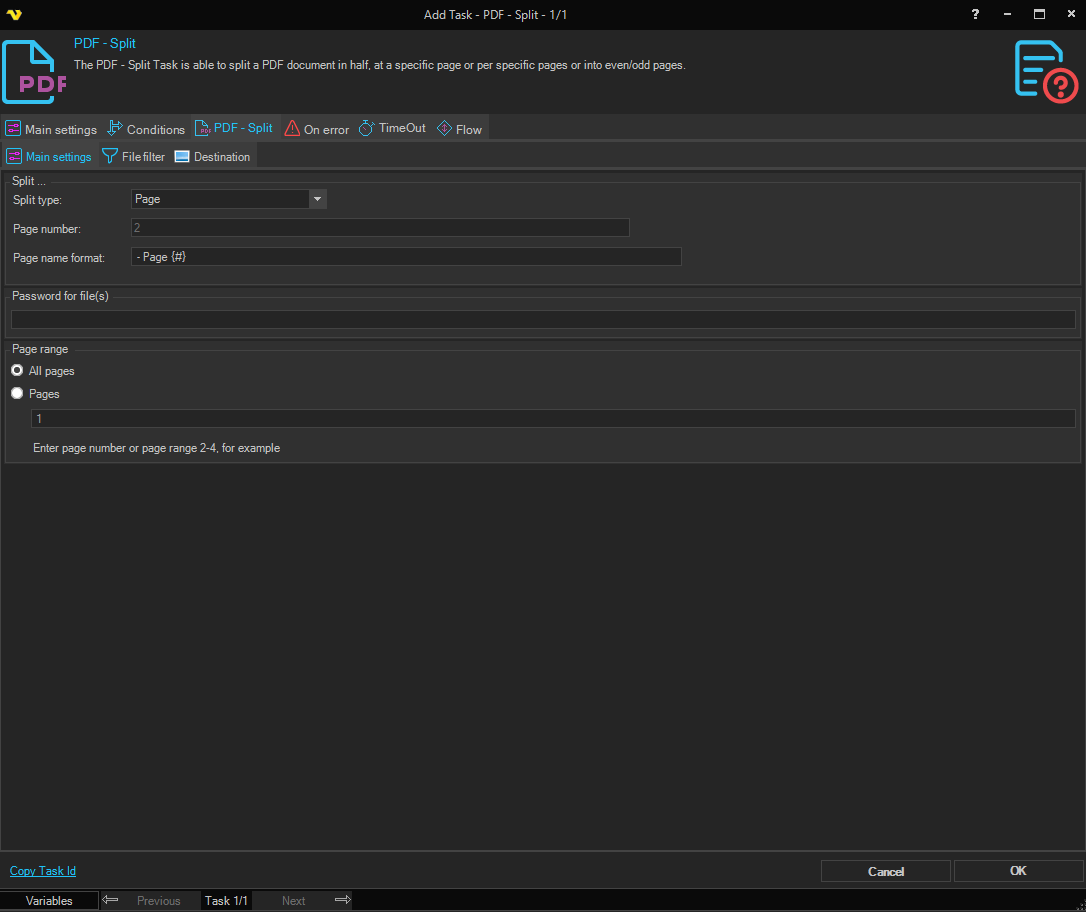
Split type
How the pages should be split. The available options are:
Half
The document will be split in half (or as close to half as possible) determined by the total number of pages in the document. The output files will consist of the original filename followed by the range of pages that were split enclosed in parenthesis (i.e. myDocument (1-4).pdf, myDocument (5-7).pdf)
Page (default)
The document will be split into individual pages. The output files will consist of the original filename followed by an underscore and page number (i.e. myDocument - Page 1.pdf, myDocument - Page 2.pdf, myDocument - Page 3.pdf, etc).
Even / Odd
The document will be split into even and odd pages. The output files will consist of the original filename followed by the page type, either even or odd (i.e. myDocument_Even_Pages.pdf and myDocument_Odd_Pages.pdf).
At
The document will be split at the page specified. The output files will consist of the original filename followed by the range of pages that were split enclosed in parenthesis (i.e. myDocument (1-2).pdf, myDocument (3-6).pdf).
Page number
The page number the actual split should occur on. This property is only used if the Split type is of type Split at.
Page name format
How the output files should be named. Variable {#} contains the page number.
Password for file(s)
If any of the specified PDF files contains a password it should be entered here.
Page range
All pages - cover split functionality on all pages
Pages - cover split functionality on specified page
Split > File filter > Location sub tab
This tab uses the common file filter to filter out the files that should be processed in this Task.
Split > Destination sub tab
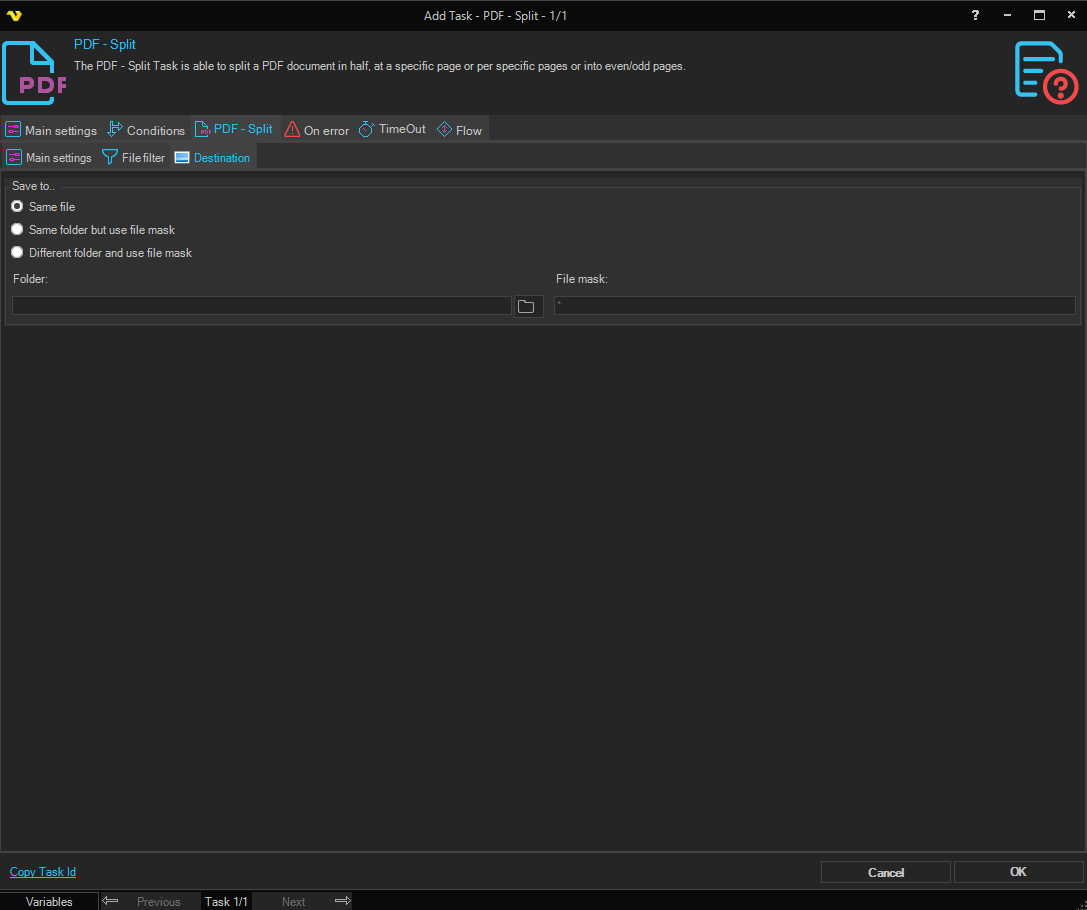
Save to
Selects where the split output files are written. Available options:
- Save to same file - write to the same folder as the source, using the default split naming
- Same folder with file mask - keep the original folder, but save with a custom file mask (set the File mask below)
- Different folder with file mask - save in a different folder with a custom file mask (set both Folder and File mask below)
Folder
The destination folder. Enabled when Save to is set to Different folder with file mask. Click the Folder icon to browse for the folder.
File mask
The file mask used to name the output files. Enabled when Save to is set to Same folder with file mask or Different folder with file mask.