Task PDF - Add Attachment
The PDF - Add attachment(s) Task attaches one or more files to a PDF file.
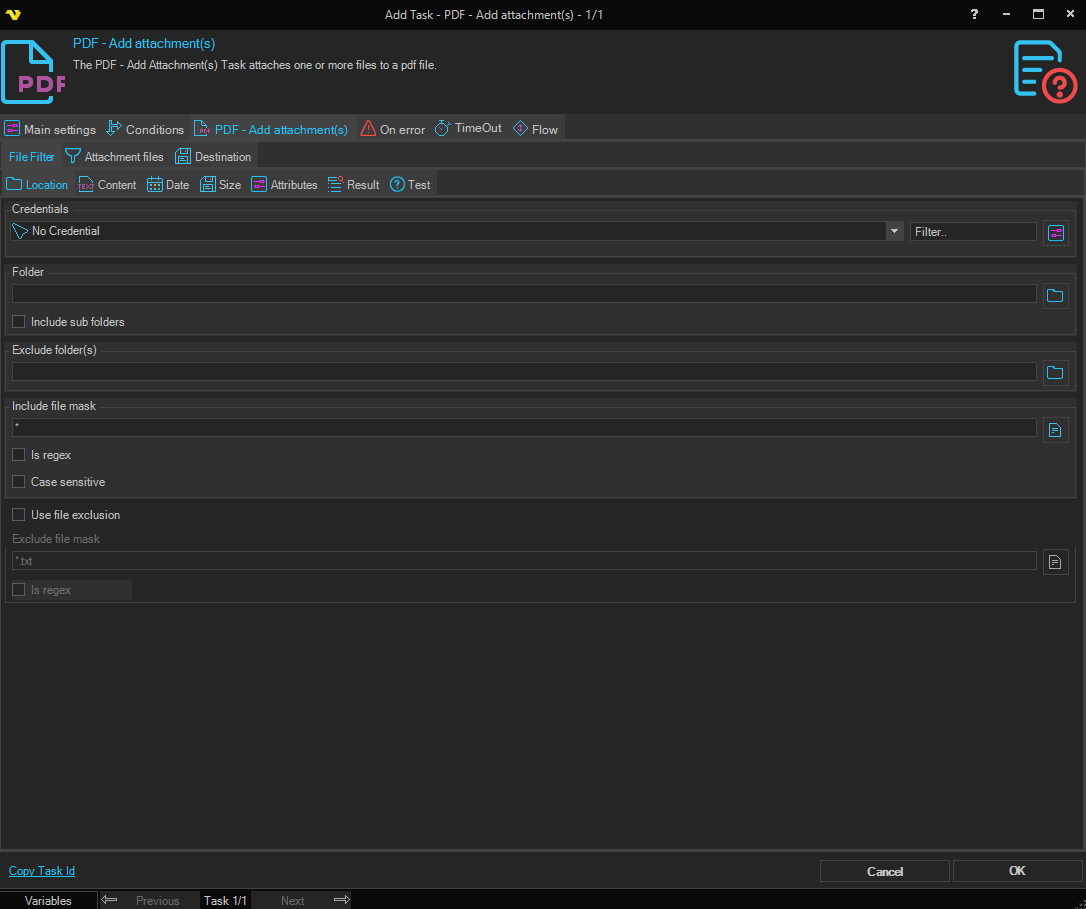
Add attachment(s) > File filter > Location sub tab
This tab uses the common file filter to choose which PDF files should be processed in this Task.
Add attachment(s) > Attachment files sub tab
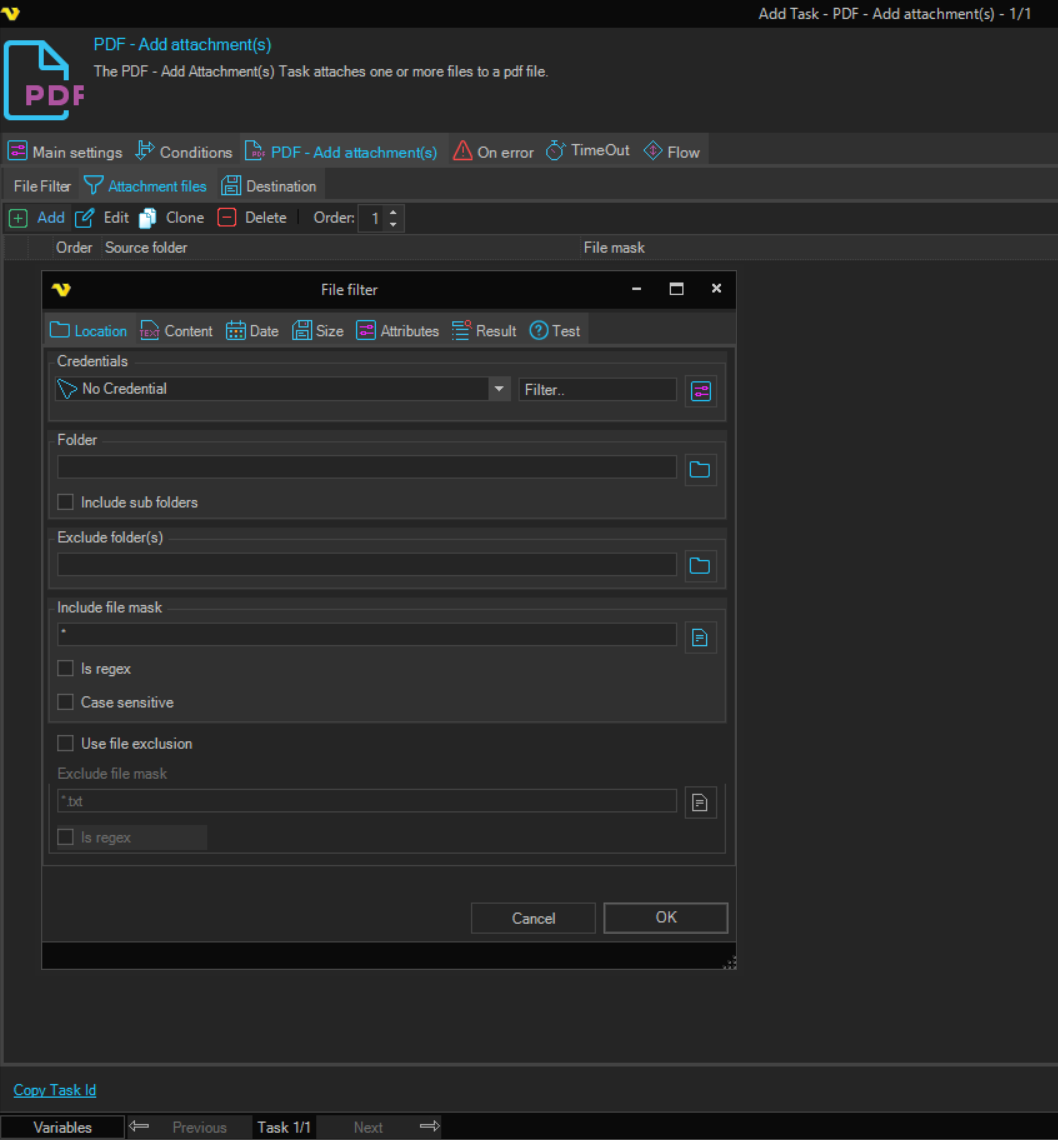
In the Attachment files dialog you add, edit, clone or delete the files to attach and change the order of the items. Changes can be made either with the toolbar buttons or by double-clicking an item.
Add attachment(s) > PDF Destination sub tab
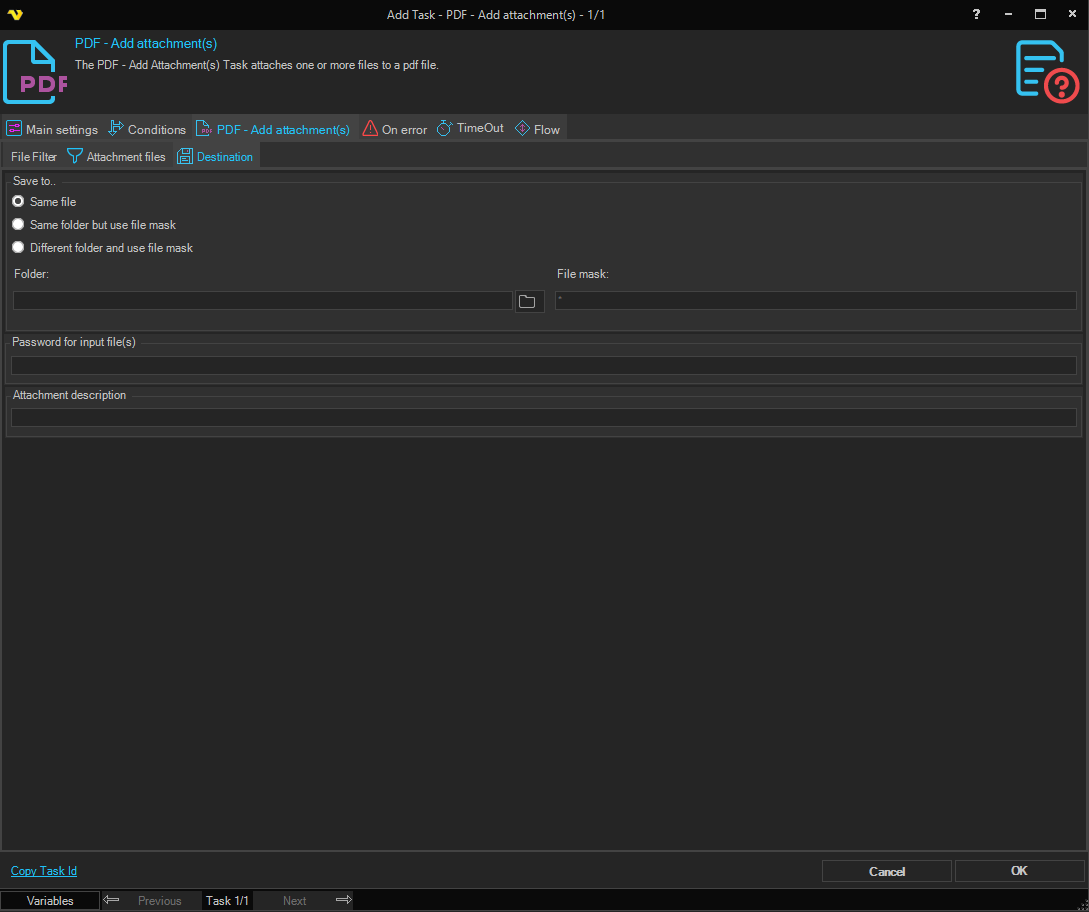
Save to
Selects where the output PDF is written. Available options:
- Save to same file - overwrite the source PDF in place
- Same folder with file mask - keep the original folder, but save under a different name (set the File mask below)
- Different folder with file mask - save under a different name in a different folder (set both Folder and File mask below)
Folder
The destination folder. Enabled when Save to is set to Different folder with file mask. Click the Folder icon to browse for the folder.
File mask
The file mask used to name the output file. Enabled when Save to is set to Same folder with file mask or Different folder with file mask.
Password for input files
If the source PDF files are password protected, enter the password here. Optional.
Attachment description
Free-text description applied to the attached files. Optional.