Task PDF - Sign
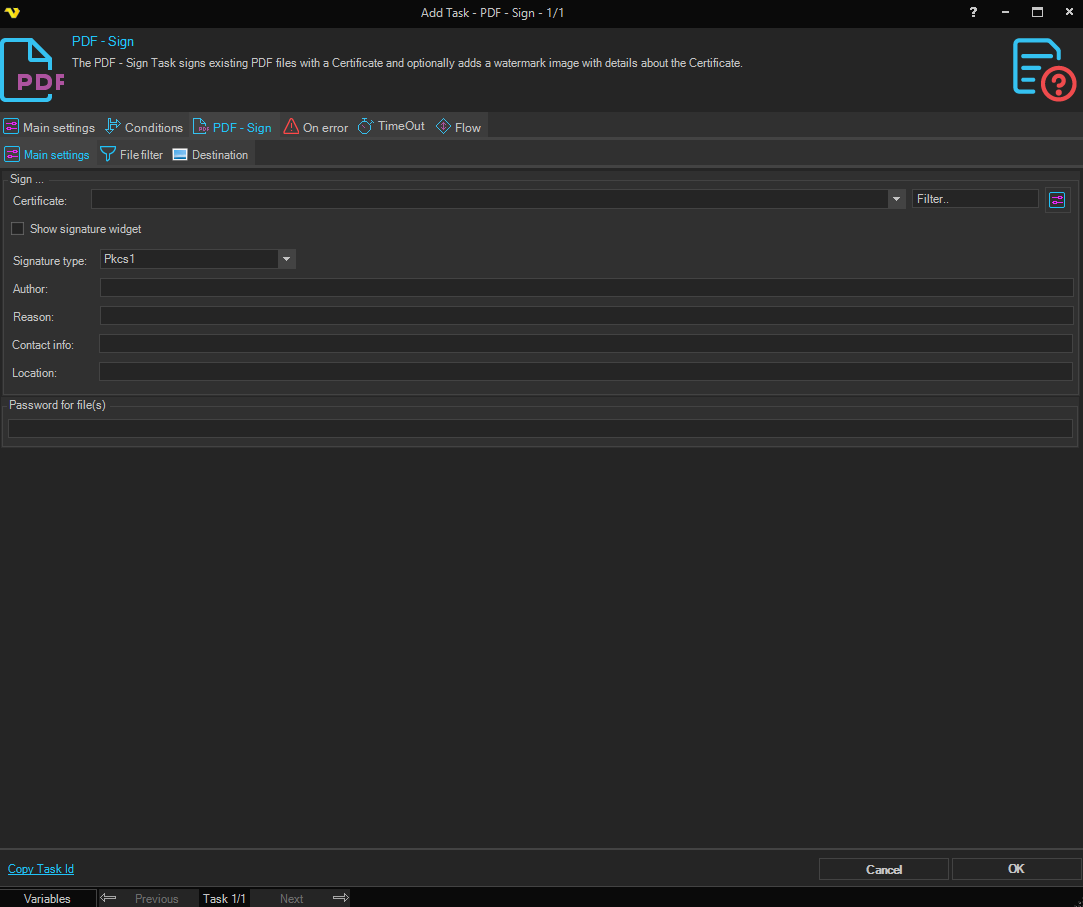
The PDF - Sign Task signs PDF files with a Certificate, and can show the signature as a widget on the pages.
The Main settings, Flow, On error, Conditions and TimeOut tabs are the same for every Task; see Job - Tasks.
Sign: Main settings tab
-
Certificate (Sign ... group): the Certificate to sign with; required
-
Show signature widget: makes the signature visible on the pages and shows the Signature widget tab
When it is unchecked, the signature is invisible.
-
Signature type: "Pkcs1" (the default), "Pkcs7" or "Pkcs7_detached"
noteThe signature uses the SHA-1 digest.
-
Author, Reason, Contact info and Location: stored in the signature
Variables are supported.
-
Password for file(s): not used by this Task
The Task cannot sign an encrypted file; see Output and errors.
File filter tab
The File filter tab selects the PDF files to sign; see File Filter. If the filter has a Credential, the Task uses it while it reads and writes the files. When the logon with the Credential fails, the Task continues as the account that runs the Server and writes the error to the Server log.
Destination tab
-
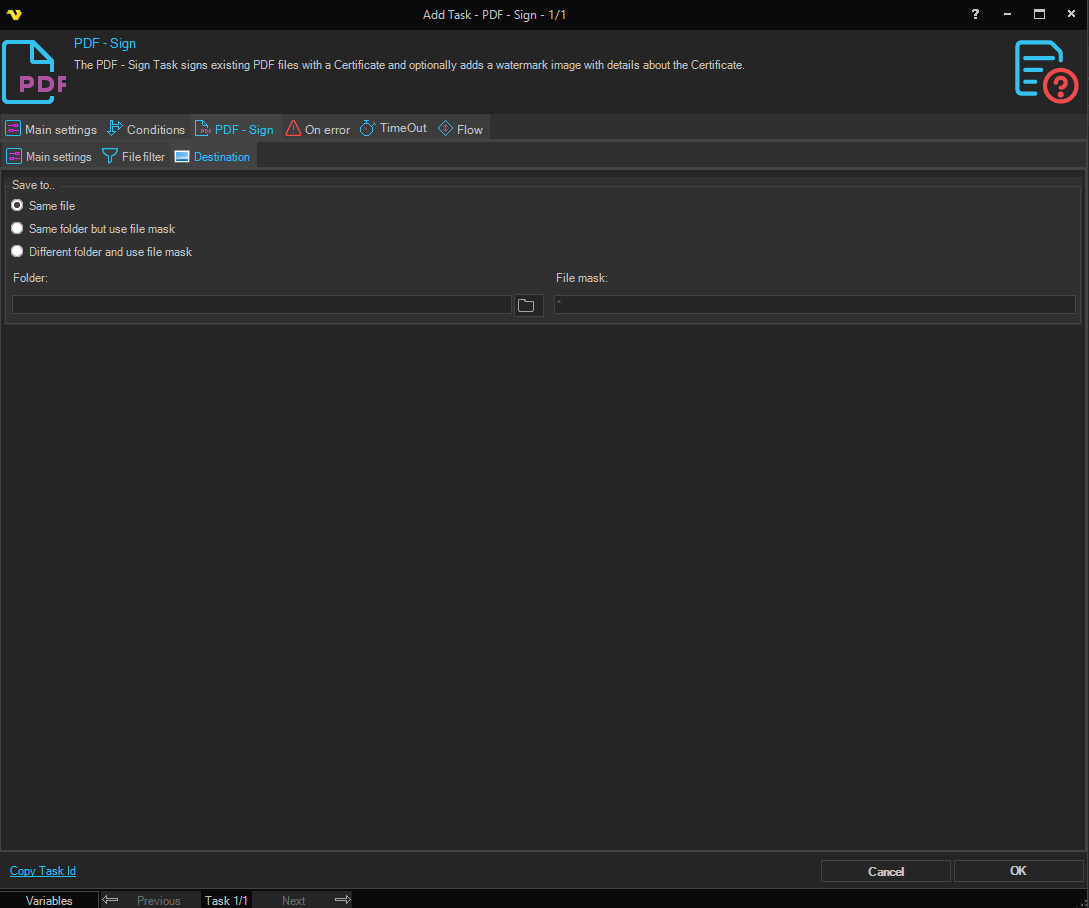
Same file (Save to.. group): saves the signed file over the source file
-
Same folder but use file mask: saves the signed file in the folder set on the File filter tab, named by File mask
-
Different folder and use file mask: saves the signed file in Folder, named by File mask
-
Folder: the destination folder for Different folder and use file mask; click the folder button to browse
-
File mask: builds the new file name from the source file name, by the renaming standard set in Main - Settings
The default
*keeps the source file name.
Same file replaces the source file. With the default File mask *, Same folder but use file mask also replaces a source file that is in the File filter folder. A file that already has the new name is replaced without a prompt.
When Include sub folders is checked on the File filter, Same folder but use file mask saves every result in the File filter folder, not in the subfolder the source file came from.
Signature widget tab
The Signature widget tab appears when Show signature widget is checked.
Properties
-
No rotate: the widget does not rotate when the document is rotated; checked by default
-
No zoom: the widget keeps its size when the document is zoomed; checked by default
-
Print: the widget is printed; unchecked by default
-
Locked: the widget cannot be moved; checked by default
-
Locked contents: the content of the widget is locked; unchecked by default
-
ReadOnly: the widget does not respond to the user; checked by default
-
No view: the widget is not shown when the document is viewed; unchecked by default
-
Toggle no view: the widget is shown only when the pointer is over it; unchecked by default
-
Signature widget background image: a JPEG file shown as the background of the widget
When it is empty, a built-in image is used.
-
Auto stretch background: stretches the background image to fit the widget; checked by default
-
Stretch width and Stretch height: the size of the background image, used when Auto stretch background is unchecked
Signature position and dimension
-
AutoPos: places the widget automatically; checked by default
When it is unchecked, Left and Top set the position; the defaults are "10" and "10".
-
AutoSize: sizes the widget automatically; checked by default
When it is unchecked, Width and Height set the size; the defaults are "300" and "400".
Show signature in page range
- All pages: shows the widget on every page; this is the default
- Pages: shows the widget on page numbers and ranges separated by commas, for example
2-4or1,3,5-6. An entry that is not a page number or a valid range is ignored
Default text
The Default text tab sets the texts in the widget.
-
AutoText: builds the widget texts from the Certificate; checked by default
When it is unchecked, the widget uses Header, Algorithm caption, Algorithm info, Signer caption and Signer info, and the texts on the Custom texts tab.
-
Hide default text: hides the default texts of the widget, such as the signature algorithm and signing time; unchecked by default
-
Show timestamp: shows the signing time; checked by default
-
AutoFontSize, Title font size, Timestamp font size, Section title font size and Section text font size: the Task does not currently apply these settings
-
Font name: the name of a font to add to the widget
Custom texts
The Custom texts tab lists more texts for the widget, used when AutoText is unchecked.
-
Text: the text to add
Variables are supported.
-
Left and Top: the position of the text in the widget
-
FontSize: the size of the text
Output and errors
The Task output contains "Success" for each file it signs. An encrypted file raises an error.
When the selected Certificate no longer exists, the file is not signed, and the Task reports success. With Same folder but use file mask or Different folder and use file mask, the Task copies the source file to the destination before it signs it, so an unsigned copy stays there.