Robot Task Activities - Web Macro
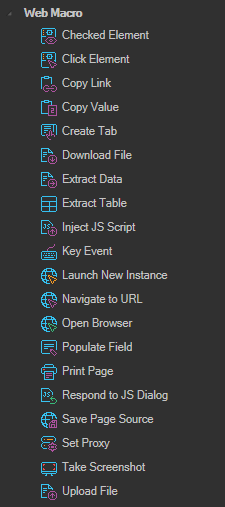
The Web Macro category contains activities that drive a web browser: navigating, clicking, filling in fields, extracting data, and transferring files.
Required Nesting
Web Macro activities must be nested correctly or they will not run:
- All Web Macro activities must be inside a parent Open browser activity.
- All child Web Macro activities must be inside a parent Launch new instance activity.
Sequence
  Open browser
    Do
      Launch new instance
        Actions
          Create tab
          Navigate to URL
          Click element
          ...
Rather than building this by hand, you can record the actions in a Web Macro task and copy them into a Robot Task. See Recording Web Macro for Robot Task.
Open browser
Opens the browser window. This is the outermost Web Macro container.
- Click Edit action in the context menu to record web macro actions.
- Click Browser settings in the context menu to open the browser settings window, which offers the same options as the Web Macro task.
Browser settings include:
| Setting | Description |
|---|---|
| Load images | Load images on the page. Disabling this speeds up page loads. |
| Store cookies | Persist cookies between runs. |
| Block popups | Suppress popup windows. |
| Lite mode | Reduced feature browser mode. |
| Disable WebSecurity | Disable browser web security restrictions. |
| Override User-Agent | Send a custom User-Agent string. |
| Override referer | Send a custom referer value. |
| Accept-Language | The Accept-Language header sent with requests, for example en-US. |
| Google API | GoogleClientID, GoogleAPIKey, and GoogleClientSecret values. |
Launch new instance
Launches a new web instance. Every other Web Macro activity goes inside this activity's Actions body.
Click Edit action to open the settings window.
Each Web Macro activity has its own settings window that includes a Wait tab:
| Setting | Description |
|---|---|
| Wait before execute | Wait time in milliseconds before the activity executes. |
| Wait after execute | Wait time in milliseconds after the activity executes. |
Click element
Clicks the specified web element.
| Setting | Description |
|---|---|
| Allow to ignore the element | Continue the sequence if the element is not found by the given path, instead of throwing an exception. |
| Wait element | Timeout in seconds the activity waits for the element to appear. |
| Relative | Identify the element by its path. |
| Frame path | The CSS selector for the frame containing the element, if the element is inside a frame. |
| Element path | The path to the element. Supports CSS selectors and XPath. |
| By position | Click the element by X and Y coordinates. |
| By search | Find the element by searching. Useful when the element's path changes between runs. |
How By search works: all elements matching the Selector are collected, the specified Attribute value is read from each one, each value is tested against the Regex value, and the element at the ordinal Position in the filtered results is returned.
For full detail on all three addressing modes, see Element Path.
Allow to ignore the element is the only reliable error handling option for Web Macro activities. A TryCatch activity cannot catch a Web Macro exception, because the sequence is forcibly stopped. See Error Handling.
Checked element
Checks or unchecks the specified web element. Same settings and interface as Click element, plus:
| Setting | Description |
|---|---|
| State | The checkbox state to apply. |
Copy link
Copies the link of the specified web element to the clipboard. The Source tab holds the same element addressing settings as Click element.
Use the Variable tab to save the link to a variable instead:
| Setting | Description |
|---|---|
| Job Variable | Save the link to the named Job variable. |
| User Variable | Save the link to the named User variable. |
| Variable type | The data type of the target variable, for example String. |
Copy value
Copies the value of the specified web element to the clipboard. Element addressing settings are the same as Click element.
Download file
Forces a download from a specified URL, or clicks a web element to start a download.
| Setting | Description |
|---|---|
| Force download | Download the file directly from a URL address. |
| Original file/path | The URL address of the file. |
| Credential | The credential used to access the save location. |
| Folder | The folder the file is saved to. |
| File mask | The file name to save as. |
| Overwrite options | What to do if the target file already exists. |
If you do not have a direct URL, uncheck Force download to enable the Element tab, then fill in the element properties for the link or button that starts the download.
Extract data
Extracts data from the specified web element.
Extract table
Extracts an HTML table from the page. Use this to pull a table straight into a List Variable for row by row processing.
Inject JS script
Injects and executes JavaScript code in the page. Enter the JavaScript to run in the Inject JS tab.
Use this for interactions that the standard activities cannot express, such as scrolling an element into view or reading a value computed by the page.
Respond to JS dialog
Responds to a JavaScript dialog box.
| Setting | Description |
|---|---|
| Input dialog | The message entered when an input dialog box appears. |
| Button dialog | The button invoked when a dialog box appears: Yes/Ok or No/Cancel. |
Click Mask value to hide the input text, for example when entering a password.
Populate field
Populates the specified web element with the specified value. Element addressing is configured on the Source tab, the value on the Populate tab.
| Setting | Description |
|---|---|
| Value | The value that will be populated. |
| Mask value | Hides the value text, for example when entering a password. |
| Milliseconds per character | Time in milliseconds between sending each character, simulating typing. |
| Is Enter | Send the Enter key after populating the field. |
For guidance on targeting form fields reliably when a page reorders them, see Web Input - Element Path.
Print page
Prints the web page.
| Setting | Description |
|---|---|
| Select printer | The printer to use, chosen from the printers installed on the computer. |
| Printer settings | Page range, number of copies, duplex, and orientation. |
Save page source
Saves the source code of the web page to the specified variable. Select the Job or User variable that receives the page source.
Navigate to URL
Navigates to the specified URL address.
| Setting | Description |
|---|---|
| URL | The URL address to navigate to. |
Create tab
Creates a new tab. The settings window contains the Wait tab only.
Take screenshot
Takes a screenshot of a web page and saves it to a specified file.
| Setting | Description |
|---|---|
| Credential | The credential used to access the specified path. |
| Folder | The folder path the image is saved to. |
| File name | The file name for the final screenshot image. |
| Overwrite options | What to do if the specified file already exists. |
| Screenshot type | Window captures the visible part of the window. Page captures the entire page. |
Upload file
Clicks the specified web element and uploads a file. Fill in the File filter fields to select the files to upload.
The file filter offers tabs for Location, Content, Date, Size, Attributes, Result, and Test, including:
| Setting | Description |
|---|---|
| Credentials | The credential used to access the folder. |
| Folder | The folder to look for files in. |
| Include sub folders | Search subfolders as well. |
| Exclude folder(s) | Folders to skip. |
| Include file mask | The mask matching files to upload, with Is regex and Case sensitive options. |
| Use file exclusion | Enable an exclusion mask, with its own Is regex option. |
Set proxy settings
Uses the specified proxy server to access the web page.
Tips
- Record the sequence in a Web Macro task first, then copy it into the Robot Task. It is much faster than assembling the nesting by hand and guarantees the structure is correct. See Recording Web Macro for Robot Task.
- Replace recorded positional paths with attribute based CSS selectors before putting a task into production. Recorded positions break the first time the page layout changes.
- Set Wait element rather than adding fixed waits between activities. It continues as soon as the element appears.
- Enable Allow to ignore the element on activities where a missing element is an acceptable outcome, such as dismissing a cookie banner that may or may not be shown.
- Use Mask value on any Populate field or Respond to JS dialog activity that handles a password, so the value does not appear in the task log.
- Turning off Load images in browser settings noticeably speeds up page loads on image heavy sites.