Robot Task Activities - Mouse
The Mouse category contains activities that simulate mouse input against a UI element or a fixed screen position.
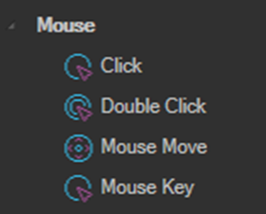
All four activities locate the target element first. If the specified element is not found, the activity throws an exception.
Click
Finds the specified element and simulates a mouse click on it.
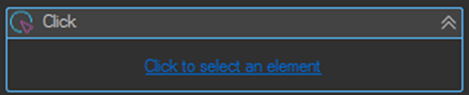
Use the Click to select an element link to pick the target in the UI and fill the search properties automatically. Move the mouse over the element, hold CTRL, and click.
| Property | Description |
|---|---|
| OffsetX / OffsetY | Click at a position relative to the element. By default the activity clicks the center of the element. |
| ClickManually | Click a fixed screen position taken from CursorPointX and CursorPointY instead of locating an element. |
| CursorPointX / CursorPointY | The screen coordinates used when ClickManually is enabled. |
| MouseButton | The mouse button to use. Left is the default. |
| PressedKeys | Modifier keys held down while clicking, for example Control or Shift. See the Keys enumeration. |
An error parsing the PressedKeys property forces the sequence to stop and cannot be caught by a TryCatch activity. See Error Handling.
Double Click
Finds the specified element and simulates a mouse double click on it. Properties are the same as the Click activity.
Mouse Move
Finds the specified element and simulates a mouse move to it. Enable UseManual to move to a fixed screen position instead.
| Property | Description |
|---|---|
| HoverTime | Delay in milliseconds after the mouse has moved to the element. Use this to let hover menus and tooltips appear. |
Mouse Key
Finds the specified element and simulates pressing or releasing a mouse button. Enable ClickManually to act on a fixed screen position instead.
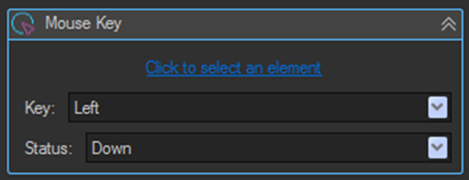
| Setting | Description |
|---|---|
| Key | The mouse button, for example Left, Right, or Middle. |
| Status | The button state to apply: Down or Up. |
Pair a Down and an Up activity to build interactions a single click cannot express, such as a drag and drop: press Down on the source element, use Mouse Move to travel to the target, then release with Up.
Tips
- Prefer element based clicking over ClickManually. Fixed coordinates break as soon as a window is moved or resized, or the task runs at a different screen resolution.
- If a click needs to land somewhere other than the middle of a control, use OffsetX and OffsetY rather than switching to fixed coordinates.
- For clickable items in a web page, use the Web Macro Click element activity instead. It targets elements by CSS selector or XPath rather than by screen position.
- If the target is a standard UI control such as a button or checkbox, the Controls Invoke activity is often more reliable than a simulated click, because it does not depend on the element being visible on screen.