Robot Task Activities - OCR
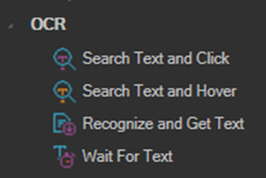
The OCR category contains activities that read text directly from the screen using optical character recognition. Use these when an application does not expose its content as UI elements, such as a rendered document, a remote desktop session, or a legacy terminal.
Defining a capture area: when configuring an OCR activity, left click and drag to expand the capture box. Once the content you want is inside the box, right click to save the defined area.
Search Text and Click
Finds the position of the specified text on the screen and simulates a mouse click at the position found.
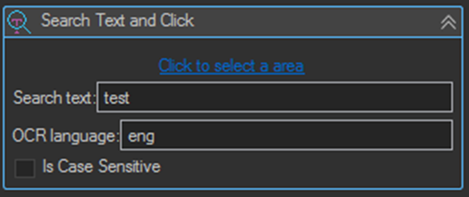
| Setting | Description |
|---|---|
| Click to select a area | Opens the capture box so you can define the screen region to search. |
| Search text | The text to locate within the area. |
| OCR language | The language used for recognition, for example eng. |
| Is Case Sensitive | When enabled, the search text must match case exactly. |
Search Text and Hover
Finds the position of the specified text on the screen and simulates a mouse move to the position found. Settings are the same as Search Text and Click.
Use this to trigger hover behavior such as a tooltip or a drop down menu that only appears on mouse over.
Recognize and Get Text
Extracts text from the specified screen position and saves it to a specified variable.
Use this to read a value that has no accessible UI element behind it, such as a total in a rendered report or a field in a screen shared application.
Wait For Text
Waits for the specified text to appear in the specified area of the screen.
This is the OCR equivalent of a targeted wait. Use it instead of a fixed Wait activity when you need to pause until a screen has finished loading and there is no UI element to test.
Tips
- Keep the capture area as small as possible. A tighter region is faster to process and much less likely to pick up similar text from elsewhere on the screen.
- Set OCR language to match the language actually on screen. Recognition accuracy drops noticeably when the language is wrong.
- Use OCR as a fallback, not a first choice. If the application exposes its content as UI elements, the Controls Get Value activity reads it exactly, with no recognition errors. For web pages, use the Web Macro Extract data or Copy value activities.
- OCR depends on what is actually rendered on screen, so the target window must be visible and not obscured. Consider using Windows Show Window and Maximize Window first to put the target in a predictable state.
- Screen resolution and display scaling affect recognition. Test OCR activities on the same server, at the same resolution, that the job will run on in production.
- Leave Is Case Sensitive disabled unless case genuinely distinguishes the target from something else on screen. OCR occasionally misreads case even when the text is correct.