Robot Task Activities - File
The File category contains activities that read, write, copy, move, archive, and wait for files.
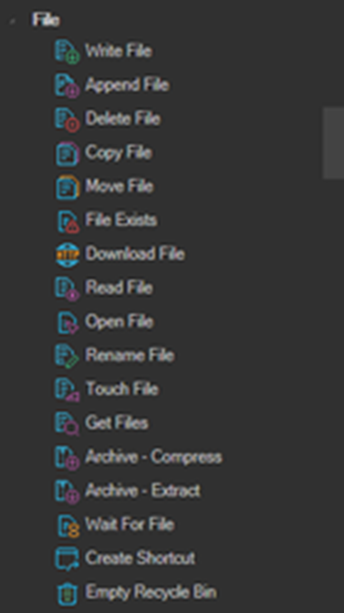
Several activities in this category write their outcome to a Result property. The value is an RPA variable available for the duration of the Robot Task execution, referenced in later activities as {RPA(VariableName)}.
Write File
Creates a new file, writes the specified string to it, and closes the file. If the target file already exists, it is overwritten.
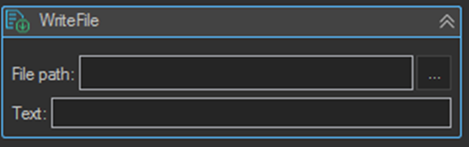
| Setting | Description |
|---|---|
| File path | The full path of the file to write. |
| Text | The text written to the file. |
Append File
Opens a file, appends the specified string to it, and closes the file. If the file does not exist, the activity creates it, writes the string, and closes it.
Use Append File rather than Write File when logging progress inside a loop, so each iteration adds to the log instead of replacing it.
Delete File
Permanently deletes a file.
Copy File
Copies an existing file to a new file. Overwriting an existing file is not allowed.
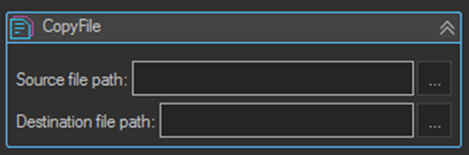
| Setting | Description |
|---|---|
| Source file path | The full file name which will be copied. |
| Destination file path | The full name of the file the source will be copied to. |
Move File
Moves a specified file to a new location, with the option to specify a new file name.
File Exists
Gets a value indicating whether a file exists and saves the result to a Result variable. The result is True if the file exists, and False if it does not exist or the path is a directory.
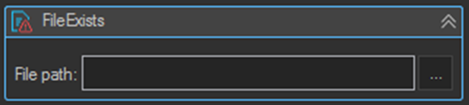
| Setting | Description |
|---|---|
| File path | The full file name which will be checked. |
| Result | The result variable name the outcome is written to. The value is True or False. |
Read the result in a later activity with {RPA(VariableName)}.
Download File
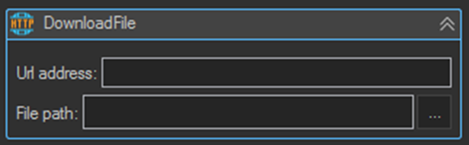
Downloads a file from the specified URL.
| Setting | Description |
|---|---|
| Url address | The URL address to download from. |
| File path | The full file name to save to. |
Read File
Opens a text file, reads all lines, closes the file, and saves the content to a Result variable.
| Setting | Description |
|---|---|
| Result | The result variable name the file content is written to. |
Read the content in a later activity with {RPA(VariableName)}.
Open File
Starts a process resource by specifying the name of a document or application file, and associates the resource with a new System.Diagnostics.Process component.
In practice this opens the file with whatever application is registered for its file type, the same as double clicking it in Explorer.
Rename File
Renames a file in the specified path.
Touch File
Creates a new file, or updates the last write time of an existing file.
Get Files
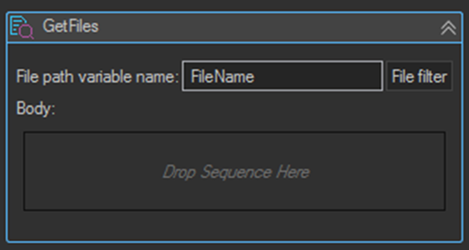
Gets the full names of files matching a file filter and executes the body of the activity once for each one, providing the full file name. It behaves like a For Each loop over the list of full file names.
| Setting | Description |
|---|---|
| File path variable name | The output variable name the full file name is written to on each iteration. |
| File filter | Opens the file filter window, used to choose which files to match. |
| Body | The activities executed for each matched file. |
Use {RPA(FileName)} in the child activities to get the current file name, substituting the variable name you set.
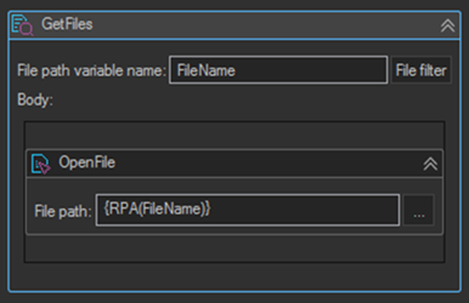
For example, a Get Files activity with a body containing an Open File activity whose File path is {RPA(FileName)} opens every matched file in turn.
Archive - Compress
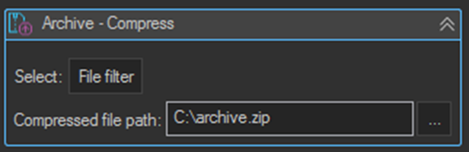
Creates a compressed archive from the files matching a file filter. Open the file filter to select the files to compress.
| Setting | Description |
|---|---|
| Select | Opens the file filter, used to choose the files to compress. |
| Compressed file path | The path of the archive file to create. |
Archive - Extract
Extracts all files from the specified archive.
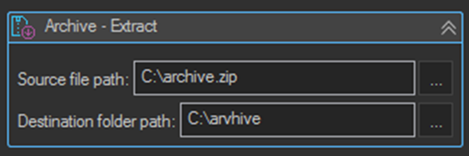
| Setting | Description |
|---|---|
| Source file path | The archive file to extract. |
| Destination folder path | The folder the files are extracted to. |
Wait For File
Waits for the specified file to exist and saves the result to a Result variable. The result is True if the file appears before the timeout expires, and False if the timeout expires first.
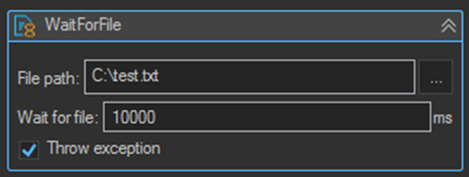
| Setting | Description |
|---|---|
| File path | The file to wait for. |
| Wait for file | Timeout in milliseconds to wait for the file. |
| Throw exception | When enabled, an exception is thrown if the file does not appear. |
| Result | The result variable name the outcome is written to. The value is True or False. |
Create Shortcut
Creates a shortcut (.lnk) file at the specified location.
Empty Recycle Bin
Empties the recycle bin.
Tips
- Use Wait For File rather than a fixed Wait activity when a file is produced by another system. It continues as soon as the file appears, instead of always waiting the full timeout.
- Leave Throw exception disabled on Wait For File and test the Result variable with an If activity when a missing file is a case you want to handle rather than an error.
- Copy File does not overwrite. If the destination may already exist, use Delete File first, or check with File Exists and branch on the result.
- Use Append File for progress logs inside a loop. Write File overwrites, so each iteration would discard the previous entries.
- Combine File Exists with an If activity to make a task safely re-runnable, for example skipping records whose output file has already been produced.
- The account the VisualCron service runs as needs permission on every path used. Think of the RPA user as a human user: if a person would need access to a folder, so does the service account.