Robot Task Activities - List Variable
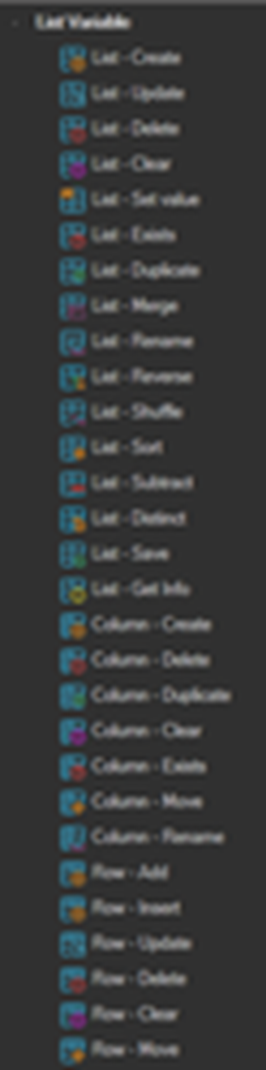
The List Variable category contains activities that build and manipulate List Variables, which hold tabular data in rows and columns. A List Variable created by these activities appears under the User Variables section of the Variables window.
List Variables are the usual way a Robot Task processes a data file: load the file into a list, iterate the rows with a For Each loop, and write results back into the list.
Several activities in this category write their outcome to a Result property. The value is an RPA variable available for the duration of the Robot Task execution, referenced in later activities as {RPA(VariableName)}.
List Activities
List Create
Creates a new list variable. Click the Click to open settings link to open the settings window.

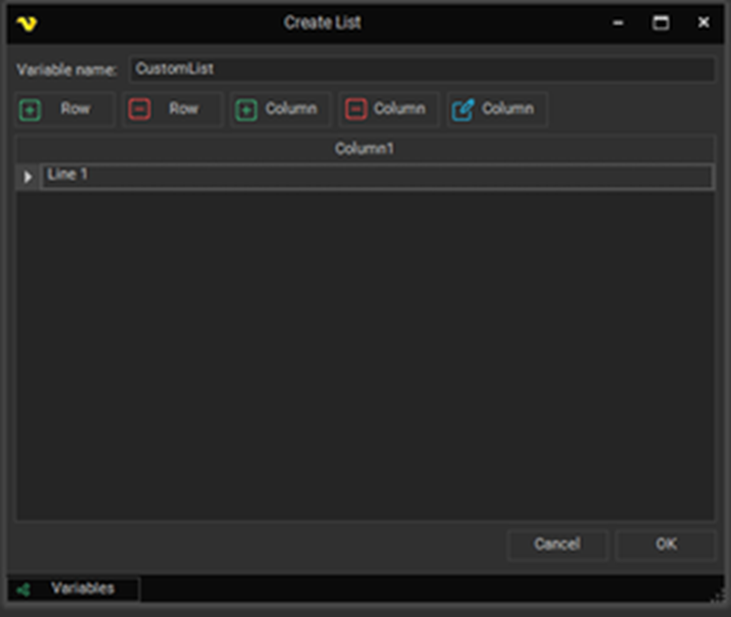
| Button | Description |
|---|---|
| Add Row | Adds a new row to the list. |
| Delete Row | Deletes the active row from the list. |
| Add Column | Adds a new column to the list. Opens a window with the column settings. |
| Delete Column | Deletes the active column from the list. |
| Edit Column | Edits the active column. Opens a window with the column settings. |
The order of columns can also be changed by dragging them.
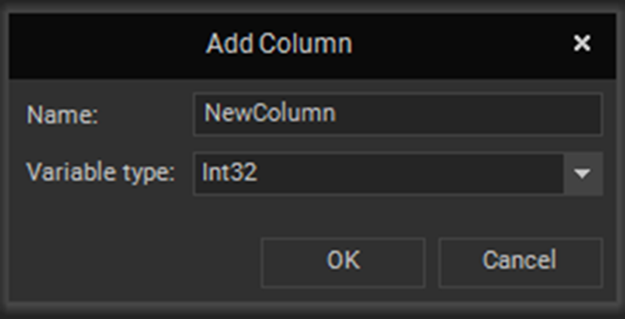
Add Column settings
| Setting | Description |
|---|---|
| Name | The column name. |
| Variable type | The data type of the column, for example Int32 or String. |
List Update
Updates the list variable. Same settings as the List - Create activity.
List Delete
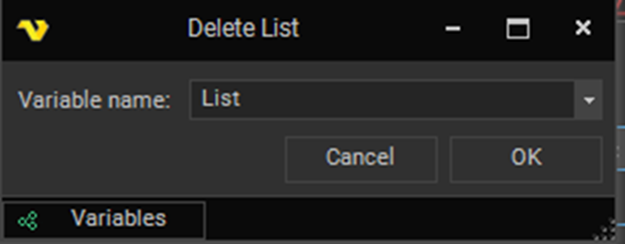
Deletes the list variable. Select the list name in the settings window to delete it.
List Clear
Clears the list variable, removing its contents but keeping the variable itself. Same settings window as the List - Delete activity.
List Set Value
Sets a value in the specified cell of the list variable.
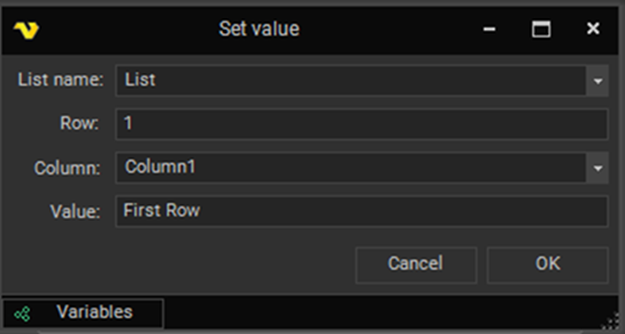
| Setting | Description |
|---|---|
| List name | The name of an existing list to set the value in. |
| Row | The row number. |
| Column | The column in the list. |
| Value | The value which will be set at the specified position. |
This is the activity used to mark a record as processed inside a loop. Set Row to the loop iteration variable and Column to a status column, and place the activity at the very end of the loop body. See Data Processing & Logging.
List Exists
Checks whether the list variable exists and saves the result to a Result variable. Same settings window as the List - Delete activity.
| Setting | Description |
|---|---|
| Result | The result variable name the outcome is written to. The value is True or False. |
Read the result in a later activity with {RPA(VariableName)}.
List Duplicate
Duplicates the list variable.
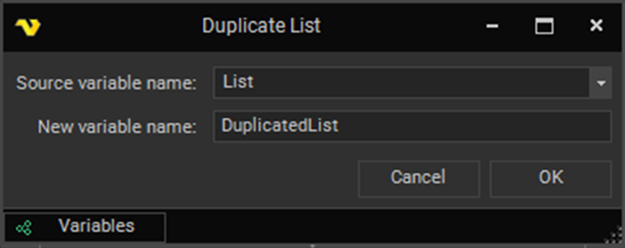
| Setting | Description |
|---|---|
| Source variable name | The list to duplicate. |
| New variable name | The name of the new list the duplicate is saved to. |
List Merge
Merges list variables together.

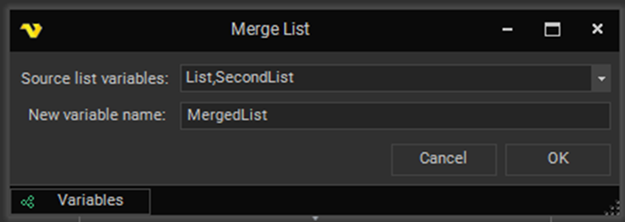
| Setting | Description |
|---|---|
| Source list variables | Select multiple lists to merge. |
| New variable name | The name of the new list the merged result is saved to. |
List Rename
Renames the list variable.
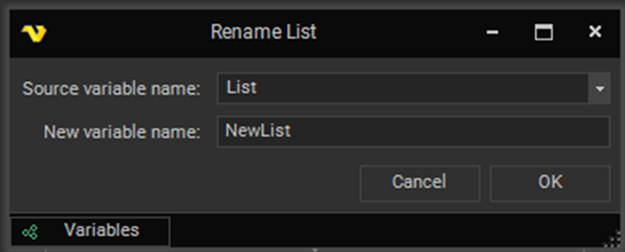
| Setting | Description |
|---|---|
| Source variable name | The list to rename. |
| New variable name | The new name for the list. |
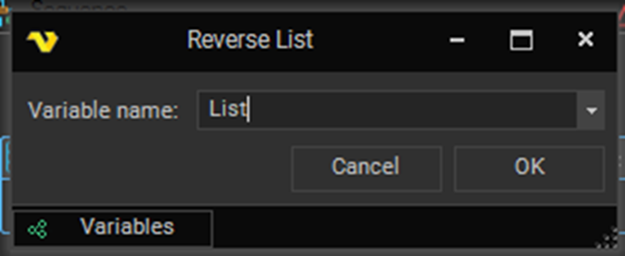
List Reverse
Reverses the order of rows in the list variable.
| Setting | Description |
|---|---|
| Variable name | Select an existing list or enter the list name to reverse. Variables can be used in this field. |
List Shuffle
Shuffles the rows of the list variable into random order. Same settings window as the List - Reverse activity.
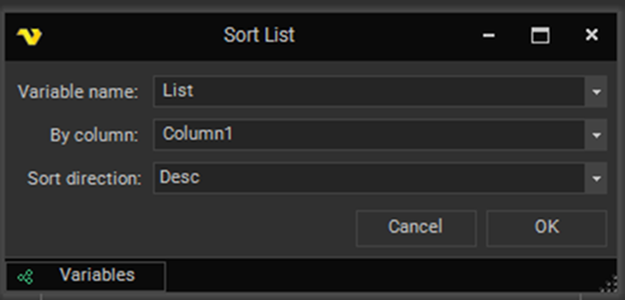
List Sort
Sorts the list variable.
| Setting | Description |
|---|---|
| Variable name | Select an existing list or enter the list name to sort. |
| By column | The list column to sort by. |
| Sort direction | The sort direction: Ascending or Descending. |
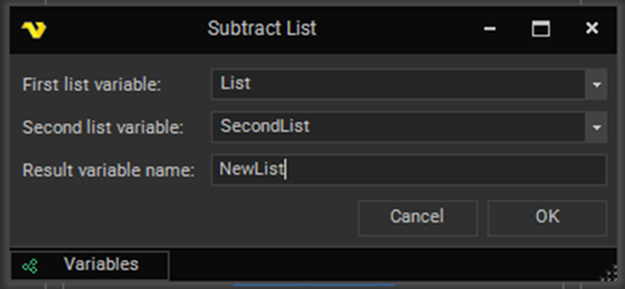
List Subtract
Subtracts one list variable from another.
| Setting | Description |
|---|---|
| First list variable | Select an existing list or enter the first list name. |
| Second list variable | Select an existing list or enter the second list name. |
| Result variable name | The name of the list variable created by subtracting the second list from the first. |
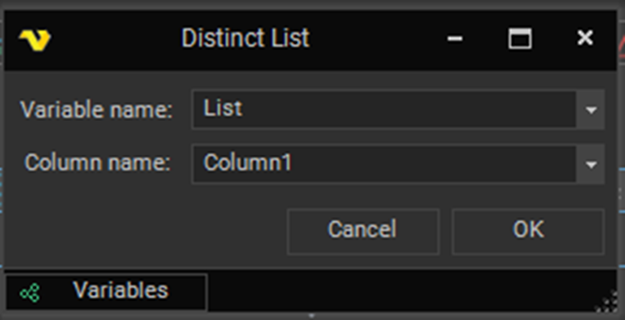
List Distinct
Removes duplicate values from a specific column.
| Setting | Description |
|---|---|
| Variable name | Select an existing list or enter the list name. |
| Column name | The list column duplicate values are removed on. |
If Column name is left empty, the activity removes duplicated rows instead.
List Save
Saves the list variable to the clipboard or to a file.
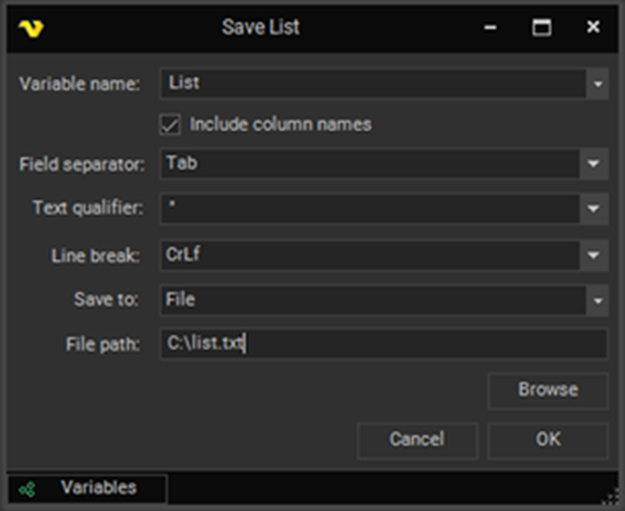
| Setting | Description |
|---|---|
| Variable name | Select an existing list or enter the list name to save. |
| Include column names | Include the column names in the result. |
| Field separator | The column separator character, for example Comma or Tab. |
| Text qualifier | The value qualifier character. |
| Line break | The line break sequence, for example CrLf. |
| Save to | Where the result is saved: File using the File path field, or Clipboard. |
| File path | The path the result is written to when Save to is File. |
Use a variable in the File path so each run writes a distinct file, for example C:\Testing\RPA\{JOB(Active|Name)}_{DATEFORMAT(yyyy-MM-dd)}.csv.
List Get Info
Gets information about the list variable and writes it to a Result variable as a string.
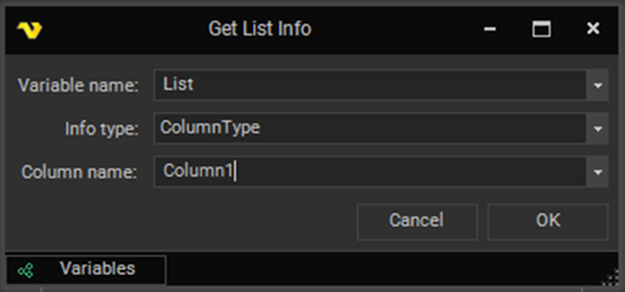
| Setting | Description |
|---|---|
| Variable name | Select an existing list or enter the list name. |
| Info type | Which type of information to get. See the table below. |
| Column name | The list column name, used when Info type is ColumnType. |
| Result | The result variable name the information is written to. |
| Info type | Returns |
|---|---|
| RowCount | The count of rows in the list, as a number. |
| ColumnCount | The count of columns in the list, as a number. |
| ColumnType | The type of the specified column. |
Read the result in a later activity with {RPA(VariableName)}. A common use is supplying the To Y value of a For loop from a RowCount result.
Column Activities
Column Create
Creates a new column in the list variable.
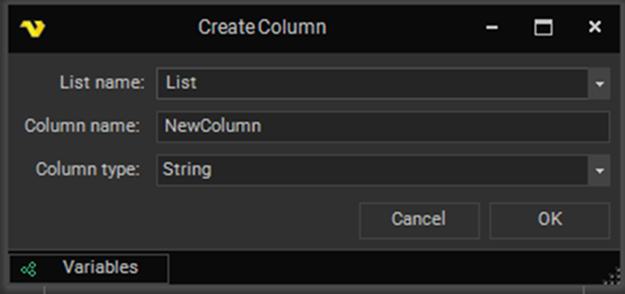
| Setting | Description |
|---|---|
| List name | Select an existing list or enter the list name. |
| Column name | The new column name. |
| Column type | The data type of the column. |
This is the activity used to add a status column to a loaded data file before processing it. See Data Processing & Logging.
Column Delete
Deletes the specified column of the list variable.
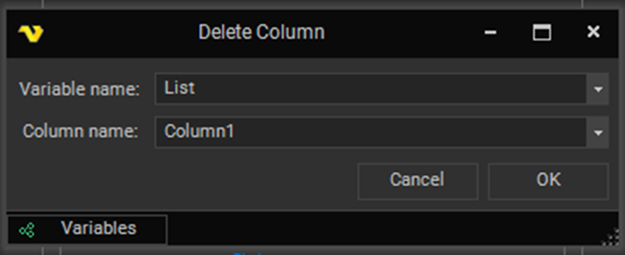
| Setting | Description |
|---|---|
| List name | Select an existing list or enter the list name. |
| Column name | The list column name to delete. |
Column Duplicate
Duplicates the specified column of the list variable.
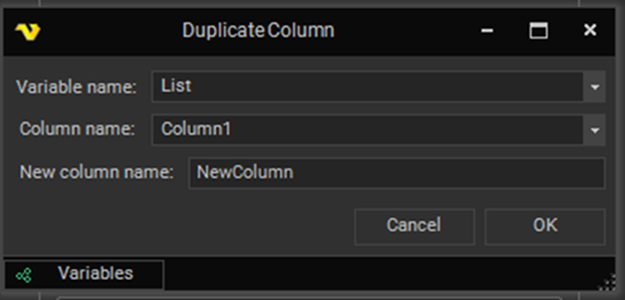
| Setting | Description |
|---|---|
| Variable name | Select an existing list or enter the list name. |
| Column name | The list column name to duplicate. |
| New column name | The new column name. |
Column Clear
Clears the values of the specified column of the list variable.
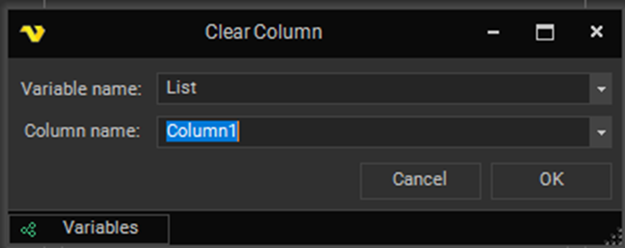
| Setting | Description |
|---|---|
| Variable name | Select an existing list or enter the list name. |
| Column name | The list column whose values will be cleared. |
Column Exists
Checks whether the specified column exists in the list variable and saves the result to a Result variable. The settings window is similar to the Column - Clear activity.
| Setting | Description |
|---|---|
| Result | The result variable name the outcome is written to. The value is True or False. |
Column Move
Moves the specified column to a new position in the list variable.
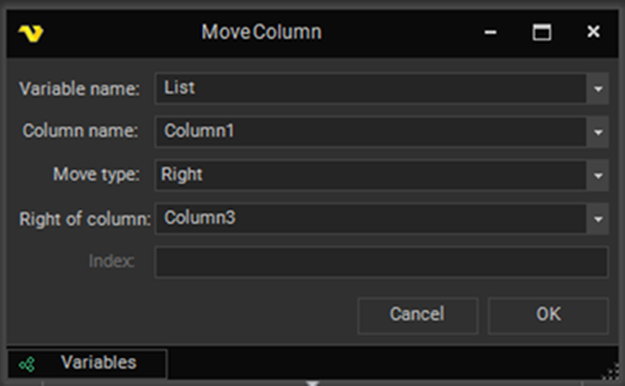
| Setting | Description |
|---|---|
| Variable name | Select an existing list or enter the list name. |
| Column name | The list column to move. |
| Right/Left of column | The column to position relative to. Enabled when Move type is Left or Right. |
| Index | The specific column position to move to. Enabled when Move type is Specific. |
| Move type | How the column is moved. See the table below. |
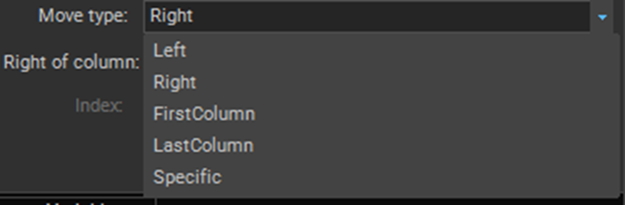
| Move type | Behavior |
|---|---|
| Left | Moves the column to the left of the selected column. |
| Right | Moves the column to the right of the selected column. |
| FirstColumn | Moves the column to the first position. |
| LastColumn | Moves the column to the last position. |
| Specific | Moves the column to the specific position given in Index. |
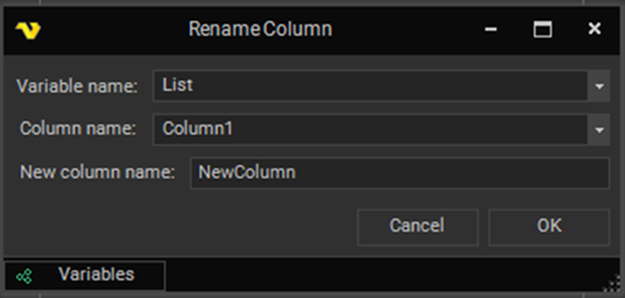
Column Rename
Renames the specified column of the list variable.
| Setting | Description |
|---|---|
| Variable name | Select an existing list or enter the list name. |
| Column name | The list column to rename. |
| New column name | The new column name. |
Row Activities
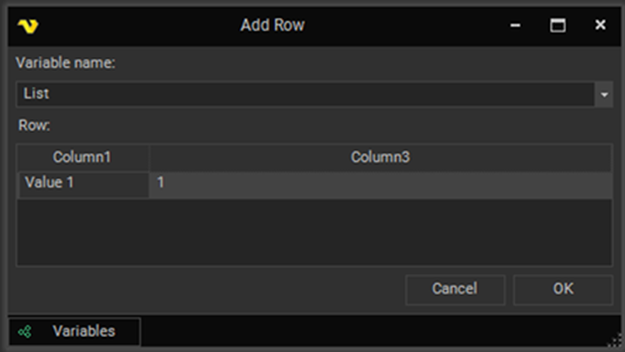
Row Add
Adds a new row to the list variable.
| Setting | Description |
|---|---|
| Variable name | Select an existing list or enter the list name. |
| Row | Fill in the row values. |
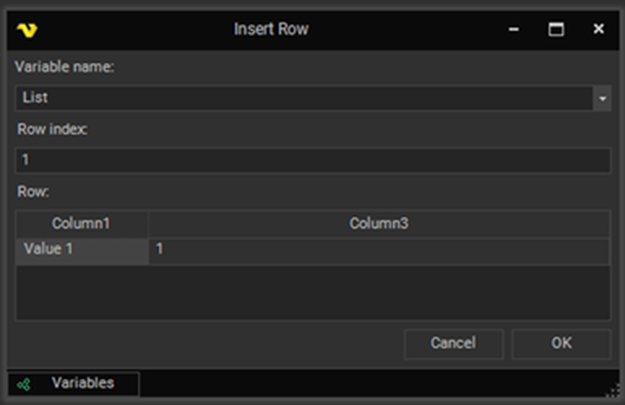
Row Insert
Inserts a new row at the specified position in the list variable.
| Setting | Description |
|---|---|
| Variable name | Select an existing list or enter the list name. |
| Row index | The row index to insert at. |
| Row | Fill in the row values. |
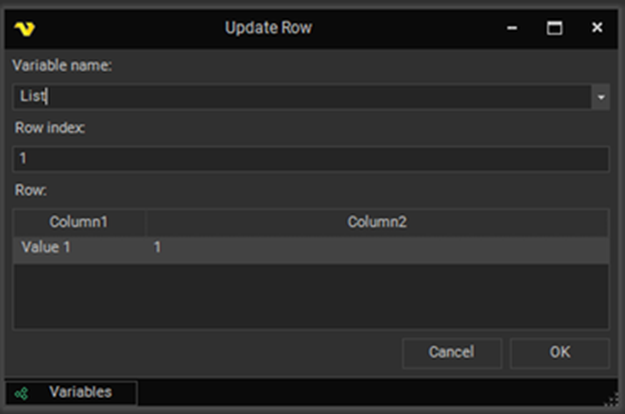
Row Update
Updates the specified row of the list variable.
| Setting | Description |
|---|---|
| Variable name | Select an existing list or enter the list name. |
| Row index | The row index to update. |
| Row | Update the row values. |
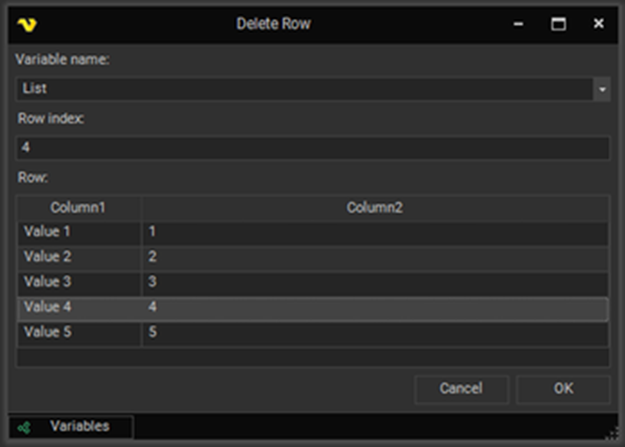
Row Delete
Deletes the specified row of the list variable.
| Setting | Description |
|---|---|
| Variable name | Select an existing list or enter the list name. A row can be selected from the table or a row index entered in the field. |
| Row index | The row index to remove. |
| Row | Select the row to remove. |
Row Clear
Clears the specified row of the list variable. Same settings window as the Row - Delete activity.
Row Move
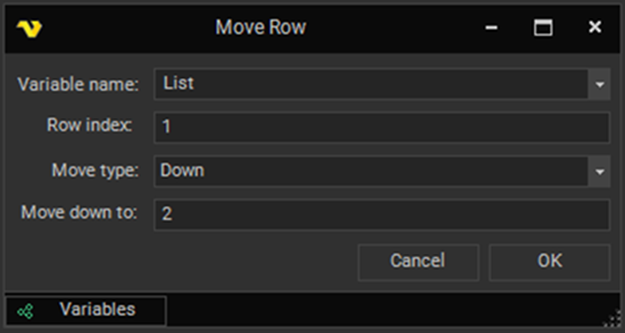
Moves the specified row to a new position in the list variable.
| Setting | Description |
|---|---|
| Variable name | Select an existing list or enter the list name. |
| Row index | The source row index to move. |
| Move down to / Move up to | The number of times the row is moved up or down. Enabled when Move type is Up or Down. |
| Move to index | The specific row index to move to. Enabled when Move type is Specific. |
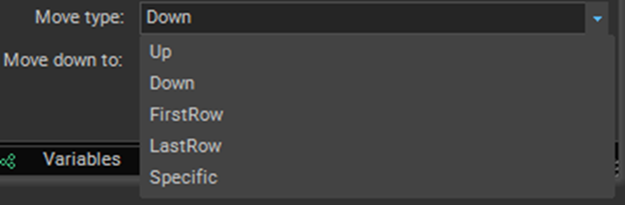
| Move type | How the row is moved. See the table below. |
| Move type | Behavior |
|---|---|
| Up | Moves the row up X times. |
| Down | Moves the row down X times. |
| FirstRow | Moves the row to the first position. |
| LastRow | Moves the row to the last position. |
| Specific | Moves the row to the specific position given in Move to index. |
Reading a Cell from a List Variable
Outside these activities, a value is read from a List Variable using the USERVAR variable function with the GetCell operation:
{USERVAR(ListName|GetCell|RowNumber|ColumnNameOrNumber|IncludeColumns)}
Combined with the loop iteration variable, this reads the cell for the record currently being processed:
{USERVAR(lvDateReformat|GetCell|{RPALOOP(a381|Iterations)}|Date|false)}
Variable functions can be nested, so the value can be transformed in the same expression. Here the retrieved cell is trimmed of surrounding spaces:
{STRING(Trim|{USERVAR(lvDateReformat|GetCell|{RPALOOP(a381|Iterations)}|Date|false)})}
List Variables also expose a range of other built in operations under the Variables window, including row and column counts, minimum and maximum values, and duplicate checks.
Tips
- Name List Variables with an
lvprefix, for examplelvCustomerRecords. A task with dozens of variables is much easier to navigate when the type is visible in the name. - Add a status column with Column Create immediately after loading a data file, and mark rows with List Set Value at the end of each loop iteration. That gives you a record of exactly which rows completed if the task fails partway through.
- Call List Save at every point an error can be thrown, not just at the end of the task, so the status column survives a failure.
- Use List Get Info with
RowCountto drive a For loop's upper bound instead of hardcoding the number of records. - List Distinct with Column name empty removes fully duplicated rows. Set a column name to deduplicate on a key such as an account number.
- Use List Duplicate before a destructive operation such as List Distinct or List Sort if you need the original ordering later.