Robot Task Activities - Excel
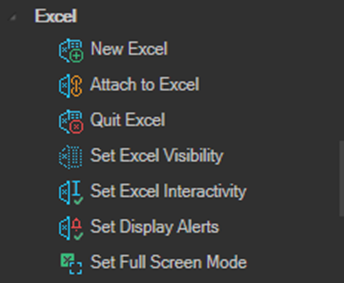
The Excel category contains the activities that start, attach to, and configure the Excel application. Every other Excel activity must be nested inside one of these container activities.
Required Nesting
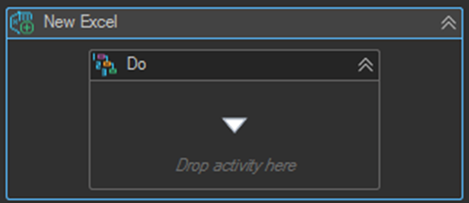
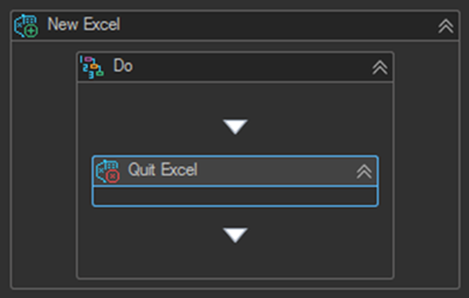
Excel activities operate on an Excel application supplied by a parent container. That parent is either New Excel or Attach to Excel. Activities from the Workbook, Sheet, Cell, Row, Column, and Macros categories all go inside the container's Do body.
Sequence
  New Excel
    Do
      Create Workbook
      Set Cell value
      Save as Workbook
      Close Workbook
      Quit Excel
New Excel
Creates a new Excel application and sets it as the context of the body for the child Excel activities.
Properties
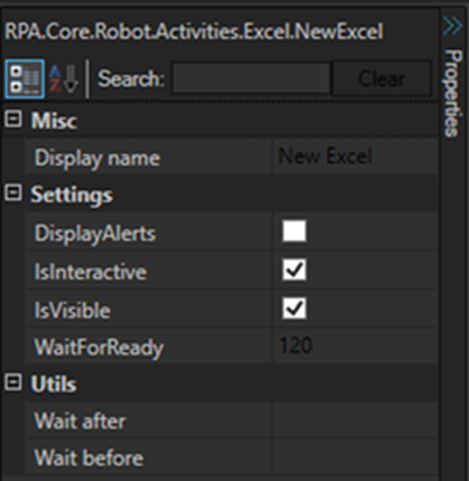
| Property | Description |
|---|---|
| DisplayAlerts | Sets the display alerts property of the Excel application. True if Excel displays certain alerts and messages while a macro is running. |
| IsInteractive | Sets the interactivity property of the Excel application. This property is usually True. If set to False, Excel blocks all input from the keyboard and mouse, except input to dialog boxes displayed by your code. |
| IsVisible | Sets the visibility property of the Excel application. |
| WaitForReady | Timeout in seconds to wait for Excel to be ready for use. |
Attach to Excel
Attaches to an existing Excel application and sets it as the context of the body for the child Excel activities. Same properties and interface as New Excel.
Use Attach to Excel when a workbook was opened earlier in the task and you need to return to it, for example when writing to an exception log from inside a loop. See Data Processing & Logging.
Quit Excel
Quits the Excel application.
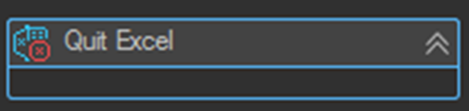
This activity must be located inside a parent Excel activity, either New Excel or Attach to Excel.
Set Excel Visibility
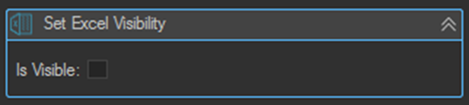
Sets the visibility property of the Excel application.
| Setting | Description |
|---|---|
| Is Visible | Check to show the Excel application, clear to hide it. |
Set Excel Interactivity
Sets the interactivity property of the Excel application. This property is usually True. If set to False, Excel blocks all input from the keyboard and mouse, except input to dialog boxes displayed by your code.
Same settings and interface as Set Excel Visibility.
Set Display Alerts
Sets the display alerts property of the Excel application. True if Excel displays certain alerts and messages while a macro is running.
Same settings and interface as Set Excel Visibility.
Set Full Screen Mode
Sets the full screen mode property of the Excel application.
Same settings and interface as Set Excel Visibility.
Tips
- Disable DisplayAlerts for unattended jobs. An Excel confirmation dialog such as "a file with this name already exists" will otherwise sit waiting for a response that never comes, and the task will hang until it times out.
- Always end an Excel workflow with Close Workbook followed by Quit Excel. Excel processes left running accumulate on the server and eventually consume its memory.
- Put the Quit Excel activity in the Finally block of a TryCatch activity so Excel is closed even when the workflow fails partway through.
- Set IsVisible to False for jobs running unattended. Excel runs faster and cannot be interfered with by anyone logged on to the server.
- Set WaitForReady generously on servers under load. Excel can take several seconds to become responsive after starting.