Robot Task Activities - Folder
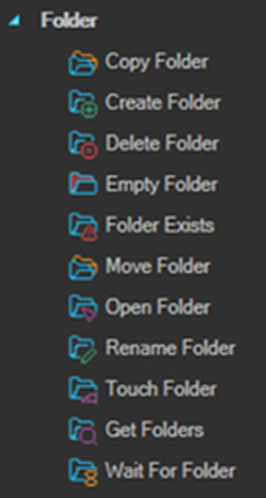
The Folder category contains activities that create, copy, empty, enumerate, and wait for folders.
Several activities in this category write their outcome to a Result property. The value is an RPA variable available for the duration of the Robot Task execution, referenced in later activities as {RPA(VariableName)}.
Copy Folder
Copies a folder and its contents to a new location.
Create Folder
Creates a new folder.
Delete Folder
Deletes a folder. If the folder is not empty, check Recursive and its contents will be deleted as well.
Empty Folder
Deletes all files and subfolders from the specified folder, leaving the folder itself in place.
Folder Exists
Gets a value indicating whether a folder exists and saves the result to a Result variable. The result is True if the folder exists and False if it does not.
| Setting | Description |
|---|---|
| Folder path | The folder to check. |
| Result | The result variable name the outcome is written to. The value is True or False. |
The result variable can be used during the execution of the Robot Task as {RPA(VariableName)}.
Example: branching on whether a folder exists
The Result property is set in the Properties pane, under Output. Setting it to Exists makes the outcome available as {RPA(Exists)}.
To check whether the folder C:\Testing\RPA\FolderExists is present, then delete it if it is and create it if it is not:
- Add a FolderExists activity with Folder path set to
C:\Testing\RPA\FolderExistsand Result set toExists. - Add an If (simple) activity after it:
| Field | Value |
|---|---|
| Left operand | {RPA(Exists)} |
| Operator | Equal |
| Right operand | True |
| Type | String |
- In the Then block, add a DeleteFolder activity with the same folder path and Recursive checked.
- In the Else block, add a CreateFolder activity with the same folder path.
The result is written as the text True or False, which is why the comparison Type is String rather than Boolean.
Move Folder
Moves a folder and its contents to a new location.
Open Folder
Opens a folder in Windows Explorer.
Rename Folder
Renames a folder in the specified path.
Touch Folder
Creates a new folder, or updates the last write time of an existing folder.
Get Folders
Gets the full names of folders matching a folder filter and executes the body of the activity once for each one, providing the full folder name. It behaves like a For Each loop over the list of full folder names.
| Setting | Description |
|---|---|
| Folder path variable name | The output variable name the full folder name is written to on each iteration. |
| Folder filter | Opens the folder filter window, used to choose which folders to match. |
| Body | The activities executed for each matched folder. |
Use {RPA(FolderName)} in the child activities to get the current folder name, substituting the variable name you set.
Wait For Folder
Waits for the specified folder to exist and saves the result to a Result variable. The result is True if the folder appears before the timeout expires, and False if the timeout expires first.
| Setting | Description |
|---|---|
| Folder path | The folder to wait for. |
| Wait for folder | Timeout in milliseconds to wait for the folder. |
| Throw exception | When enabled, an exception is thrown if the folder does not appear. |
| Result | The result variable name the outcome is written to. The value is True or False. |
Tips
- Touch Folder is a concise alternative to checking with Folder Exists and then branching to Create Folder. It creates the folder if it is missing and does nothing harmful if it already exists.
- Use Empty Folder rather than Delete Folder plus Create Folder when clearing a working directory. It keeps the folder's permissions and any shares pointing at it intact.
- Delete Folder throws an exception on a non empty folder unless Recursive is checked.
- Leave Throw exception disabled on Wait For Folder and test the Result variable with an If activity when a missing folder is a case you want to handle rather than an error.
- Because the Result value is the text
TrueorFalse, set the comparison Type toStringin the If activity that reads it. - The account the VisualCron service runs as needs permission on every path used, including permission to delete when using Delete Folder or Empty Folder.