Robot Task Activities - Clipboard
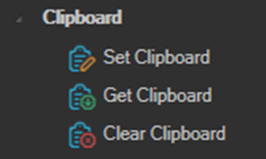
The Clipboard category contains activities that read from and write to the Windows clipboard.
The clipboard is often the only way to move data out of an application that does not expose its content as UI elements. Copy the value in the application with a Ctrl+C key press, then read it into a variable with Get Clipboard.
Set Clipboard
Clears the clipboard and then adds text data to it.
Use this to stage a value before pasting it into an application, for example with a Ctrl+V Key Press activity or an Excel Cell Paste to Cell activity.
Get Clipboard
Retrieves text data from the clipboard and saves the result to a specified Job or User variable.
Clear Clipboard
Removes all data from the clipboard.
Tips
- Clear the clipboard before a copy operation, then check that Get Clipboard returned something. If the copy silently failed, you would otherwise read a stale value left over from a previous iteration and write the wrong data.
- The clipboard is shared across the whole desktop session. If two Robot Tasks run at the same time on the same server they will overwrite each other's clipboard content. Use a VisualCron Resource to serialize foreground jobs, or run them on separate VMs.
- Add a short delay after the copy keystroke and before Get Clipboard. Some applications populate the clipboard asynchronously and the read can otherwise arrive too early.
- Prefer a direct read where one is available. The Controls Get Value activity, the Web Macro Copy value and Extract data activities, and the Excel Cell Get Cell value activity all read a value without involving the clipboard, and are not affected by anything else running on the desktop.
- Several activities offer the clipboard as an output target, including List Save, Take Screenshot, and Save as Workbook. Writing to a file is usually the better choice for anything you need to keep.