Robot Task Activities - Variables
The Variables category contains a single activity for writing to a VisualCron Job or User variable from inside a Robot Task.
Set variable
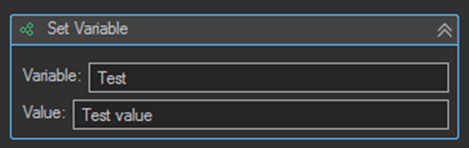
Sets a value to the specified variable.
| Setting | Description |
|---|---|
| TypeOfVR | The type of variable to write to: Job or User. |
| Variable | The name of the variable. |
| Value | The value which will be set to the variable. |
The Value field accepts variables, so the value written can be composed from other variables, a previous activity's Result variable, or a variable function.
Variable Types Available in a Robot Task
A Robot Task can read from and write to the same variables as any other VisualCron task.
| Type | Description |
|---|---|
| Job Variable | Added manually within a Job, in the Edit Job screen. Can be referenced inside or outside the Job itself. |
| User Variable | Created manually in the Variables window, or created from activities within a task such as Set variable. |
| List Variable | A User Variable holding tabular data, created by a List activity. See List Variable. |
| RPA Variable | A result value produced by an activity's Result property. Exists only for the duration of the Robot Task execution and is read as {RPA(VariableName)}. |
Job Variables can be referenced two ways:
- Active is used within the current Job and resolves to the current value.
- Direct Id is used when referencing the Job Variable from another Job, and also resolves to the current value.
VisualCron additionally provides many built in variable types that need no setup, including Server, System, Function, Logic, Math, File, Folder, Date, and VisualCron (job and task related) variables. All of them are browsable through the Variables button at the bottom left of the Edit Job and Edit Task windows.
VisualCron variables relating to Jobs and Tasks only become available once the Job or Task has been created.
RPA Result Variables Are Not Job or User Variables
An activity's Result property does not create a Job or User variable. It creates an RPA variable scoped to the current Robot Task execution, read as {RPA(VariableName)}.
If a value produced inside a Robot Task needs to be used by a later Task in the same Job, use a Set variable activity to copy the RPA value into a Job or User variable:
| Field | Value |
|---|---|
| TypeOfVR | Job |
| Variable | jvFileFound |
| Value | {RPA(Exists)} |
Naming Convention
Abbreviate the variable type in lowercase and prefix it to the name:
| Type | Prefix | Example |
|---|---|---|
| Job Variable | jv | jvInputPath |
| User Variable | uv | uvRecordCount |
| List Variable | lv | lvCustomerRecords |
After a few processes have been built a server can easily hold fifty or more variables, and a consistent prefix makes the right one much faster to find.
Tips
- Turn fixed paths, user names, and connection details into variables rather than hardcoding them in activities. Moving a process from test to production then means updating one variable instead of editing every activity that referenced the old value.
- Use a User Variable when the value is shared across Jobs, and a Job Variable when it belongs to one Job only.
- Store passwords in a VisualCron Credential rather than a plain variable, and reference the Credential from the activity.
- Nest variable functions to transform a value in place rather than adding intermediate Set variable activities, for example
{STRING(Trim|{USERVAR(lvData|GetCell|1|Name|false)})}. - Use the Variables button at the bottom of the Edit Task window to insert variable references. The Value Preview pane shows what an expression resolves to before you commit it.