Robot Task Activities - Process
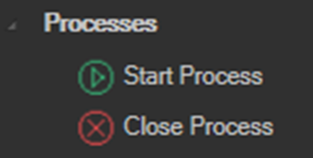
The Process category contains activities that start and close Windows processes.
Start Process
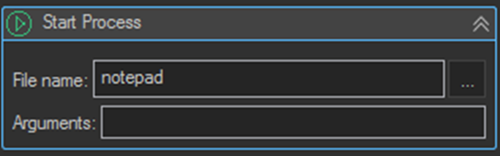
Starts the process specified by the parameters containing the process start information, such as the file name and arguments of the process to start.
| Setting | Description |
|---|---|
| File name | The executable or document to start, for example notepad. Use the ... button to browse for it. |
| Arguments | The command line arguments passed to the process. |
Close Process
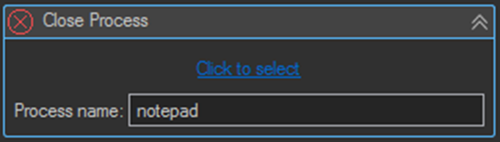
Closes the process. Write the process name manually, or click the link to select a running process and have the name filled in automatically.
| Setting | Description |
|---|---|
| Process name | The name of the process to close, for example notepad. |
The process name is the executable name without its .exe extension, and Close Process acts on every running instance with that name.
Tips
- Follow Start Process with a Windows Attach Window activity that has WaitForWindow set, rather than a fixed Wait activity. The task then continues as soon as the application's window is ready.
- Add a Close Process activity to the Finally block of a TryCatch activity so an application launched by the task is always shut down, even when the workflow fails partway through. Otherwise orphaned processes accumulate on the server.
- Be careful with Close Process on a shared server. It closes every instance of the named process, including any opened by a person logged on at the same time.
- For Excel, use the Excel category's New Excel and Quit Excel activities rather than Start Process and Close Process. Those activities also give the child Excel activities the application context they require.
- Only use these activities for interactive applications that the Robot Task needs to drive on screen. For running a command line utility or a script as part of a Job, a dedicated Execute task is a better fit than a Robot Task.
- The account the VisualCron service runs as needs permission to launch the executable and access anything it reads or writes.