Robot Task Activities - Controls
The Controls category contains activities that interact with UI elements through their automation patterns rather than by simulating mouse and keyboard input.
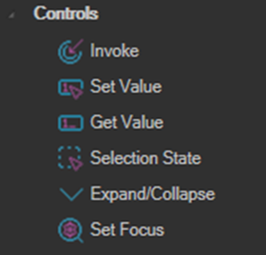
Because these activities talk to the control directly, they do not depend on the element being visible at a particular screen position. Each activity requires the target control to support the relevant automation pattern. If the element is not found, or the control does not support the pattern, the activity throws an exception.
On any of these activities, use the Click to select an element link to pick the target in the UI and fill the search properties automatically. Move the mouse over the element, hold CTRL, and click.
Invoke
Finds the specified element and executes the Invoke action on it. This is the equivalent of activating a control, such as pressing a button or clicking a menu item.
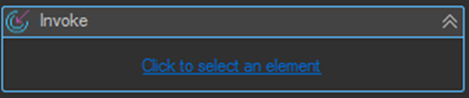
Throws an exception if the element is not found or does not support the Invoke pattern.
Set Value
Finds the specified element and sets its value.
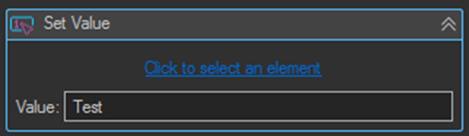
| Setting | Description |
|---|---|
| Value | The value to write to the element. |
Throws an exception if the element is not found, does not support the Value pattern, or the element's value is read only.
Get Value
Finds the specified element, reads its value, and saves it to the specified variable.
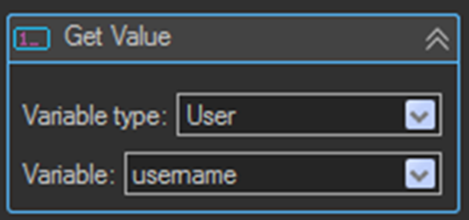
| Setting | Description |
|---|---|
| Variable type | The type of variable to save to: Job or User. |
| Variable | The name of the variable that receives the value. |
Throws an exception if the element is not found or does not support the Value pattern.
Selection State
Finds the specified element and applies a selection change to it.
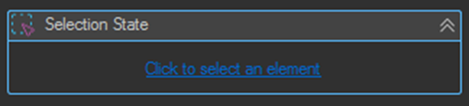
The SelectionType property controls the behavior:
| SelectionType | Behavior |
|---|---|
| Single | Clears all existing selection and selects only the current element. |
| Append | Adds the current element to the existing selection. |
| Deselect | Removes the current element from the existing selection. |
Throws an exception if the element is not found or does not support the SelectionItem pattern.
Expand/Collapse
Finds the specified element and executes an Expand or Collapse action on it. Combo box controls typically support this pattern, as do tree view nodes.
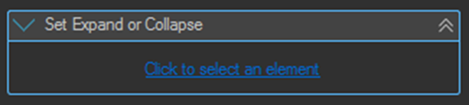
Throws an exception if the element is not found or does not support the Expand/Collapse pattern.
Set Focus
Gets the element or window provided by the parent activity and sets focus to it.
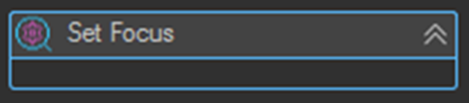
Use Set Focus before Keyboard activities, which send input to whatever window currently has focus.
Tips
- Prefer Controls activities over Mouse activities where the control supports the pattern. Set Value writes to a field in one operation and does not depend on window position, scroll state, or screen resolution.
- Use Get Value to read a value back after writing it, as a verification step in a workflow that must not silently fail.
- If an activity throws an exception saying the pattern is not supported, the control is not exposing that automation pattern. Fall back to a Mouse or Keyboard activity, or use OCR if the control does not expose its content at all.
- Use Append and Deselect rather than Single when building up a multiple selection across several activities, since Single clears everything selected so far.