Robot Task Activities - Image
The Image category contains a single activity for capturing screenshots.

Take Screenshot
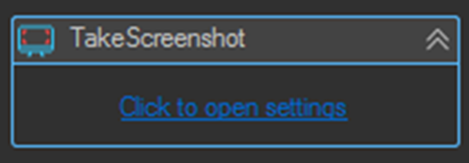
Takes a screenshot of the entire screen, a specific monitor, a specific window, a specific element, or a defined rectangle, and saves it to the clipboard or to a file.
Properties
| Property | Description |
|---|---|
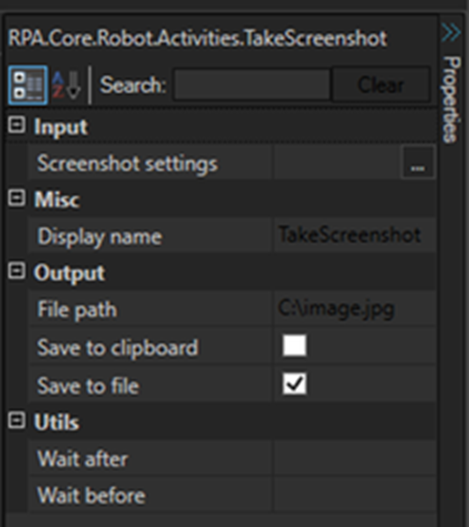
| Screenshot settings | Opens the screenshot settings window, where the capture target is chosen. |
| File path | Full file name to save the screenshot image to. |
| Save to clipboard | Save the captured image to the clipboard. |
| Save to file | Save the captured image to the path in File path. |
Both output options can be enabled at the same time.
Screenshot Settings
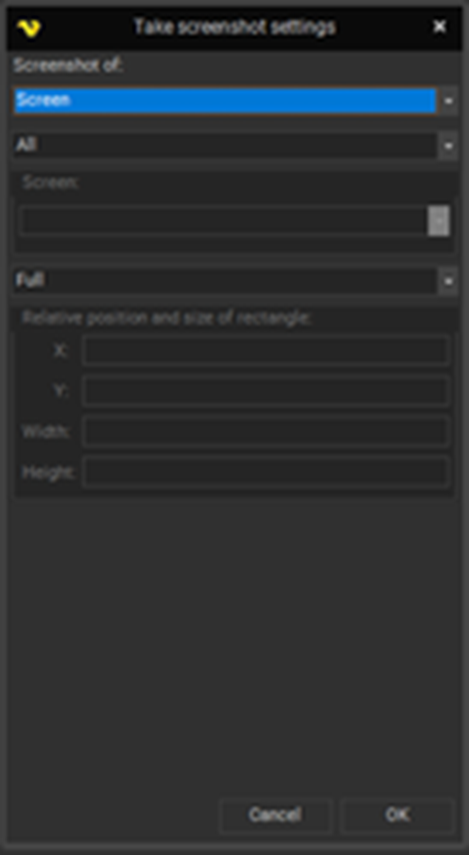
Click Click to open settings on the activity, or open the Screenshot settings property, to choose what is captured.
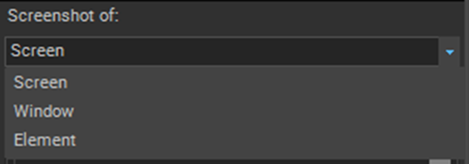
The Screenshot of dropdown selects the capture target:
| Screenshot of | Captures |
|---|---|
| Screen | An image of the screen. |
| Window | An image of a specific or the active window. |
| Element | An image of a specific or the focused element. |
Screen options
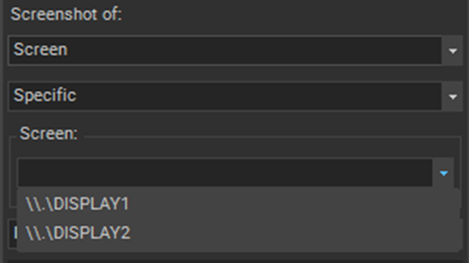
| Option | Behavior |
|---|---|
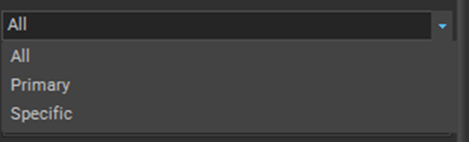
| All | Captures all screens into a single image. |
| Primary | Captures the primary screen only. |
| Specific | Captures a specific screen, selected by display name such as \\.\DISPLAY1. |
Window options
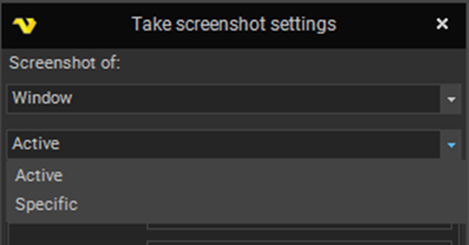
| Option | Behavior |
|---|---|
| Active | Captures the active window. |
| Specific | Captures a specific window, identified by process name and window title. |
With Specific selected, use the Click to select window link to pick the window and fill the fields automatically.
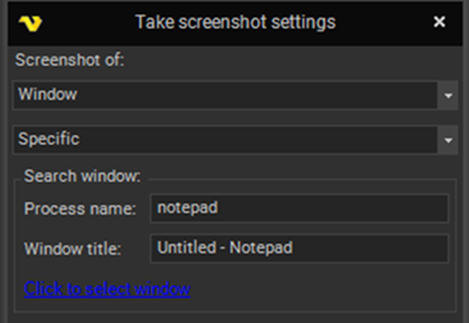
Element options
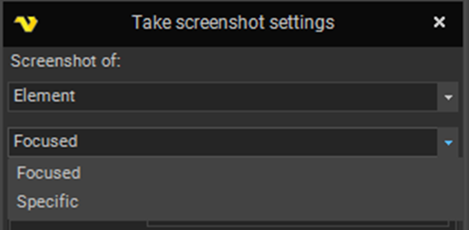
| Option | Behavior |
|---|---|
| Focused | Captures the focused element. |
| Specific | Captures a specific element. |
With Specific selected, use the link to pick the element and fill the fields automatically.
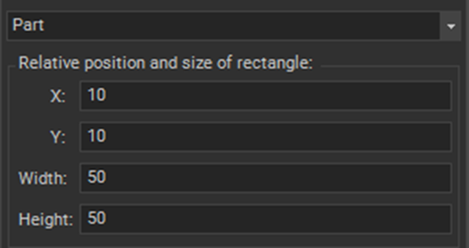
Capturing part of the target
Select the Part option to capture a rectangle relative to the chosen screen, window, or element rather than the whole thing.
| Setting | Description |
|---|---|
| X | Horizontal offset of the rectangle, relative to the target. |
| Y | Vertical offset of the rectangle, relative to the target. |
| Width | Width of the rectangle. |
| Height | Height of the rectangle. |
The default option, Full, captures the entire target.
Tips
- Take a screenshot in the Catch or Finally block of a TryCatch activity. A capture of the screen at the moment of failure is often the fastest way to diagnose why an unattended Robot Task failed.
- Include a variable in the File path so each capture gets a unique name and screenshots are not overwritten, for example
C:\Logs\{JOB(Active|Name)}_{DATEFORMAT(yyyy-MM-dd_HHmmss)}.jpg. - Prefer Window or Element capture over Screen when you only need one application. The image is smaller and stays readable regardless of screen resolution.
- Use Part rather than cropping later when you consistently need one region, such as a status bar or a total field.
- For reading text out of an image rather than saving it, use the OCR Recognize and Get Text activity.