Robot Task Activities - Text
The Text category contains a single activity for typing text into an application.
Send Text
Finds the specified process, window, or element if one is given, sets focus to it, and simulates typing text. If nothing is specified, the text is typed into the active window.
If a process name, window, or element is specified and cannot be found, the activity throws an exception.
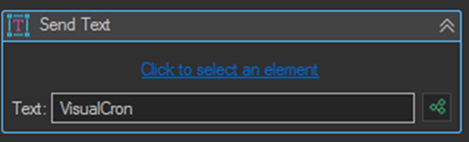
Use the Click to select an element link to pick the target in the UI and fill the search properties automatically.
Properties
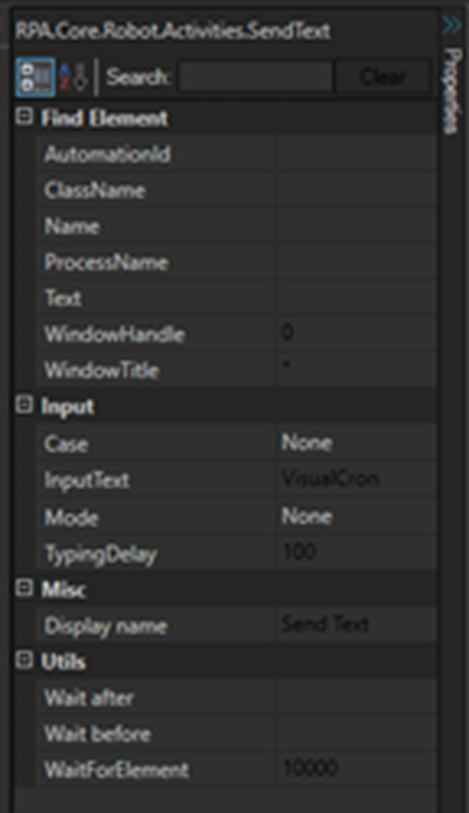
Find Element
| Property | Description |
|---|---|
| AutomationId | The AutomationId property, used to identify elements by id. |
| ClassName | The ClassName property of the AutomationElement. |
| Name | The Name property of the AutomationElement. |
| ProcessName | The owner process name of the element the activity will search in. |
| Text | The text of the element, compared when searching for the element. Supports wildcard patterns. |
| WindowHandle | Gets the window directly from a handle. |
| WindowTitle | The window title to search for. Supports wildcard patterns. |
Input
| Property | Description |
|---|---|
| Case | The case applied to the text being sent: LowerCase, UpperCase, or None. |
| InputText | The text that will be entered. |
| Mode | How existing content in the field is handled. See the table below. |
| TypingDelay | Delay in milliseconds after each character, simulating typing from a keyboard. |
Mode options
| Mode | Behavior |
|---|---|
| Overwrite | Clears all existing text before entering the new text. |
| Append | Moves to the end position before entering text. |
| InsertInFront | Moves to the start position before entering text. |
| None | Does nothing first, just enters the text at the current position. |
Utils
| Property | Description |
|---|---|
| WaitForElement | Timeout in milliseconds to wait for the element to appear. Throws an exception if the timeout elapses and the element has not appeared. |
| Wait before | Wait in milliseconds before the activity executes. By default the playback speed from settings is used. Set a value to override it. |
| Wait after | Wait in milliseconds after the activity executes. By default the playback speed from settings is used. Set a value to override it. |
Tips
- Use Overwrite mode when populating a field that may already contain a value, such as a form being reused across loop iterations. Leaving it as None appends to whatever is already there.
- Set TypingDelay to a non zero value for applications that validate or reformat input as you type. Sending an entire string instantly can cause characters to be dropped.
- Prefer identifying the target with AutomationId where available. It is the most stable identifier and does not change when the window is resized or the layout changes.
- For text fields on a web page, use the Web Macro Populate field activity instead, which targets elements by CSS selector or XPath. See Web Input - Element Path.
- To hide a sensitive value such as a password from the task log, use the Web Macro Populate field activity's Mask value option, or store the value in a VisualCron Credential and reference it as a variable.