Robot Task Activities - Excel Row
The Excel Row category contains activities that select, set, insert, delete, and copy rows.
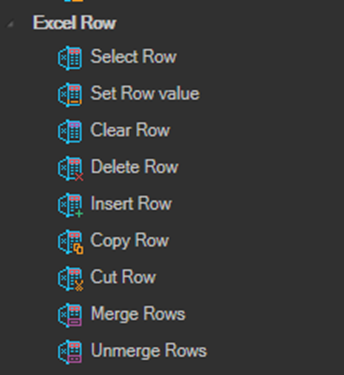
All activities in this category must be nested inside a New Excel or Attach to Excel container activity. See Excel.
Select Row
Selects the specified row.
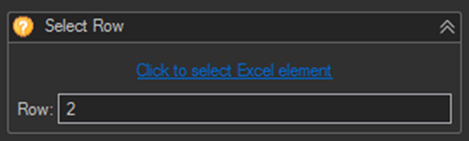
| Setting | Description |
|---|---|
| Row | The range value that represents a cell or a range of cells. Enter a row number to select the entire row. |
Set Row value
Sets a value to the specified row.
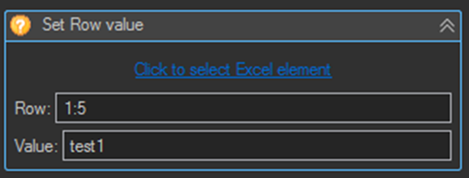
| Setting | Description |
|---|---|
| Row | The range value that represents a cell or a range of cells. Enter a row number to select the entire row. A row index or a range of rows can be specified, for example 2 or 1:5. |
| Value | The value which will be set to the row's cells. |
Clear Row
Clears the specified row. Same properties and interface as Select Row.
Delete Row
Deletes the specified row. Same properties and interface as Select Row.
The difference from Clear Row is that Delete Row removes the row entirely and shifts the rows below it up, whereas Clear Row empties the row and leaves the layout unchanged.
Insert Row
Inserts a row at the specified index. Same properties and interface as Select Row.
Copy Row
Copies the specified row.
| Setting | Description |
|---|---|
| Source | The source row index or range to copy, for example 1 or 1:2. |
| Destination | The destination row index or range the source rows will be copied to, for example 2 or 4:5. |
Cut Row
Cuts the specified row. Same properties and interface as Copy Row.
Merge Rows
Merges the specified rows. Same properties and interface as Copy Row.
Unmerge Rows
Unmerges the specified rows. Same properties and interface as Select Row.
Tips
- Deleting rows inside a loop shifts every subsequent row up, so an index captured before the delete no longer points at the record you expect. Either iterate from the last row upward, or mark rows and delete them in a separate pass.
- Use a range such as
1:5in Set Row value to write the same value across several rows in one activity. - Use Insert Row at index
1to add a header row to a sheet that was built without one. - To write different values to individual cells in a row, use Excel Cell Set Cell value activities. Set Row value applies one value across the row.