Robot Task Activities - Excel Column
The Excel Column category contains activities that select, set, insert, delete, and copy columns.
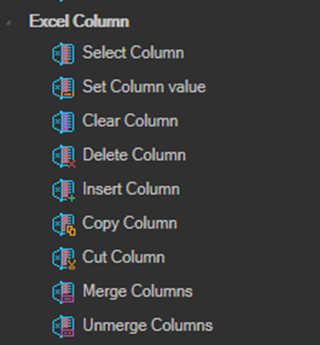
All activities in this category must be nested inside a New Excel or Attach to Excel container activity. See Excel.
Select Column
Selects the specified column.
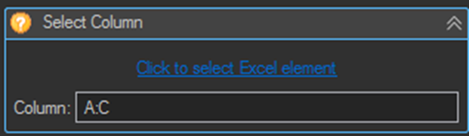
| Setting | Description |
|---|---|
| Column | The column or range of columns to select, for example B or A:C. |
Set Column value
Sets a value to the specified column.
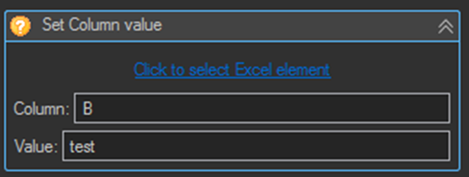
| Setting | Description |
|---|---|
| Column | The column or range of columns to select. |
| Value | The value which will be set to the column's cells. |
Clear Column
Clears the specified column. Same properties and interface as Select Column.
Delete Column
Deletes the specified column. Same properties and interface as Select Column.
The difference from Clear Column is that Delete Column removes the column entirely and shifts the columns to its right left, whereas Clear Column empties the column and leaves the layout unchanged.
Insert Column
Inserts a column at the specified address. Same properties and interface as Select Column.
Copy Column
Copies the specified column.
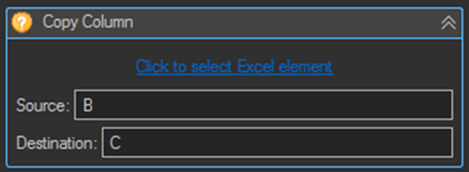
| Setting | Description |
|---|---|
| Source | The source column or range to copy. |
| Destination | The destination column or range the source columns will be copied to. |
Cut Column
Cuts the specified column. Same properties and interface as Copy Column.
Merge Columns
Merges the specified columns. Same properties and interface as Copy Column.
Unmerge Columns
Unmerges the specified columns. Same properties and interface as Select Column.
Tips
- Deleting a column shifts every column to its right, so any address hardcoded elsewhere in the task will then point at the wrong data. Prefer Clear Column unless the column really must be removed.
- Use Insert Column to add a status or notes column to a sheet exported from another system, before writing to it in a loop.
- Use a range such as
A:Cin Set Column value to apply the same value across several columns in one activity. - To append a column to a List Variable rather than to a worksheet, use the Column - Create activity in the List Variable category.