Robot Task Activities - Excel Cell
The Excel Cell category contains activities that read, write, copy, merge, and clear cells.
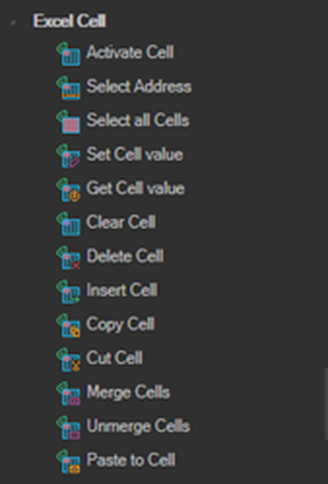
All activities in this category must be nested inside a New Excel or Attach to Excel container activity. See Excel.
Address fields take a range value representing a cell or a range of cells, such as A4 or A1:B1. See the Excel Range reference.
Selecting a cell: click the Click to select Excel element link to pick a cell in Excel and fill the address automatically. Excel must already be running.
Activate Cell
Activates the specified cell.
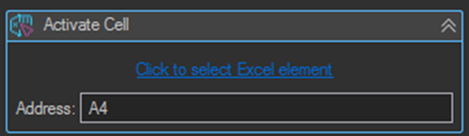
| Setting | Description |
|---|---|
| Address | The range value that represents a cell or a range of cells. |
Select Address
Selects the specified address. Same properties and interface as Activate Cell.
Select all Cells
Selects all cells in the current worksheet.
Set Cell value
Sets a value at the specified address.
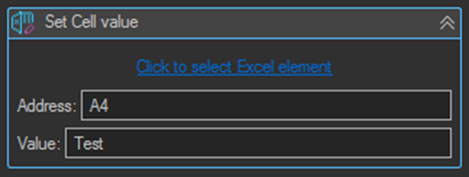
| Setting | Description |
|---|---|
| Address | The range value that represents a cell or a range of cells. |
| Value | The value which will be set to the cell or range of cells. |
Both fields accept variables, so both the target address and the value written can be driven at runtime. This is how a loop writes each record to the next free row.
Get Cell value
Gets the value of the specified cell or range of cells and saves it to a variable.
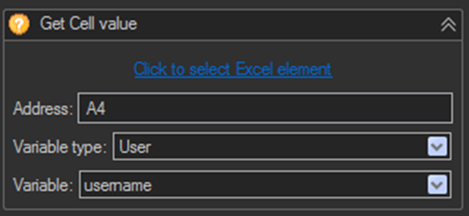
| Setting | Description |
|---|---|
| Address | The range value that represents a cell or a range of cells. |
| Variable type | The type of variable to save to: Job or User. |
| Variable | The name of the variable that receives the value. |
Clear Cell
Clears the specified cell.
Delete Cell
Deletes the specified cell.
The difference from Clear Cell is that Delete Cell removes the cell entirely and shifts the surrounding cells to fill the gap, whereas Clear Cell empties the cell and leaves the layout unchanged.
Insert Cell
Inserts a cell at the specified address.
Copy Cell
Copies the specified cell or range of cells.
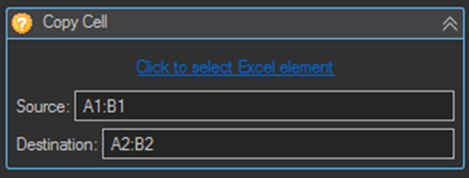
| Setting | Description |
|---|---|
| Source | The source cell address or range of cells to copy. |
| Destination | The destination cell address or range of cells the source will be copied to. |
Cut Cell
Cuts the specified cell. Same properties and interface as Copy Cell.
Merge Cells
Merges the specified cells. Same properties and interface as Copy Cell.
Unmerge Cells
Unmerges the specified cells. Same properties and interface as Activate Cell.
Paste to Cell
Pastes the value from the clipboard to the specified cell. Same properties and interface as Activate Cell.
This activity reads from the Windows clipboard, so it pairs with the Clipboard Set Clipboard activity and with Web Macro activities such as Copy value.
Tips
- Build the Address from a loop iteration variable to write successive rows, for example
A{RPALOOP(a381|Iterations)}. See Loops. - Set the whole header row with individual Set Cell value activities at the start of a task, before the loop begins, so the exception log has column names. See Data Processing & Logging.
- Prefer writing a range in one Set Cell value activity where the value is the same across the range, rather than one activity per cell.
- Get Cell value on a range returns the range's contents as a single value. Read individual cells one at a time when you need separate variables.
- Use Clear Cell rather than Delete Cell when resetting a template. Delete Cell shifts surrounding cells and will break the layout.