Robot Task Activities - Excel Sheet
The Excel Sheet category contains activities that create, select, rename, protect, and reorder worksheets.
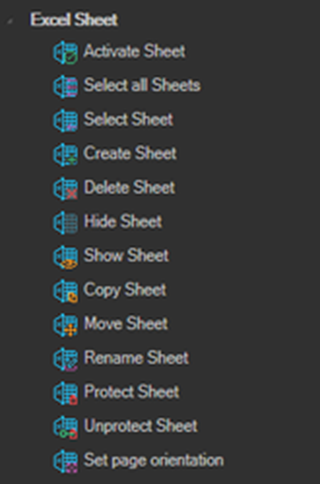
All activities in this category must be nested inside a New Excel or Attach to Excel container activity. See Excel.
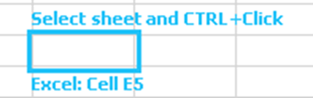
Selecting a sheet: click the Click to select Excel element link, then select the sheet and press CTRL and click with the mouse on any cell in the sheet. The sheet name is filled in automatically. Excel must already be running.
Activate Sheet
Activates the specified sheet.
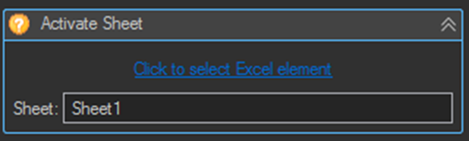
| Setting | Description |
|---|---|
| Sheet | The name of the worksheet in the Excel application. |
Select all Sheets
Selects all sheets in the current workbook.
Select Sheet
Selects the specified sheet. Same properties and interface as Activate Sheet.
Create Sheet
Creates a new sheet. Same properties and interface as Activate Sheet.
Delete Sheet
Deletes the specified sheet. Same properties and interface as Activate Sheet.
Hide Sheet
Hides the specified sheet. Same properties and interface as Activate Sheet.
Show Sheet
Shows the specified sheet. Same properties and interface as Activate Sheet.
Copy Sheet
Copies the specified sheet.
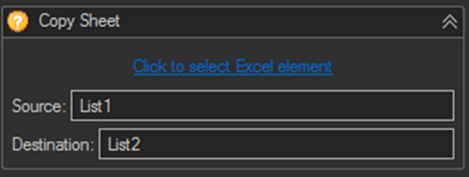
| Setting | Description |
|---|---|
| Source | The name of the source worksheet to copy. |
| Destination | The name of the destination worksheet, which will be created with the source sheet's values. |
Move Sheet
Moves the specified sheet to a new position.
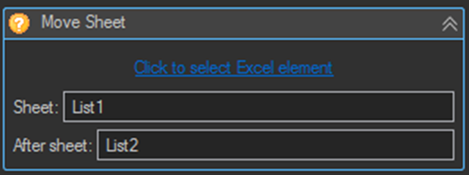
| Setting | Description |
|---|---|
| Sheet | The name of the source worksheet to move. |
| After sheet | The name of the worksheet after which the source will be inserted. |
Rename Sheet
Renames the specified sheet.
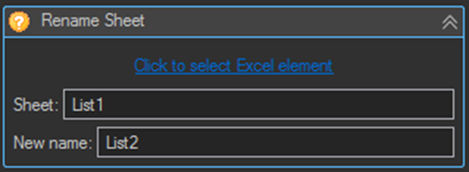
| Setting | Description |
|---|---|
| Sheet | The name of the worksheet to rename. |
| New name | The new name of the worksheet. |
Protect Sheet
Protects the specified sheet with a password.
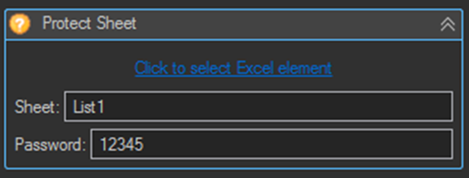
| Setting | Description |
|---|---|
| Sheet | The name of the worksheet to protect. |
| Password | The password the sheet will be protected with. |
Unprotect Sheet
Removes protection from the specified sheet using its password. Same properties and interface as Protect Sheet.
| Setting | Description |
|---|---|
| Sheet | The name of the worksheet to unprotect. |
| Password | The password the sheet will be unprotected with. |
Set page orientation
Sets the page orientation of the specified sheet.
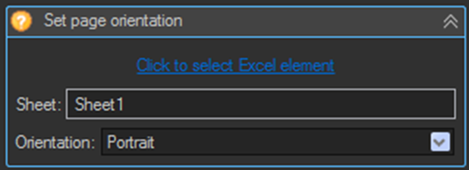
| Setting | Description |
|---|---|
| Sheet | The name of the sheet whose page orientation will be changed. |
| Orientation | The page orientation of the worksheet: Portrait or Landscape. |
Tips
- Add an Activate Sheet activity before a group of Cell, Row, or Column activities. Those activities act on the active sheet, so being explicit avoids writing to whichever sheet happened to be active.
- Use a variable in the New name of a Rename Sheet activity to stamp sheets with a date or a record identifier.
- Unprotect Sheet must run before any activity that writes to a protected sheet, otherwise the write throws an exception.
- Use Copy Sheet to duplicate a formatted template sheet rather than rebuilding headers and formatting with individual Set Cell value activities.