Robot Task Activities - Excel Workbook
The Excel Workbook category contains activities that create, open, save, protect, and inspect Excel workbooks.
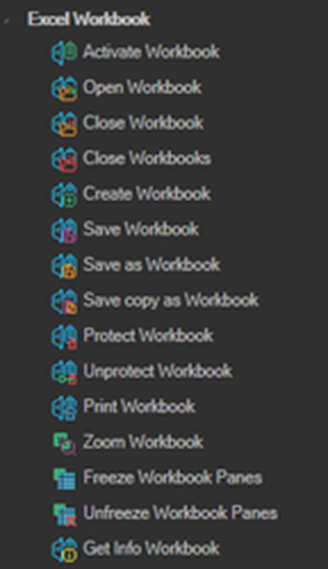
All activities in this category must be nested inside a New Excel or Attach to Excel container activity. See Excel.
Selecting a workbook: on activities that take a workbook name, click the Click to select Excel element link, then select the workbook and press CTRL and click with the mouse. The workbook name is filled in automatically. Excel must already be running.

Activate Workbook
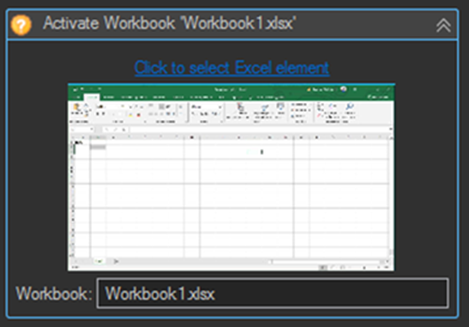
Activates the specified workbook.
| Setting | Description |
|---|---|
| Workbook | The name of the Excel workbook. |
Open Workbook
Opens the specified workbook.
| Setting | Description |
|---|---|
| File name | The full path to the Excel workbook file. |
Close Workbook
Closes the specified workbook. Same properties and interface as Activate Workbook.
Close Workbooks
Closes all workbooks in the Excel application.
Create Workbook
Creates a new workbook.
Save Workbook
Saves the specified workbook. Same properties and interface as Activate Workbook.
Save as Workbook
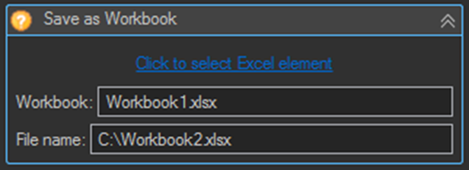
Saves the specified workbook to a new file.
| Setting | Description |
|---|---|
| Workbook | The name of the Excel workbook to save. |
| File name | The full path to save the new Excel workbook file to. |
Save copy as Workbook
Saves a copy of the specified workbook. Same properties and interface as Save as Workbook.
The difference from Save as Workbook is that the open workbook remains associated with its original file, so subsequent saves go to the original path rather than the copy.
Protect Workbook
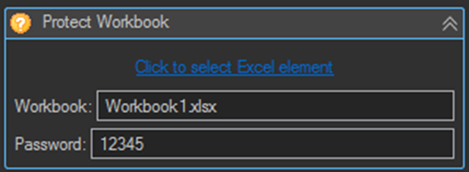
Protects the specified workbook with a password.
| Setting | Description |
|---|---|
| Workbook | The name of the Excel workbook to protect. |
| Password | The password the workbook will be protected with. |
Unprotect Workbook
Removes protection from the specified workbook using its password. Same properties and interface as Protect Workbook.
Print Workbook
Prints the specified workbook. Same properties and interface as Activate Workbook.
Zoom Workbook
Sets the zoom level of the specified workbook.
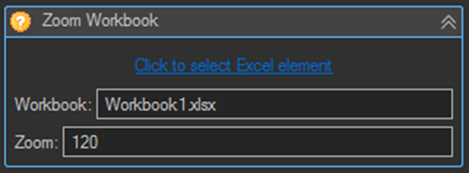
| Setting | Description |
|---|---|
| Workbook | The name of the Excel workbook to zoom. |
| Zoom | The zoom percentage to apply. |
Freeze Workbook Panes
Freezes panes on the specified workbook. Same properties and interface as Activate Workbook.
Unfreeze Workbook Panes
Unfreezes panes on the specified workbook. Same properties and interface as Activate Workbook.
Get Info Workbook
Gets information about the specified workbook and saves it to a User or Job variable.
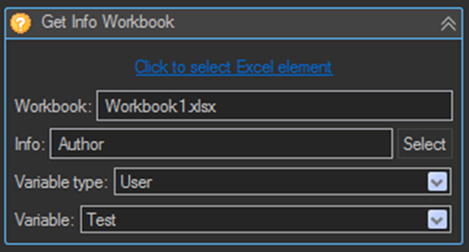
| Setting | Description |
|---|---|
| Workbook | The name of the Excel workbook to read from. |
| Info | The name of the information item to retrieve, for example Author. |
| Variable type | The type of variable to save to: Job or User. |
| Variable | The name of the variable that receives the information. |
Enter a name for the information item directly, or click the Select button to open a window listing the information names that are supported.
Tips
- Use a variable in the File name of a Save as Workbook activity so each run produces a distinct file, for example
C:\Logs\{JOB(Active|Name)}_Exceptions_{DATEFORMAT(yyyy-MM-dd)}.xlsx. - Follow Save as Workbook with Close Workbook and then Quit Excel so the file is released and no Excel process is left behind.
- Disable DisplayAlerts on the parent Excel container before saving to a path that may already exist, otherwise Excel raises an overwrite confirmation dialog that will hang an unattended job.
- Close Workbooks is useful as a cleanup step at the start of a task, to make sure no workbook left open by a previous failed run interferes with the current one.