Robot Task Activities - Other
The Other category contains general purpose structural activities.
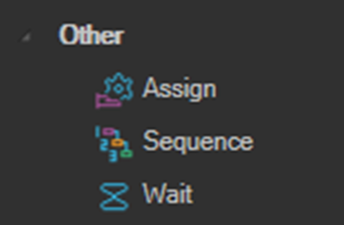
Assign
Sets argument values from within a workflow. Use it to write a value to a workflow variable declared in the Variables pane at the bottom of the Robot designer.
To set a VisualCron Job or User variable instead, use the Set variable activity.
Sequence
Executes a set of child activities according to a single, defined ordering.
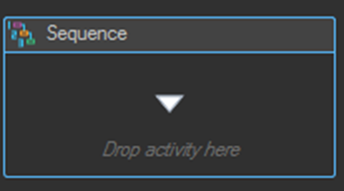
The outermost container of every Robot Task is a Sequence. Additional Sequence activities can be nested inside branches and loop bodies to group related activities together. Several activities require a Sequence as their body, including the Then and Else blocks of an If activity when they hold more than one activity.
Nesting sequences also makes a long task easier to read, because a named Sequence can be collapsed to a single line in the designer.
Wait
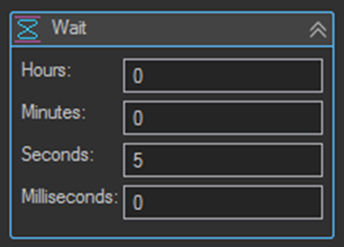
Waits for the specified time before continuing to the next activity.
| Setting | Description |
|---|---|
| Hours | Number of hours to wait. |
| Minutes | Number of minutes to wait. |
| Seconds | Number of seconds to wait. |
| Milliseconds | Number of milliseconds to wait. |
The four values are added together, so 1 minute and 30 seconds is expressed as Minutes 1 and Seconds 30.
Tips
- Prefer a targeted wait over a fixed Wait. Activities such as Wait For File, Wait For Folder, Wait For Text, and the Wait element setting on Web Macro activities continue as soon as the condition is met, instead of always burning the full delay.
- Most activities also expose Wait before and Wait after properties in the Properties pane under Utils. Use these for a short settling delay around a single activity rather than inserting a separate Wait activity.
- Give each nested Sequence a Display name that describes the group of work it contains, for example
Log Exception And Skip Record.